

When a product sells out, every visitor who lands on it is a sale you might still win later, and the Back-in-Stock Waitlist in WooToolbox for WooCommerce lets those shoppers leave their email and get one message when the item returns. This guide covers the setup, what customers see, how restock emails are sent and how to manage the list.
Why back-in-stock emails matter
An out-of-stock page with no next step is a dead end. The shopper leaves, and you have no way to tell them the item is back. A simple "Notify me" form changes that. You capture clear purchase intent for a specific product, and when stock arrives you have a list of people who have already asked to hear about it.
It is also useful information. A product with a long waitlist is a strong signal to reorder sooner or in larger quantities.
What customers see
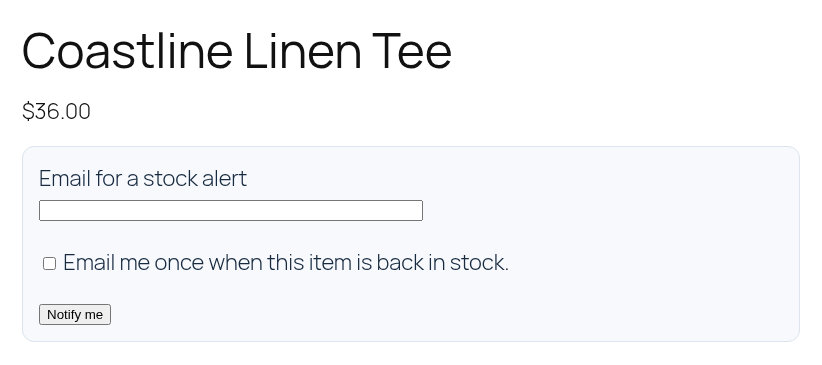
When a simple product, or a selected variation of a variable product, is out of stock, WooToolbox shows a small signup form on the product page with an "Email for a stock alert" field and a button (by default "Notify me"). Logged-in customers have their email pre-filled. For variable products, the form appears when the shopper selects the variation that is out of stock, so they sign up for the exact size or colour they want.
The form also works with block-based product templates, and you can place it elsewhere with the [wootoolbox_waitlist product_id="123"] shortcode.
After signing up, the shopper sees your confirmation message. When the item is back, they receive one email with a link to the product and a link to remove their waitlist entry.
WooToolbox video walkthrough
Step-by-step setup in WooToolbox
- Go to WooToolbox → Back-in-Stock Waitlist.
- Tick Enable back-in-stock waitlist.
- Leave Require consent on if you want an explicit checkbox, and edit the Consent text. The default is "Email me once when this item is back in stock."
- Set the Button text and the Confirmation message shoppers see after signing up.
- Decide whether to Show on backordered items. Leave it off if backordered products can still be bought and you do not want the form there.
- Write the Email subject. The default is "{product_name} is back in stock".
- Edit the email body. Available placeholders are {product_name}, {product_url}, {product_price}, {add_to_cart_url}, {customer_email}, {site_name} and {unsubscribe_url}.
- Set Emails per batch (between 5 and 100) and Days to keep sent or failed entries (between 7 and 365).
- Optionally tick Bcc the store admin to receive a copy of each notification.
- Save, then test with a real product.
How restock emails are sent
When a product or variation’s stock status changes to In stock, WooToolbox moves its waiting signups into a queue and sends them in batches in the background using WordPress scheduled tasks. Before each email, it checks that the product is still in stock and published. If the item sold out again in the meantime, the signup goes back to waiting.
If an email fails, it is retried. After three failed attempts the entry is marked as failed so you can see it in the list. Sent and failed entries are cleaned up after the number of days you chose.
Managing the waitlist
Below the settings you will find the waitlist entries. You can filter by status (waiting, queued, sent or failed), by product, or search by email. You can delete entries and export the current view as a CSV with product ID, email, status, signup date and notified date.
Signups are also connected to WordPress’s privacy tools, so a customer’s waitlist data appears in personal data exports and is removed by erasure requests. WooToolbox adds suggested wording to your privacy policy guide as well.
Practical tips
- Test the full loop. Sign up with your own email, set the product to out of stock, then back to in stock, and confirm the email arrives.
- Set up SMTP. Notifications go through your site’s normal mail setup. A proper SMTP or transactional email service makes delivery far more reliable.
- Write a useful email. Include the product name, a clear link and, if helpful, the price. Keep it short.
- Restock in one go. If you are adding a large delivery, update stock once rather than flipping status back and forth.
- Use the list to plan. Export the waitlist before you reorder to see which variations people actually want.
- Decide your out-of-stock policy first. The form lives on the product page, so the product must stay visible. Our guide to hiding or keeping out-of-stock products helps you choose.
Common mistakes
- Hiding the product or variation. The form needs a published product, and hidden variations cannot show it.
- Relying on a low-traffic site’s scheduler. WordPress scheduled tasks run when the site gets visits. On very quiet sites, set up a real server cron so batches go out promptly.
- Turning on backorder signups without thinking. If backorders are allowed, customers can already buy, so a waitlist form can confuse them.
- Forgetting the spam folder. If test emails do not arrive, check spam and your mail logs before changing settings.
Limits worth knowing
The waitlist supports simple products and the variations of variable products. Each signup gets one notification, by design. Signups are rate limited and include basic spam protection, but the form is still a public form, so keep an eye on unusual entries.
If you would rather not use WooToolbox, the alternatives are a dedicated waitlist plugin or a custom-coded solution. If you want to warn shoppers before items run out, low stock badges are a natural companion.
FAQ
Can customers sign up for a specific variation?
Yes. When a shopper selects an out-of-stock variation, the signup form appears for that variation, and the email is sent when that variation is back in stock.
When is the back-in-stock email sent?
When the product’s stock status changes to In stock, signups are queued and sent in batches in the background. Each email is only sent if the product is still in stock and published at that moment.
Will customers get more than one email?
No. Each signup receives one notification. The email includes a link to remove the waitlist entry.
Can I export the waitlist?
Yes. Filter the waitlist entries in WooToolbox and export them as a CSV file.
Try it on your store
Back-in-stock emails are one of the simplest ways to recover sales you would otherwise lose. Start a 30-day free trial of WooToolbox for WooCommerce and turn your sold-out pages into a waitlist.