


The default WooCommerce "Order received" page does its job, but it is a missed opportunity, and WooToolbox for WooCommerce lets you send customers to a thank-you page of your choice after they buy, either for the whole store or for specific products. This guide covers the setup, how WooToolbox decides where to send each order and what to put on the page.
Why use a custom thank-you page?
Right after purchase, customers are paying close attention. A custom page can use that moment well:
- Onboarding: how to get started with what they bought, download links or setup steps.
- Product-specific instructions: care guides, sizing tips or booking details.
- Next steps: create an account, join a community or follow along on social media.
- Relevant offers: a complementary product or a referral programme, presented gently.
Even a simple, well-written thank-you page with clear delivery expectations reduces "Where is my order?" messages.
How WooToolbox redirects work
When a customer completes checkout, WooCommerce sends them to its order received page. WooToolbox checks the order there and, if a redirect applies, forwards the customer to your page. The order key in the address is verified first, and orders that are cancelled, failed or refunded are not redirected.
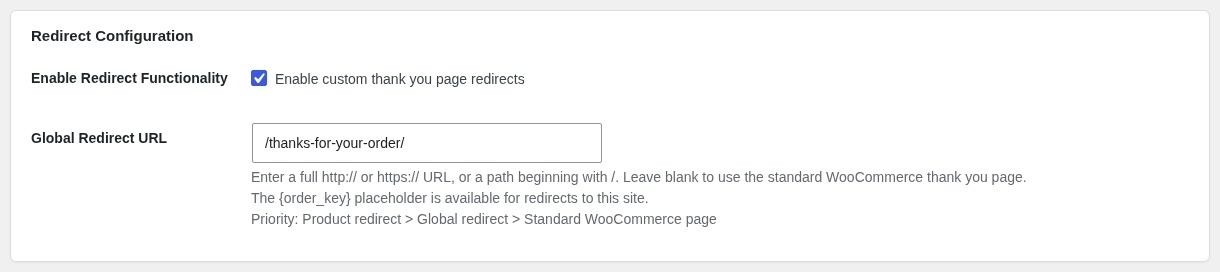
WooToolbox decides the destination in this order:
- Product redirect: if any product in the order has its own Custom Redirect URL, the first one found is used.
- Global redirect: otherwise, the Global Redirect URL is used.
- Standard WooCommerce page: if neither is set, the customer sees the normal order received page.
Step-by-step setup in WooToolbox
Store-wide redirect
- Go to WooToolbox → Redirect Settings.
- Tick Enable Redirect Functionality ("Enable custom thank you page redirects").
- Enter the Global Redirect URL. Use a full http:// or https:// address, or a path beginning with /, such as /thank-you/.
- Click Save Redirect Settings.
Product-specific redirect
- Make sure Enable Redirect Functionality is ticked.
- Edit the product and find the Redirect Settings box.
- Enter a Custom Redirect URL for that product.
- Update the product.
Passing order details to your page
You can include placeholders in the redirect URL:
- {order_id}: the internal order ID.
- {order_number}: the order number customers see.
- {order_key}: the order’s private key, available only for redirects to pages on your own site.
For example: /thank-you/?order={order_number}. Your page can then greet the customer with their order number or pass it to a form. WooToolbox deliberately leaves the order key out when the destination is another website, so private order access stays on your site.
What to put on your custom thank-you page
A good thank-you page usually includes:
- A clear thank-you and confirmation that the order went through.
- When to expect the confirmation email, and what to do if it does not arrive.
- Delivery or access expectations, such as dispatch times or how to download.
- One helpful next step, such as a getting-started guide or account creation.
- Your support contact details.
If you use product-specific redirects, tailor these points to the product. A course might link straight to the first lesson, while a physical product might explain care instructions.
Practical tips
- Build the page before enabling the redirect. Otherwise customers land on a 404.
- Include the essentials. Thank the customer, confirm that an email is on its way, and set delivery expectations.
- Keep offers relevant and light. One useful suggestion beats a wall of upsells.
- Use product redirects for special products. Courses, bookings or digital downloads often need their own instructions.
- Plan for mixed carts. If an order contains several products with redirects, the first one found wins. Make sure each product page works for mixed orders, or use product redirects only where it really matters.
- Follow up later as well. A thank-you page covers the first minute. Automatic post-purchase emails cover the days and weeks after.
Test before you launch
Place a test order for a product with its own redirect, one for a product without, and one mixed order. Confirm each lands on the right page, that placeholders are filled in correctly, and that the normal confirmation email still arrives. Then try a failed payment to confirm the customer sees WooCommerce’s standard page.
Common mistakes
- Breaking conversion tracking. Analytics or ad tracking set up to fire on WooCommerce’s default order received page may not run if customers are redirected straight away. Check your tracking setup and add tracking to your custom page if needed.
- Losing order details. The default page shows the order summary. If customers need it, link to their account or include the order number placeholder.
- Redirecting to a slow or generic page. A thank-you page that looks like any other page feels like an error.
- Forgetting the enable box. Product URLs and the global URL do nothing until Enable Redirect Functionality is on.
Limits worth knowing
Redirects happen from WooCommerce’s order received page, so they rely on the normal checkout flow reaching that page. Payment methods that finish on an external site and return customers to WooCommerce afterwards still work this way, but test each gateway you use. Cancelled, failed and refunded orders always see the standard page.
The manual alternative is custom code that hooks into the order received page, which works but needs maintenance whenever your checkout changes. If you want to capture more information before purchase rather than after, see editing checkout fields in WooCommerce.
FAQ
How do I redirect customers after purchase in WooCommerce?
In WooToolbox, open Redirect Settings, tick Enable Redirect Functionality, enter a Global Redirect URL and save. Customers are sent there after checkout.
Can different products have different thank-you pages?
Yes. Set a Custom Redirect URL in the Redirect Settings box on each product. Product redirects take priority over the global redirect.
Can I show the order number on my custom thank-you page?
Yes. Add {order_number} to the redirect URL and read it on your page, for example with a form or page builder that supports URL parameters.
Will failed or cancelled orders be redirected?
No. Orders that are cancelled, failed or refunded stay on the standard WooCommerce page.
Try it on your store
A thoughtful thank-you page is a simple way to start the customer relationship well. Start a 30-day free trial of WooToolbox for WooCommerce and set up your first custom thank-you redirect.