

The weeks after a purchase are when customers decide whether they are happy, whether they will come back and whether they will recommend you. WooToolbox for WooCommerce lets you send automated follow-up emails per product, timed in hours or days after the order is marked Completed. This guide explains how the sequences work, how to set one up and how to write emails customers welcome.
Why post-purchase emails matter
WooCommerce’s built-in emails confirm the order and tell the customer when it is complete. After that, nothing. A short, well-timed sequence fills that gap:
- Getting started: how to use, assemble or care for the product.
- Check-in: is everything OK, and who to contact if not.
- Review request: once they have had time to use it.
- Replenishment or next step: for consumables, a reminder when they are likely to run low.
These emails are useful to customers when they are specific to what they bought, which is why WooToolbox sets sequences per product.
How WooToolbox email sequences work
- A sequence is a list of emails attached to a product. Each email has its own delay.
- The sequence starts when the order status changes to Completed. It does not start at Processing, so make sure your store actually completes orders, manually or through your fulfilment process.
- Delays are measured from that moment, in Hours or Days.
- If an order contains several products with sequences, each product’s sequence runs on its own.
- Emails go to the order’s billing email and are sent through your site’s normal mail setup.
- With WooCommerce Subscriptions, sequences start from the first subscription order and are skipped for renewals.
Step-by-step setup in WooToolbox
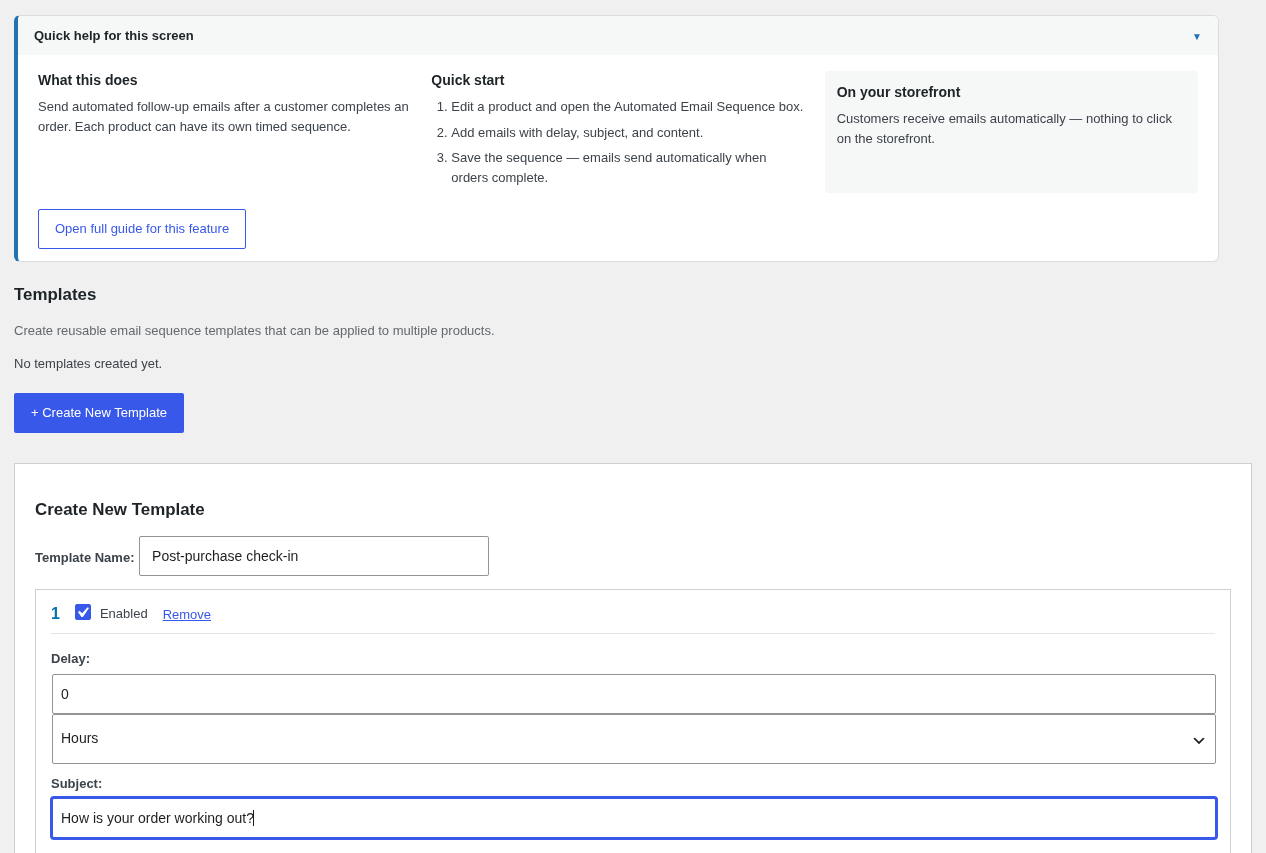
1. Optional: create a reusable template
- Go to WooToolbox → Automated Email Sequences.
- Click + Create New Template, give it a Template Name, then use + Add Email to build the emails.
- Click Save Template.
Templates are useful when many products share the same follow-ups.
2. Set the sequence on a product
- Edit the product and find the Automated Email Sequence box.
- To start from a template, choose it under Load Template and click Load.
- For each email, make sure Enabled is ticked, set the Delay and its unit (Hours or Days), and write the Subject and Content. Content can include HTML.
- Click Send Test Email to send a copy to the site admin email.
- Click + Add Email for more emails, then Save Sequence.
Placeholders
You can personalise subjects and content with placeholders including {customer_name}, {customer_full_name}, {order_number}, {invoice_number}, {order_date}, {order_total}, {product_name}, {product_url}, {site_name}, {my_account_url} and more. The full list is shown under Available Placeholders in the sequence box.
WooToolbox video walkthrough
A simple sequence to start with
For a physical product:
- 1 day after completion: "How to get the best from your {product_name}", with care or setup tips.
- 7 days: a friendly check-in with your support contact.
- 14 days: a review request linking to {product_url}.
For a consumable, add a replenishment reminder timed to when a typical customer would run out.
Timing your emails
Delays start when the order is marked Completed, so think about what Completed means in your store. If you mark orders complete when they are shipped, a 1-day delay arrives while the parcel is still on its way, which suits a "what to expect" email but not a review request. If you mark orders complete on delivery, you can be more direct.
A delay of 0 hours sends the email shortly after completion, as soon as WordPress’s scheduler runs.
Practical tips
- Set up SMTP first. WooToolbox shows a warning on the sequences page for good reason. Without a proper mail service, emails may land in spam or not arrive.
- Keep each email to one purpose. One tip, one question or one request.
- Write like a person. Plain, short emails often feel more personal than heavily designed ones.
- Add a footer. Include your store name, contact details and a line telling customers how to opt out of follow-ups.
- Watch the total volume. A customer who buys three products with sequences receives all three sequences. Keep sequences short so this does not overwhelm them.
- Use a thank-you page for the first moment. A custom thank-you page after purchase covers the minute after checkout, emails cover the weeks after.
Common mistakes
- Never marking orders Completed. If orders stay at Processing, sequences never start.
- Delays that are too short. Asking for a review before the parcel arrives does more harm than good.
- Promotional emails disguised as follow-ups. Check your local email marketing rules before sending promotional content to customers.
- Relying on WordPress scheduling on a quiet site. Scheduled emails run when the site receives visits. On low-traffic sites, set up a real server cron so emails go out on time.
Limits worth knowing
Sequences are set per product, not by category or across the whole store, although templates make repeated setup quick. Emails that are already scheduled are not cancelled automatically if an order is later refunded, so keep content suitable for every customer. There are no built-in open or click statistics. For one-off messages to many customers, WooToolbox’s separate Bulk Email tool is the better fit. For restock announcements, use a back-in-stock waitlist instead.
FAQ
When do WooToolbox post-purchase emails start?
When the order status changes to Completed. Each email is then sent after its own delay, in hours or days.
Can I send different follow-up emails for different products?
Yes. Sequences are set per product, and reusable templates help when several products share the same emails.
Can I test a follow-up email before it goes live?
Yes. Use Send Test Email in the product’s sequence box to send a copy to the site admin email address.
Do sequences run on subscription renewals?
No. With WooCommerce Subscriptions, sequences start from the first subscription order and skip renewals.
Try it on your store
A short, helpful follow-up sequence makes customers feel looked after long after checkout. Start a 30-day free trial of WooToolbox for WooCommerce and set up your first post-purchase sequence.