


Every WooCommerce store eventually faces the same question: when a product sells out, should it disappear or stay on the shelf? With WooToolbox for WooCommerce you can keep sold-out products useful by adding a back-in-stock waitlist, but the right answer still depends on the product. This guide gives you a simple way to decide, then shows how to set up the pages you keep.
The two options in WooCommerce
WooCommerce gives you one store-wide switch. Under WooCommerce → Settings → Products → Inventory, the Out of stock visibility option lets you hide out-of-stock items from the catalog. When it is on, sold-out products drop out of your shop, category and search listings.
When it is off, sold-out products stay in listings with an out-of-stock label, and their product pages remain fully visible.
Neither option is right for every store. The useful question is not "hide or keep?" but "what should a visitor who lands on this product do next?"
When to keep out-of-stock products visible
Keep a product visible when it is coming back. Typical cases:
- Temporary stock-outs of products you will reorder.
- Popular items that already rank in search or get links and shares. Removing them throws away visits you have earned.
- Seasonal or limited runs where customers expect a restock.
- Variable products where only some sizes or colours are sold out. The product is still buyable, so it should stay put.
In these cases the page should offer a clear next step: join a waitlist, choose another variation, or look at similar products.
When to hide them or retire them
Hiding makes more sense when the product is not coming back soon, or when sold-out items clutter your listings:
- Discontinued products with a clear replacement. Here, it is usually better to point the old page to the replacement than to leave a dead end.
- One-off or unique items, such as vintage or handmade pieces that will never be restocked.
- Large catalogues where many sold-out items make category pages frustrating to browse.
Sitetrail’s SEO course covers the search side of this in detail in handling out-of-stock and retired products usefully.
A simple decision checklist
Ask these four questions for each product or category:
- Will it be back? If yes, keep it visible with a waitlist.
- Does the page bring in visitors? If it ranks or gets traffic, keep it, even if the restock is some way off.
- Is there a direct replacement? If yes and the original is gone for good, send visitors to the replacement.
- Does it clutter listings? If sold-out items crowd your categories, consider hiding them from the catalog while keeping key pages live.
Because WooCommerce’s visibility switch is store-wide, many stores keep it off and manage individual retired products by hand.
Setting up a waitlist on sold-out pages
A visible sold-out page is only valuable if it captures interest. WooToolbox’s Back-in-Stock Waitlist adds a signup form to out-of-stock products so shoppers can get one email when the item returns.
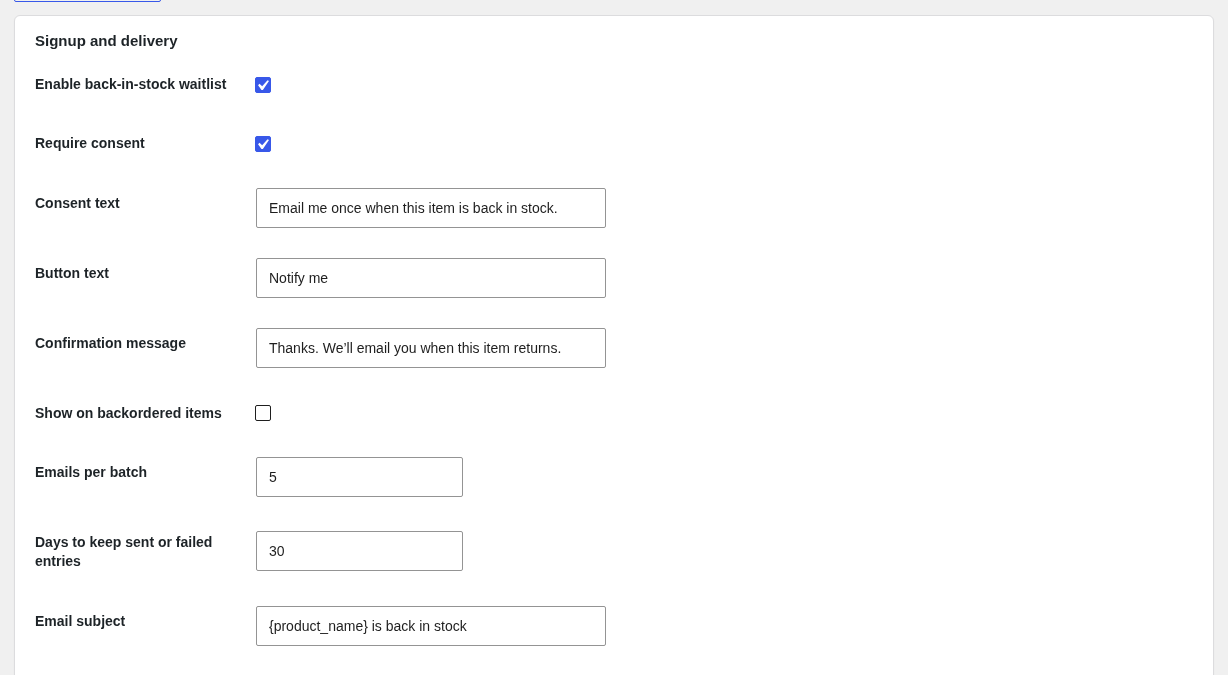
- Go to WooToolbox → Back-in-Stock Waitlist and tick Enable back-in-stock waitlist.
- Set the Button text, Confirmation message and, if you want an explicit opt-in, keep Require consent on with clear Consent text.
- Write the Email subject and body using placeholders such as {product_name} and {product_url}.
- If you allow backorders and still want signups on those items, tick Show on backordered items.
- Save, then visit a sold-out product to check the form.
The form appears on out-of-stock simple products and on out-of-stock variations once selected. When the stock status changes back to In stock, WooToolbox queues the emails and sends them in batches. For a deeper walkthrough of the form, emails and list management, see our guide to back-in-stock notifications in WooCommerce.
Use the waitlist as demand data
The waitlist entries list shows waiting, queued, sent and failed signups, and you can filter by product and export a CSV. Before you reorder, check which products and variations have the most people waiting. It is a practical, first-party signal of demand that is easy to overlook.
Warn shoppers before items run out
You can also reduce the sting of a stock-out by signalling it early. WooToolbox’s Product Badges include a Low stock badge that appears when a stock-managed product reaches WooCommerce’s low stock threshold. It sets expectations and can prompt shoppers who are on the fence. See adding sale, new and low-stock badges for the setup.
Practical tips
- Write a helpful out-of-stock page. Keep the description, images and reviews. Add a line about expected restock timing if you know it.
- Show alternatives. Use WooCommerce’s related products or cross-links to similar items.
- Do not leave stock status stale. If a product is discontinued, say so rather than letting it sit as "out of stock" forever.
- Review monthly. Look at sold-out products with no waitlist interest and decide whether to retire them.
Common mistakes
- Hiding everything by default. Turning on the hide option can remove pages that are bringing in visitors and that you intend to restock.
- Keeping dead products with no next step. A visible page with no waitlist, no alternatives and no explanation frustrates visitors.
- Hiding variations you want signups for. Hidden variations cannot show the waitlist form.
- Forgetting email delivery. Waitlist emails go through your site’s mail setup, so configure SMTP before you rely on them.
Limits worth knowing
WooToolbox does not change WooCommerce’s catalog visibility rules or redirect retired products for you. It focuses on making visible sold-out pages useful through the waitlist and low stock badges. Redirects for retired products are best handled with your SEO or redirect tool.
FAQ
Is it bad for SEO to keep out-of-stock products in WooCommerce?
Not if the product is coming back and the page stays useful. A visible page that explains the situation and offers a waitlist or alternatives is usually better than removing a page that already attracts visitors.
How do I hide out-of-stock products in WooCommerce?
Go to WooCommerce → Settings → Products → Inventory and turn on the option to hide out-of-stock items from the catalog. It applies to the whole store.
Can shoppers join a waitlist if I hide out-of-stock products?
The waitlist form sits on the product page and needs the product to be published, so it only helps on pages shoppers can still reach. If you hide sold-out items from listings, fewer people will find the form.
What should I do with discontinued products?
If there is a close replacement, point visitors to it. If there is not, keep a clear page explaining the product is discontinued, or retire it with a redirect to the most relevant category.
Try it on your store
If you decide to keep sold-out products visible, give every one of them a next step. Start a 30-day free trial of WooToolbox for WooCommerce and add a waitlist to your out-of-stock pages.