

If some of your products are fulfilled by a supplier, printer, warehouse or local partner, copying order details into an email by hand is slow and error-prone, and WooToolbox for WooCommerce can send those details to the right partner automatically when an order is ready. This guide covers how the partner notification emails work, how to set them up and what they do not do.
Why automate supplier emails?
Manual forwarding works when you get a few orders a week. As volume grows, it causes problems: orders forwarded late, addresses mistyped, items sent to the wrong supplier, or the same order sent twice. An automatic email removes the copy-and-paste step and sends the same clear format every time.
What WooToolbox sends
WooToolbox’s Supplier & Dropship Fulfillment module sends partner notification emails. When an order reaches a status you choose:
- Line items are grouped by partner email address.
- Each partner receives one email per order containing only their items.
- The email includes the order number and date, the customer’s shipping name, company and address, phone number, optionally the customer’s email, any delivery instructions from checkout, and for each item the product, quantity, variation, Supplier SKU / reference and Fulfillment notes.
- Prices are not included, so partners see what to fulfil, not your margins.
- Emails are sent as plain text with a reply-to address you choose.
Duplicate protection is built in: each partner is emailed at most once per order, even if the order status changes again later. Every successful or failed send is recorded as an order note.
Step-by-step setup in WooToolbox
1. Configure the module
- Go to WooToolbox → Supplier & Dropship.
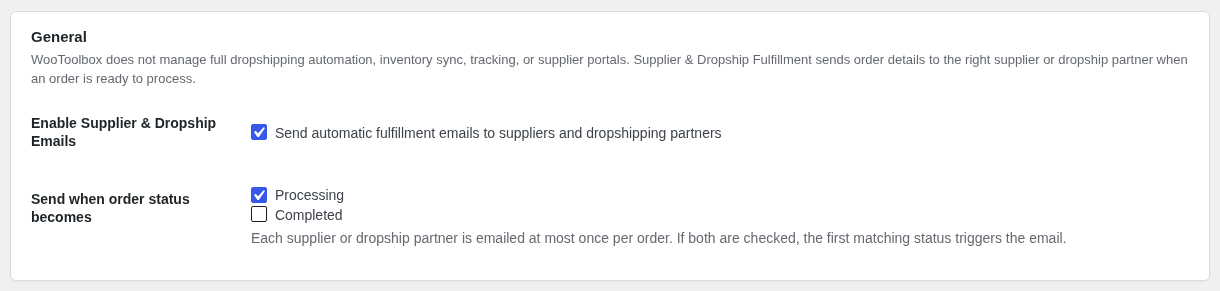
- Tick Enable Supplier & Dropship Emails.
- Under Send when order status becomes, choose Processing, Completed or both. If both are ticked, the first matching status triggers the email.
- Set the Email subject template. Placeholders are {order_number}, {order_date} and {store_name}.
- Add optional Email intro text, for example "Please dispatch within 2 working days."
- Set the Reply-to email. It defaults to the store admin email.
- Decide whether to Include customer billing email in partner emails.
- Optionally tick Store admin copy to receive a copy of every partner email.
- Click Save Supplier & Dropship Settings.
2. Assign partners to products
- Edit a product and find the Supplier & Dropship Fulfillment box.
- Tick Enable supplier / dropship fulfillment for this product.
- Enter the Supplier / partner name and Supplier / dropship partner email.
- Add the Supplier SKU / reference your partner uses, and any Fulfillment notes.
- Update the product.
For variable products, the partner is set on the parent product and applies to all its variations. The email shows which variation was ordered.
WooToolbox video walkthrough
What the partner receives
The email is organised into clear sections: an order reference, the customer’s shipping details, any delivery instructions, the products to fulfil and your store contact details. Partners do not need a login or any special software. They can read it on their phone and reply to your chosen reply-to address with questions or tracking details.
Choosing the trigger status
- Processing is the usual choice. For most payment methods, an order moves to Processing once payment is received, so partners get the order as soon as it is paid.
- Completed suits stores that review orders before releasing them, then mark them complete.
Orders waiting for payment, such as bank transfers on hold, do not trigger emails until they reach your chosen status.
Testing the setup
Before going live, assign your own email address as the partner on a test product, place an order and move it to your trigger status. Check the email layout, then change the order status again to confirm no second email is sent. The order notes will show each send, so you can confirm what happened at a glance.
Practical tips
- Agree the format with your partner. Send a test order and ask whether anything is missing.
- Use the supplier’s own references. Their SKU in Supplier SKU / reference avoids picking mistakes.
- Collect delivery instructions at checkout. On the classic checkout, WooToolbox can add a delivery instructions field, and its contents go straight into partner emails. See editing WooCommerce checkout fields.
- Use readable order numbers. Partners will quote the order number back to you. Sequential order numbers with your own prefix make that easier.
- Keep a copy. Store admin copy gives you a record of exactly what each partner received.
- Set up SMTP. Partner emails use your site’s normal mail, so a reliable mail service matters.
Common mistakes
- Forgetting to enable the product. A partner email address alone does nothing until the product’s fulfilment box is ticked.
- Mixing up addresses. Line items are grouped by email address, so two spellings of the same supplier’s address produce two emails.
- Expecting emails for unpaid orders. Only your chosen statuses trigger sends.
- Sharing customer emails without need. Untick Include customer billing email if your partner does not need it, and cover partner sharing in your privacy policy.
Limits worth knowing
This is a partner notification tool, not a dropshipping platform. WooToolbox does not sync inventory, import supplier products, pull tracking numbers back into WooCommerce or provide a supplier portal. Partners reply to you by email, and you update the order yourself. If you need full supplier automation, a dedicated dropshipping service is the alternative. For many stores working with a handful of partners, a clean automatic email is all they need.
FAQ
How do I send WooCommerce orders to my supplier automatically?
Enable Supplier & Dropship Emails in WooToolbox, choose the trigger status, then assign a partner name and email to each relevant product. Orders reaching that status are emailed to the right partner.
Will my supplier get the same order twice?
No. Each partner is emailed at most once per order, and sends are logged as order notes.
What if one order has products from two suppliers?
Each supplier receives one email containing only their items.
Does the supplier email include prices?
No. It includes shipping details, products, quantities, variations, supplier references and notes, but not prices.
Try it on your store
If you forward orders to partners by hand, this is an easy task to hand over. Start a 30-day free trial of WooToolbox for WooCommerce and set up your first supplier.