

Customers, especially business buyers, regularly ask for an invoice after they order, and WooToolbox for WooCommerce lets them get one themselves from their account. The invoice opens as a clean, printable HTML page that customers can save as a PDF using their browser’s print option, or have emailed to them. This guide covers setup, what customers see and the limits to be aware of.
Why self-service invoices matter
Out of the box, WooCommerce sends order emails but gives customers no simple invoice document. That usually means support emails like "Can you send me an invoice for order 1234 with our company name on it?" Each one is quick, but they add up, and they arrive at the worst times, such as month end.
Letting customers download their own invoice removes that back and forth. Business customers can add their company name and tax ID once and have them appear on every invoice.
How WooToolbox invoices work
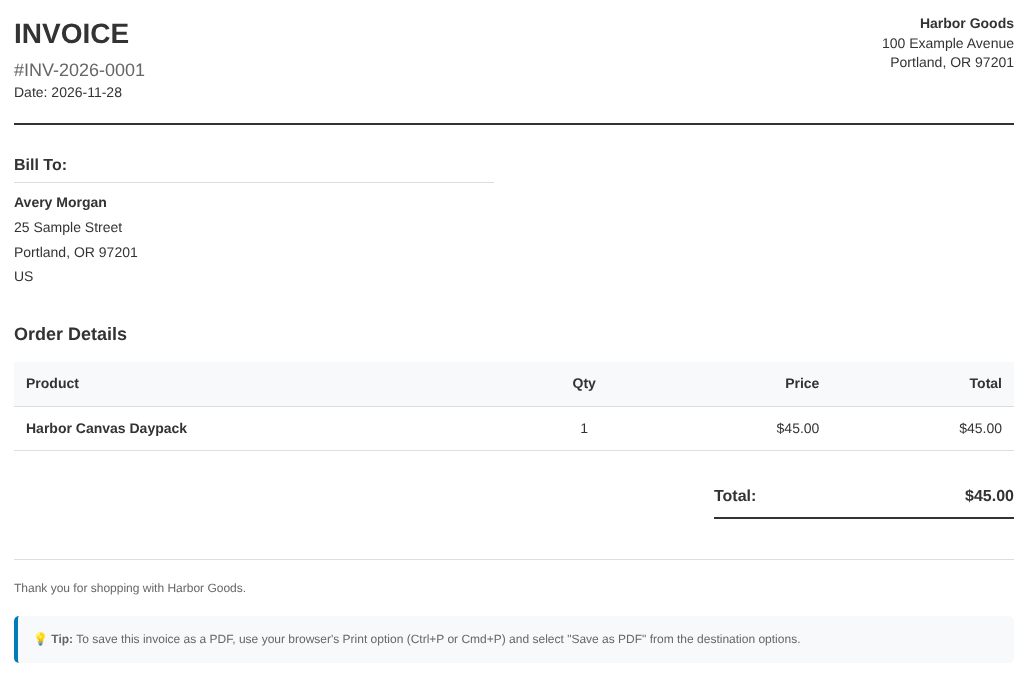
- The invoice is an HTML page generated from the order, with your company details, the customer’s details, line items, tax and shipping where they apply.
- Customers open it from My Account → Orders → View order, where an Invoice Options section shows two buttons: Download Invoice (HTML) and Email Invoice.
- On the invoice page, a short tip explains how to save it as a PDF: use the browser’s Print option (Ctrl+P or Cmd+P) and choose "Save as PDF". The tip is hidden when printing.
- Email Invoice sends the invoice to the order’s billing email address.
WooToolbox does not generate PDF files itself. The PDF is created by the customer’s browser through its print dialog, an option most modern desktop and mobile browsers offer.
Step-by-step setup in WooToolbox
- Go to WooToolbox → Invoice Settings.
- Tick Enable Invoice Functionality ("Enable invoice download and email features").
- Fill in Your Company Details (Issuer). All fields are optional: – Company Name – Address – Tax ID – Logo URL (copy the URL of your logo from the Media Library) – Header Text and Footer Text, for example payment terms, bank details or a thank-you note.
- Under Customer Field Labels, set the Company Name Label and Tax ID Label. For example, change "Tax ID" to "VAT number" if that suits your market.
- Click Save Invoice Settings.
- Place a test order with a customer account and open it from My Account to check the invoice.
What the invoice includes
Each invoice is built from the order itself, so there is nothing to fill in by hand. It shows:
- Your logo, company name, address and tax ID, plus any header text.
- The invoice number and order date.
- A Bill To section with the customer’s billing name and address, and their company name and tax ID if they have saved them.
- An order details table with each product, quantity, unit price and line total.
- The subtotal, discount, shipping and tax where they apply, and the order total.
- Your footer text.
Because the invoice is generated from the live order, it always matches what the customer actually paid.
WooToolbox video walkthrough
Customer company details
When invoices are enabled, customers see an Invoice Company Details section on their Account details page with a company name field and a tax ID field, using the labels you chose. Both are optional. Whatever they save appears on their invoices.
Invoice numbers
By default, the invoice shows the WooCommerce order number. If you want a separate invoice sequence, such as INV-0017, with your own prefix, WooToolbox’s numbering module can issue invoice numbers when orders reach the statuses you choose. Our guide to setting up sequential invoice numbers in WooCommerce explains the options.
Practical tips
- Use a properly sized logo. A wide, simple logo on a white or transparent background prints best.
- Put payment and contact details in the footer. It saves customers searching for them.
- Check the printout. Open a test invoice, use Print Preview and check page breaks and margins on A4 and Letter.
- Tell customers where to find it. Mention "download your invoice from My Account" in your order emails or FAQ.
- Collect company details at checkout too. If business buyers need a company name on invoices, make sure the company field is visible on checkout. See our guide to editing checkout fields in WooCommerce.
Common mistakes
- Expecting guest orders to show invoice buttons. The buttons only appear for logged-in customers viewing their own orders. Guest checkouts without an account do not get them.
- Leaving issuer details blank. The fields are optional, but an invoice without your company name and address is not much use to a business customer.
- Calling it a PDF invoice in your store copy. Tell customers they can download a printable invoice and save it as PDF. That is accurate and avoids confusion.
- Skipping email setup. Email Invoice uses your site’s normal mail. Configure SMTP for reliable delivery.
Limits worth knowing
- WooToolbox invoices are HTML documents saved to PDF by the customer’s browser, not native PDF files attached to emails.
- Invoice buttons are customer-facing and appear in My Account for registered customers.
- Invoice requirements differ by country. WooToolbox gives you the issuer details, customer tax ID and numbering options, but you should check your local rules, or ask your accountant, before relying on these invoices for tax purposes.
If you need automatic PDF attachments on order emails, a dedicated PDF invoice plugin is the alternative.
FAQ
Can WooCommerce customers download an invoice themselves?
Yes, with WooToolbox. Logged-in customers open the order in My Account and click Download Invoice (HTML), or Email Invoice to have it sent to their billing email.
How do customers get a PDF invoice?
They open the invoice and use the browser’s Print option, choosing "Save as PDF" as the destination. The invoice page includes this tip for them.
Can business customers add a VAT or tax number?
Yes. Customers can add a company name and tax ID on their Account details page, and you can rename the field label, for example to "VAT number".
Do guest customers get an invoice button?
No. The invoice buttons appear only for logged-in customers viewing their own orders.
Try it on your store
Self-service invoices are one of those small features customers notice. Start a 30-day free trial of WooToolbox for WooCommerce and let your customers download their own invoices.