

"Add to cart" is clear, but it is not always the best fit for what you sell, and WooToolbox for WooCommerce lets you change the button text on product pages and shop grids separately, without editing theme files or adding code snippets. This guide covers the setup, wording ideas and the cases where WooCommerce keeps its own labels.
Why change the button text?
The button is the most important call to action on a product page. Wording that matches your offer can make the next step clearer:
- "Book now" for experiences, classes or appointments sold as products.
- "Buy now" for single-item purchases where customers rarely add more.
- "Order today" or "Pre-order" for made-to-order or upcoming products.
- "Add to basket" for UK and other markets where "basket" is the familiar term.
It is a small change, but it helps the button say exactly what happens next.
How it works in WooToolbox
WooToolbox has two separate fields:
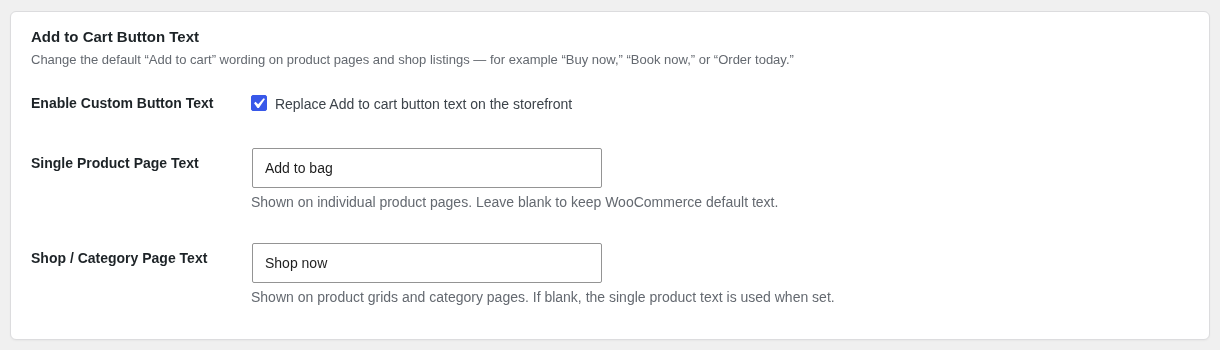
- Single Product Page Text: the button on individual product pages.
- Shop / Category Page Text: the button in product grids, such as the shop page and category pages. If you leave it blank, the single product text is used there too.
WooToolbox only changes the button for products that can be bought and are in stock. Out-of-stock and unpurchasable products keep WooCommerce’s own labels, such as "Read more", so you never promise something customers cannot do.
Step-by-step setup in WooToolbox
- Go to WooToolbox → Storefront Settings.
- In Add to Cart Button Text, tick Enable Custom Button Text ("Replace Add to cart button text on the storefront").
- Enter your Single Product Page Text, for example "Buy now".
- Enter your Shop / Category Page Text, or leave it blank to reuse the single product text.
- Click Save Storefront Settings.
- Check a simple product, a variable product and your shop page.
Add reassurance under the button
The same settings page has a related feature: Trust & Reassurance Under Add to Cart. Tick Enable Trust Lines and add Reassurance Lines, one per line, such as:
- Secure checkout
- Dispatched within 24 hours
- 30-day returns
Each line appears as a bullet under the Add to Cart button on product pages. Keep them short, true and specific to your store.
Choosing good button wording
- Be literal. The button should describe the action. "Buy now" that just adds the item to the cart can feel misleading if the customer then lands on the cart page.
- Keep it short. Two or three words fit on mobile without wrapping.
- Match your checkout flow. If the button adds to a cart and customers keep shopping, "Add to basket" or "Add to bag" fits. If most orders are single items, "Buy now" can work.
- Consider grid buttons separately. On variable products, the grid button leads to the product page so the shopper can choose options. Pick shop page wording that still makes sense for those products, or keep it neutral.
- Stay consistent. Use the same term in buttons, cart pages and emails.
Wording ideas by store type
- Fashion and accessories: "Add to bag".
- Food and drink: "Add to basket" or "Add to order".
- Events, classes and services: "Book now" or "Reserve a place".
- Pre-orders and made-to-order: "Pre-order now" or "Order yours".
- Trade or wholesale: "Add to order", alongside quote buttons for restricted items.
Testing your new wording
Treat button text like any other conversion change. Pick one alternative, run it for a few weeks and compare add-to-cart and order numbers in WooCommerce’s analytics against a similar period before. Change one thing at a time. If you change the button text, the trust lines and the product photos in the same week, you will not know which one made the difference.
Also check the wording on mobile, where buttons are often narrower, and in any language versions of your store.
How this fits with other WooToolbox features
- Catalog Mode hides Add to Cart entirely for chosen shoppers or products and can show a quote button instead. That button uses its own Quote button text. See hiding prices or Add to Cart for guests or certain roles.
- Product badges can sit alongside the button to highlight offers or low stock. See adding Sale, New and Low stock badges.
Common mistakes
- Forgetting the enable box. The text fields do nothing until Enable Custom Button Text is ticked.
- Wording that overpromises. "Get it today" on a product that ships next week will cause complaints.
- Long labels. They wrap or get cut off in narrow grid columns.
- Expecting the change on sold-out items. Out-of-stock and unpurchasable products keep WooCommerce’s labels by design.
Limits worth knowing
The setting applies one wording store-wide for each location. It does not set different text per category or per product. WooToolbox changes the text through WooCommerce’s standard button text filters, which most themes and WooCommerce’s product blocks use. A theme or page builder that hard-codes its own button label may ignore it, so check your product templates after saving.
The manual alternative is a code snippet using the same WooCommerce filters, added to a child theme or a snippets plugin.
FAQ
How do I change "Add to cart" to "Buy now" in WooCommerce?
In WooToolbox, open Storefront Settings, tick Enable Custom Button Text, enter "Buy now" in Single Product Page Text and save. Leave the shop page field blank to use the same text in grids.
Can I use different text on the shop page and product page?
Yes. Use Shop / Category Page Text for grids and Single Product Page Text for product pages.
Why didn’t the button text change on some products?
WooToolbox only changes the text on products that are purchasable and in stock. Also check whether your theme or page builder sets its own button label.
Can I add text under the Add to Cart button?
Yes. Enable Trust Lines in Storefront Settings and add one reassurance message per line.
Try it on your store
The right button wording takes a minute to set and is easy to test. Start a 30-day free trial of WooToolbox for WooCommerce and try a new call to action on your product pages.