

Wholesale stores, trade suppliers and members-only shops often need to show products without letting everyone buy them, and the Catalog Mode in WooToolbox for WooCommerce lets you hide prices, Add to Cart or both for guests, chosen user roles, or specific categories and products. This guide explains the rules, how to set them up and what to watch for. It pairs with our guide to adding a Request a Quote button, which takes over where Add to Cart is hidden.
Why hide prices or Add to Cart?
Common reasons include:
- Trade or wholesale pricing that should only be visible to approved accounts.
- Members-only buying, where anyone can browse but only logged-in customers can order.
- Made-to-order or high-value items that are always priced on request.
- A catalogue site that shows products but takes orders another way.
The goal is the same in each case: keep products discoverable while controlling who sees prices and who can buy.
Which conditions WooToolbox supports
Catalog Mode combines three things:
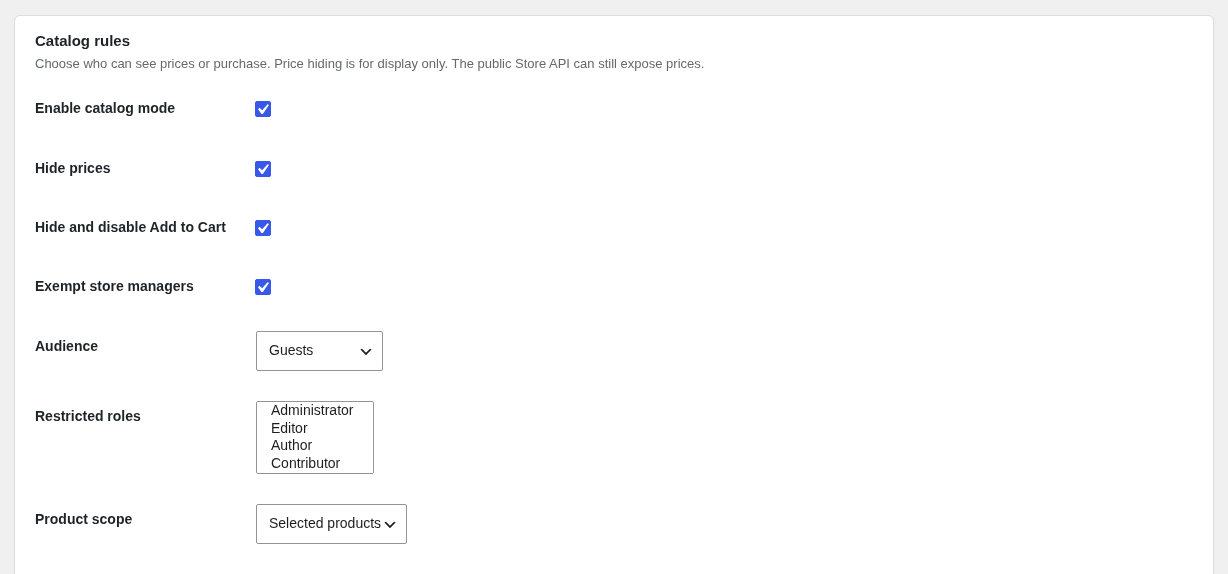
- Audience: Guests (anyone not logged in), All visitors, or Selected roles, where you pick roles under Restricted roles.
- Product scope: All products, Categories or Selected products, with Selection applies to set to "Only selected categories or products" or "Everything except the selection". Categories and products are entered as IDs separated by commas.
- Per-product override: each product has a WooToolbox Catalog Mode box with a Catalog restriction choice of "Use store rules", "Always restrict" or "Allow normal shopping".
There is also Exempt store managers, on by default, so your team always sees the normal store.
What "restricted" means
For any product that matches your rules:
- Hide prices replaces the price with your Text shown in place of prices, for example "Log in for trade pricing", or nothing if you leave it blank. Variation prices are hidden too, and the price is removed from the product’s structured data.
- Hide and disable Add to Cart removes the button and makes the product unpurchasable. Attempts to add it are blocked with "This item is available by enquiry." If a restricted item is already in a cart, it is removed with a notice.
You can use either option on its own or both together. Product grids, product pages and WooCommerce’s product blocks (product button, price and add-to-cart form) are all covered.
Step-by-step setup in WooToolbox
- Go to WooToolbox → Catalog Mode & Quotes.
- Tick Enable catalog mode.
- Choose Hide prices, Hide and disable Add to Cart, or both.
- Leave Exempt store managers on.
- Set the Audience. For a classic wholesale setup, choose Guests. To restrict particular account types, choose Selected roles and pick them in Restricted roles.
- Set the Product scope and Selection applies to if the rule should only cover part of the catalogue. Enter Category IDs or Product IDs as needed.
- Enter the Text shown in place of prices and the Quote button text.
- Save, then test in a private browser window and with a test account in each relevant role.
- For one-off exceptions, open a product and set Catalog restriction to "Always restrict" or "Allow normal shopping".
Example setups
- Wholesale, prices for logged-in customers only: Audience Guests, Hide prices and Hide and disable Add to Cart, scope All products, price text "Log in to see trade prices".
- One category priced on request: Audience All visitors, Hide and disable Add to Cart, scope Categories, Only selected, with your custom-work category ID. Pair it with quote requests.
- Members-only buying with public prices: Audience Guests, Hide and disable Add to Cart only. Guests see prices but must log in to buy.
Practical tips
- Tell shoppers what to do next. A hidden price with no explanation looks broken. Use the price text, and add a quote button or login prompt.
- Pair restricted products with quotes. With quote requests enabled, the hidden Add to Cart becomes a quote button. See how to add a Request a Quote button.
- Keep button wording consistent. If normal products use custom Add to Cart text, choose quote wording that sits well beside it. Our guide on changing Add to Cart text covers this.
- Find IDs quickly. Hover over a product or category in the WordPress admin to see its ID.
Common mistakes
- Testing as an admin. With Exempt store managers on, you will not see the restrictions while logged in as an admin.
- Caching the wrong version. If guests and logged-in customers see different prices, make sure your page cache does not serve one group’s version to the other.
- Hiding prices but leaving Add to Cart. Shoppers could then add items without knowing the price. Usually you want both hidden, or prices visible.
- Forgetting per-product overrides. An "Allow normal shopping" override on a product beats the store rule. Check overrides if a product behaves unexpectedly.
Limits worth knowing
Hiding prices is a display control. WooCommerce’s public Store API can still return price data to anyone who requests it directly, so do not rely on Catalog Mode to keep prices truly secret. For genuinely confidential pricing, keep those prices out of the public catalogue entirely.
FAQ
How do I hide prices from guests in WooCommerce?
In WooToolbox, open Catalog Mode & Quotes, enable catalog mode, tick Hide prices, set the Audience to Guests and save. Logged-in customers will still see prices.
Can I hide Add to Cart for one user role only?
Yes. Set the Audience to Selected roles and choose the roles under Restricted roles. Other roles shop normally.
Can I hide prices for just one category?
Yes. Set the Product scope to Categories, choose "Only selected categories or products", and enter the category ID.
Are hidden prices completely secret?
No. Catalog Mode hides prices on your storefront, but WooCommerce’s public Store API can still expose them to direct requests.
Try it on your store
If you need control over who sees prices and who can buy, you can set up a rule and test it in minutes. Start a 30-day free trial of WooToolbox for WooCommerce and try Catalog Mode on your own catalogue.