


Some products should not go straight into a cart: custom work, trade orders, bulk quantities or items whose price depends on the job. WooToolbox for WooCommerce handles this with a pair of features that work together: Catalog Mode hides Add to Cart for the products and shoppers you choose, and a Request a Quote button and form take its place. This guide covers the quote side. Its companion guide explains how to hide prices or Add to Cart for guests or certain roles.
Why a quote button beats a contact page
Sending enquiries to a general contact form loses context. You get "Hi, can you send me a price?" with no product, no quantity and no variation. A quote form on the product page captures all of that in one go, and the shopper never has to leave the page they were interested in.
For B2B stores, wholesalers, makers and service-style products, it also sets the right expectation: this item is priced on request, and someone will get back to you.
How the two features fit together
The Request a Quote button appears where Catalog Mode has hidden Add to Cart:
- On product pages, the add-to-cart area is removed and the quote form appears in its place.
- In shop and category grids, the Add to Cart button is replaced by a quote button that links to the form on the product page.
So the setup always starts with a Catalog Mode rule that decides which products and which shoppers are affected. If you want the quote form to appear on every product while normal shopping stays available, there is a separate option for that, covered below.
Step-by-step setup in WooToolbox
Everything lives on one screen: WooToolbox → Catalog Mode & Quotes.
1. Set the catalog rule
- Tick Enable catalog mode.
- Tick Hide and disable Add to Cart. Optionally tick Hide prices as well.
- Choose the Audience: Guests, All visitors or Selected roles.
- Choose the Product scope: All products, Categories or Selected products, and whether the selection includes or excludes those items.
- Set the Quote button text. The default is "Request a quote".
2. Turn on quote requests
- Tick Enable quote requests.
- Set Send requests to, the email address that receives new enquiries.
- Edit the Store email subject. The default is "New quote request #{quote_id}".
- Optionally tick Email a confirmation to the customer and edit the Customer confirmation text. Placeholders include {customer_name}, {product_name} and {quote_id}.
- If you need an explicit opt-in, add a Consent label. Leave it blank if a consent checkbox is unnecessary.
- Set the Success message shown after the form is sent.
- Save, then open an affected product as the relevant shopper type to test.
Optional: quotes on every product
If you tick Show quotes on every product, the quote form appears on product pages even where Add to Cart stays visible. This suits stores that sell normally but also accept bulk or custom enquiries.
What the customer fills in
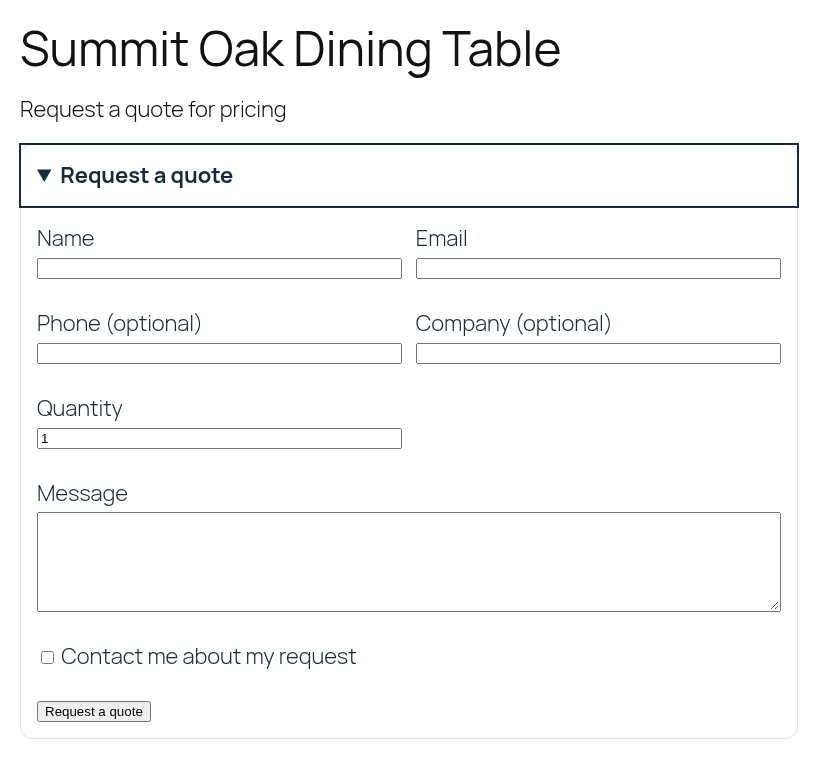
The form asks for Name, Email and Message, with optional Phone and Company fields and a Quantity. On variable products, the shopper can pick a Variation or choose "Any variation". Logged-in customers have their name and email pre-filled.
The store email includes the customer’s details, the product and quantity, their message and a link to review the request. Its reply-to is set to the customer’s email, so you can answer straight from your inbox.
WooToolbox video walkthrough
Managing quote requests
Requests are stored in WordPress under WooToolbox → Quote Requests. For each one you can:
- See the customer, product, quantity and message.
- Set a status: New, Contacted, Quoted, Won or Lost.
- Add Internal notes for your team.
- Use bulk actions to update several requests at once, and Export CSV for reporting.
New requests also appear in WooToolbox’s Store Activity feed. Quote data is connected to WordPress’s personal data export and erasure tools.
Practical tips
- Answer quickly. A quote form is a promise of a reply. Set the recipient to an inbox someone checks daily.
- Use the confirmation email. A short "we received your request, reference #123" reassures the customer.
- Write a helpful button label. "Request trade pricing" or "Get a quote" can be clearer than a generic label.
- Use statuses honestly. Moving requests to Won or Lost gives you a simple picture of what converts.
- Set expectations for minimums. If quotes are for larger orders, say so in the product description. Stores that also sell directly may want a minimum order amount for regular checkout.
Common mistakes
- Enabling quotes without a catalog rule. The button replaces Add to Cart only where Catalog Mode hides it. Without a rule, or without Show quotes on every product, nothing changes.
- Testing while logged in as an admin. With Exempt store managers on, admins see the normal store. Test in a private window or as a customer account.
- Page caching. If rules differ for guests and logged-in customers, make sure your cache keeps those versions separate.
Limits worth knowing
Each request covers one product, with an optional variation and quantity. There is no multi-product quote basket, and WooToolbox does not create priced quotes or convert them into orders. You reply to the customer yourself, by email or by creating an order in WooCommerce. Spam protection is built in, including rate limits and a hidden honeypot field.
FAQ
How do I replace Add to Cart with Request a Quote in WooCommerce?
In WooToolbox, open Catalog Mode & Quotes, enable catalog mode with Hide and disable Add to Cart, choose the audience and products, then tick Enable quote requests. The quote button and form replace Add to Cart for those products.
Can I show a quote button only to guests?
Yes. Set the Audience to Guests. Logged-in customers will see normal pricing and Add to Cart, while guests see the quote button.
Where do quote requests go?
They are emailed to the address in Send requests to and stored under WooToolbox → Quote Requests, where you can track status, add notes and export them.
Can customers request a quote for several products at once?
Not in one request. Each form submission is for a single product, with its own variation and quantity.
Try it on your store
If your best customers need a conversation before they buy, give them a proper way to start one. Start a 30-day free trial of WooToolbox for WooCommerce and set up your first quote rule.