

If small orders cost you more to pick, pack and ship than they earn, a minimum order amount is a simple fix, and WooToolbox for WooCommerce adds one without code, along with an optional minimum item quantity. This guide explains how the rules work, how to set them up and how to communicate them so customers are not caught off guard.
Why set a minimum order?
Common reasons include:
- Wholesale and trade stores that only sell in meaningful volumes.
- Food and local delivery where each drop has a fixed cost.
- Low-margin products where a single cheap item does not cover packaging and handling.
- Payment fees that make very small orders unprofitable.
WooCommerce does not include a minimum order setting out of the box. It does let free shipping require a minimum amount, but that only affects the shipping method, not whether the customer can check out.
How the WooToolbox minimum order rules work
WooToolbox offers two rules, which you can use separately or together:
- Minimum Order Amount: based on the cart subtotal before tax and shipping.
- Minimum Total Quantity: the total number of items in the cart, across all products.
When a cart falls short, WooToolbox shows an error on the cart and checkout and stops the order going through. The messages tell customers exactly what they need, for example "Minimum order amount is $50.00. Add $12.00 more to continue." or "Minimum order quantity is 6 items. Add 2 more items to continue."
Step-by-step setup in WooToolbox
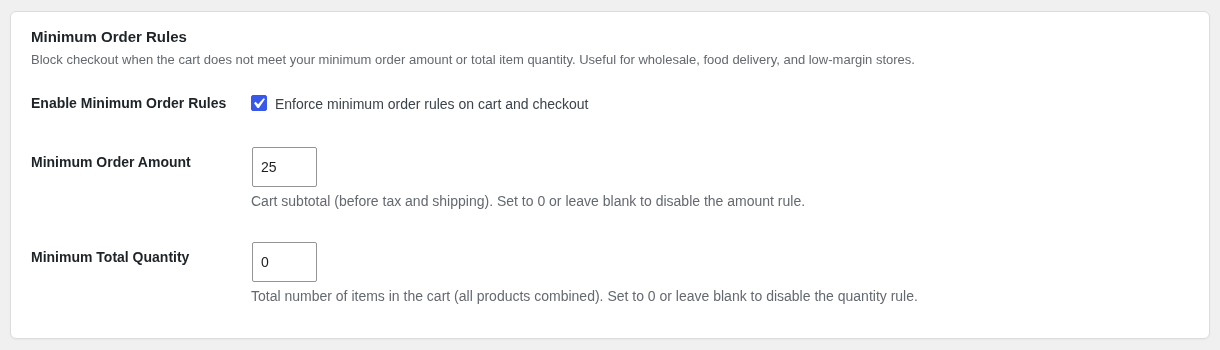
- Go to WooToolbox → Storefront Settings.
- Scroll to Minimum Order Rules.
- Tick Enable Minimum Order Rules ("Enforce minimum order rules on cart and checkout").
- Enter a Minimum Order Amount. Set it to 0 or leave it blank to switch the amount rule off.
- Enter a Minimum Total Quantity if you also want an item count rule. Again, 0 or blank switches it off.
- Click Save Storefront Settings.
- Test with a cart just below and just above each limit.
Amount or quantity?
An amount rule protects your margin on every order regardless of what is in the cart. A quantity rule suits products sold in packs or cases, or stores where the cost per order depends on the number of items rather than their value. You can switch both on. A cart must then meet both rules before checkout, and the customer sees a separate message for each one it misses.
Choosing the right minimum
There is no universal number. A practical way to set it:
- Work out your fixed cost per order: packaging, picking time, payment fees and any shipping you absorb.
- Look at your typical order value in WooCommerce’s reports.
- Set the minimum where an order at least covers its fixed costs, without excluding a large share of your normal orders.
Revisit the number after a few weeks. If you see many abandoned carts just below the threshold, it may be too high.
Communicate the minimum early
A minimum that customers only discover at checkout feels like a trap. Tell them sooner:
- Mention it in your header bar, delivery information and FAQ.
- Add it to a global Delivery tab on product pages.
- If you also offer free shipping above a higher amount, show a free shipping progress bar so customers see their running total against a clear target.
What customers see
If a customer tries to check out below the minimum, they see a clear error notice explaining the minimum and how much more they need to add. The amount updates as they change their cart, so they can top up and continue without guessing. Nothing is lost: their cart stays as it is.
Because the message is shown on the cart as well as the checkout, most customers will see it before they start entering their details. That is another reason to state the minimum elsewhere on your site too, so the notice confirms what they already know rather than surprising them.
Practical tips
- Use quantity rules for case-based products. If you sell items like wine or tins that are packed in multiples, a minimum quantity often makes more sense than an amount.
- Keep the minimum and free shipping threshold distinct. For example, a minimum to order and a higher amount for free delivery.
- Remember coupons. The rule uses the cart subtotal before coupon discounts, so a large coupon does not push an order below the minimum. Decide whether that suits your margins.
- Offer an alternative for larger custom orders. If some customers need bespoke quantities, a Request a Quote button gives them a route outside the normal checkout.
Common mistakes
- Forgetting the main switch. The amounts do nothing until Enable Minimum Order Rules is ticked.
- Assuming tax is included. The amount rule uses the subtotal before tax and shipping. If your prices include tax, set the minimum with that in mind.
- Hiding the rule until checkout. Always state the minimum on the site.
- Not testing your checkout type. Place test orders on the cart and checkout your store actually uses, classic or block-based, to see the message in context.
Limits worth knowing
The minimum order rules are store-wide. They apply to every customer and every product, and there is no separate minimum per customer role, category or product. If you need different minimums for wholesale and retail customers, you will need custom code or a dedicated wholesale plugin.
FAQ
How do I set a minimum order amount in WooCommerce?
In WooToolbox, go to Storefront Settings, tick Enable Minimum Order Rules, enter a Minimum Order Amount and save. Carts below that subtotal cannot check out.
Does the minimum include tax and shipping?
No. The amount rule uses the cart subtotal before tax and shipping.
Can I require a minimum number of items instead?
Yes. Use Minimum Total Quantity, which counts all items in the cart. You can use it alone or alongside the amount rule.
Can I set a different minimum for wholesale customers?
Not with WooToolbox. The rules apply store-wide to all customers.
Try it on your store
A clear minimum order protects your margins on every order. Start a 30-day free trial of WooToolbox for WooCommerce and set your first minimum order rule.