

Product pages often need the same practical information again and again: delivery times, warranty terms, care instructions, common questions. The Product Tabs module in WooToolbox for WooCommerce lets you add that information as custom tabs, either on every product or on selected ones, and control WooCommerce’s default tabs too. This guide shows how to set it up and how to structure tabs so they actually help shoppers.
Why custom product tabs are worth it
WooCommerce gives you three default tabs: Description, Additional information and Reviews. Everything else tends to get crammed into the description, or left out entirely. Shoppers then email to ask about delivery or returns, or leave to look for the answer elsewhere.
Tabs give that information a predictable home. A shopper who wants delivery details knows where to look, and the main description stays focused on the product itself.
What you can do with WooToolbox Product Tabs
- Control default tabs: hide, rename or reorder Description, Additional information and Reviews.
- Global Custom Tabs: tabs that appear on every product page, ideal for delivery, returns or warranty information that applies across the store.
- Product-only Tabs: tabs added on a single product’s edit screen, for information unique to that product.
- Size guide: a dedicated size guide tab, covered in our guide to adding a size guide tab in WooCommerce.
Step-by-step setup in WooToolbox
1. Turn on the module
Go to WooToolbox → Product Tabs and tick Enable Product Tab Customization.
2. Tidy up the default tabs
In Default Product Tabs, each tab has three settings:
- Hide: remove the tab, for example Reviews if you do not use them.
- Custom Title: rename it, for example "Details" instead of "Description".
- Display order: lower numbers appear first. The defaults are 10, 20 and 30.
3. Add global custom tabs
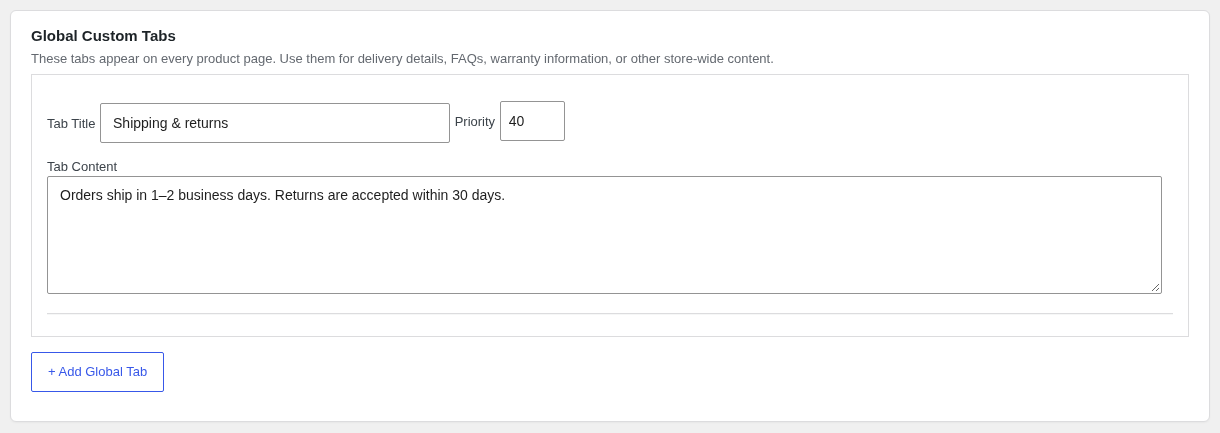
In Global Custom Tabs, fill in a Tab Title, Priority and Tab Content. Click + Add Global Tab for each extra tab. These appear on every product page.
Good candidates:
- Delivery: dispatch times, carriers, regions, costs or free delivery thresholds.
- Returns: how long customers have, condition requirements and how to start a return.
- Warranty: cover period, what is included and how to claim.
4. Add product-only tabs
Edit a product and open the Product Tabs & Size Guide box. Under Product-only Tabs, add a Tab Title, Priority and Tab Content, and click + Add Product Tab for more. These appear only on that product.
Good candidates:
- FAQ: real questions customers ask about this product.
- Specifications: dimensions, materials, compatibility.
- Care instructions or What’s in the box.
5. Save and check
Click Save Product Tab Settings, then open a few products, including one with product-only tabs, to check the order.
How tab content works
Tab content is entered in a plain text box. Line breaks become paragraphs, and basic HTML such as lists, links, bold text and tables is allowed. A tab only appears when it has both a title and content, so a half-finished tab will not show up on the live site.
Planning tab order
Priority numbers decide the order. By default:
- Description 10, Additional information 20, Reviews 30.
- The size guide tab sits at 35.
- Global custom tabs default to 40 and up.
- Product-only tabs default to 50 and up.
A common, shopper-friendly order is Description, product FAQ, Delivery, Returns, then Reviews. To achieve that, give Reviews a high number such as 90 and set your custom tabs in between.
Example tab set for a typical store
For a store selling homeware, a sensible setup might be:
- Description (default, renamed to "Details").
- Product FAQ (product-only, priority 25), with three or four questions specific to that item.
- Delivery (global, priority 40), covering dispatch times and regions.
- Returns & Warranty (global, priority 45), summarising both and linking to the full policies.
- Reviews (default, display order moved to 90).
That keeps product-specific information first, store-wide information in the middle and social proof at the end.
Writing tabs that help
- Keep each tab to one topic. "Delivery & Returns" can work, but "Info" is too vague.
- Lead with the answer. "Orders ship within 1-2 working days" is better than a paragraph about your values.
- Write FAQs as real questions. Use the words customers use in emails and reviews.
- Link to full policies. Summarise in the tab and link to the complete page.
- Keep shared content store-wide. Update the global Delivery tab once rather than editing hundreds of products.
- Mention delivery incentives consistently. If you show a free shipping progress bar in the cart, use the same threshold in your Delivery tab.
Common mistakes
- Forgetting the main switch. Nothing changes until Enable Product Tab Customization is on.
- Putting category-specific information in a global tab. Global tabs show on every product. Use product-only tabs for information that applies to some products only.
- Too many tabs. Five or six is plenty. Shoppers skim, and long tab rows wrap awkwardly on mobile.
- Hiding Additional information without checking. Variable products often use it to show attributes such as size and colour.
Limits worth knowing
Global tabs cannot be switched off for individual products, and product-only tabs are set one product at a time rather than by category. Tabs appear wherever your theme displays WooCommerce product tabs, so themes that replace the tab area may style or place them differently.
The manual alternative is custom code using WooCommerce’s product tabs filter, which works but needs a developer for every change.
FAQ
How do I add a custom tab to all WooCommerce products?
Enable Product Tab Customization in WooToolbox, then add a tab under Global Custom Tabs with a title, priority and content. It appears on every product page.
Can I add a tab to just one product?
Yes. Edit the product and use Product-only Tabs in the Product Tabs & Size Guide box.
How do I reorder WooCommerce product tabs?
Use the Display order for default tabs and the Priority for custom tabs. Lower numbers appear first.
Can I hide the Reviews tab in WooCommerce?
Yes. Tick Hide next to Reviews in the Default Product Tabs section.
Try it on your store
Clear, consistent product tabs answer questions before they turn into emails. Start a 30-day free trial of WooToolbox for WooCommerce and add your Delivery, Warranty and FAQ tabs.