
If you sell clothing, shoes, rings or anything else that comes in sizes, a size guide is one of the most useful things you can put on a product page, and WooToolbox for WooCommerce adds one as a product tab, either across the whole store or product by product. This guide covers the setup, how to choose between a store-wide and a per-product guide, and how to make the guide genuinely helpful.
Why a size guide matters
Sizing doubts stop people from buying, and wrong sizes come back as returns. A clear guide on the product page answers the question at the moment it matters. It also cuts down on "What size should I get?" messages.
Putting the guide in a product tab keeps the page tidy. Shoppers who need it find it next to the description and reviews, and those who do not are not distracted.
How the WooToolbox size guide works
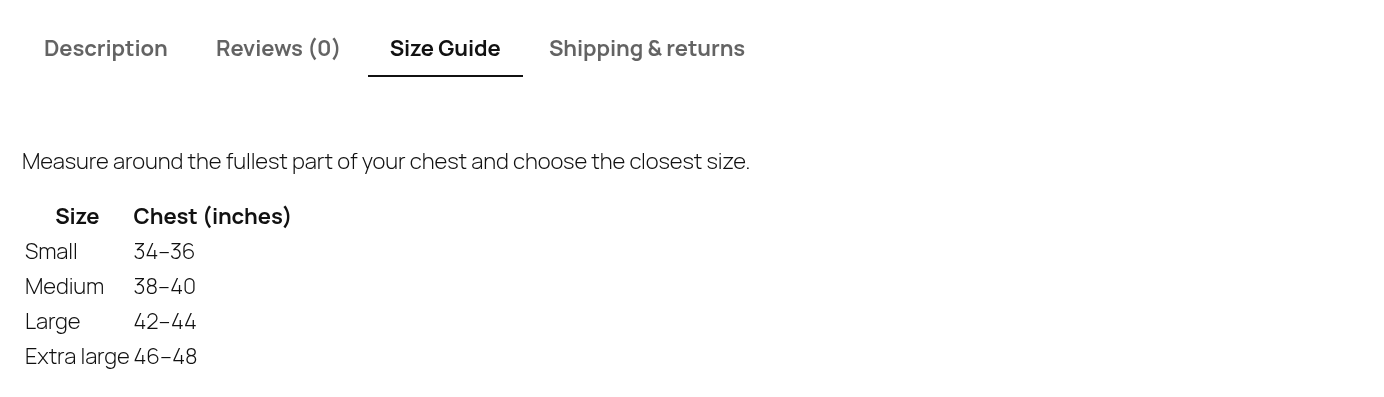
The size guide is part of the Product Tabs module. It adds a tab, called "Size Guide" by default, that can contain:
- Size Guide Content: your own text, table or chart, entered in a plain text box. Line breaks become paragraphs, and basic HTML such as a table is allowed.
- Size Guide URL: a link to a full size guide page, shown as an Open size guide button that opens in a new tab.
You can use either or both.
There are two levels:
- Store-wide Size Guide: one default guide shown on products unless a product has its own.
- Per-product override: set in the Product Tabs & Size Guide box on the product edit screen. When a product has its own URL or content, it replaces the store-wide guide for that product.
Step-by-step setup in WooToolbox
Store-wide guide
- Go to WooToolbox → Product Tabs.
- Tick Enable Product Tab Customization ("Apply product tab customizations on the storefront").
- In Store-wide Size Guide, tick Show a size guide tab on products unless overridden.
- Set the Tab Title, for example "Size Guide" or "Fit & Sizing".
- Add a Size Guide URL, Size Guide Content, or both.
- Click Save Product Tab Settings and open a product to check the tab.
Per-product guide
- Make sure Enable Product Tab Customization is on.
- Edit the product and find the Product Tabs & Size Guide box.
- Under Size Guide, set a Tab Title if you want something different, then add a Size Guide URL or Size Guide Content.
- Update the product.
Store-wide or per product?
- One product type, one sizing system, such as a store selling only women’s tops: use the store-wide guide.
- Mixed catalogue, such as clothing plus accessories: use per-product guides only. The store-wide guide appears on every product unless overridden, and the product screen lets you override it but has no switch to turn it off, so a size tab would also show on a bag or a gift card.
- Several sizing systems, such as tops, trousers and shoes: set the most common one store-wide only if every product needs a size guide, and override the rest. Otherwise go per product.
Where the tab sits
The size guide tab has a fixed position just after WooCommerce’s Reviews tab, using the standard order of Description, Additional information, then Reviews. If you want the size guide before Reviews, use the Default Product Tabs table on the same page and give Reviews a higher Display order number, for example 40. Lower numbers appear first. Our guide to custom product tabs in WooCommerce explains tab ordering in more detail.
Size guide content or a link?
Both options have a place. Size Guide Content keeps everything on the product page, which is quicker for shoppers on mobile and keeps the information next to the product. A Size Guide URL suits detailed guides with diagrams, several charts or measuring videos that would be too much for a tab.
Many stores combine them: a short summary table in the tab, plus the Open size guide button for the full page. That way most shoppers get their answer straight away, and those who want more detail are one click away.
Make the size guide genuinely useful
- Use real measurements. Give garment or body measurements in the units your customers use, ideally both centimetres and inches.
- Explain how to measure. A short note on measuring chest, waist or foot length avoids guesswork.
- Add fit notes. "Runs small, consider sizing up" is often more helpful than the chart itself.
- Keep tables simple. A few columns read better on mobile than a wide grid.
- Link to a full guide if you have detailed charts or diagrams on a separate page.
- Make the button clear. Once the size question is answered, a confident call to action helps. See changing Add to Cart text.
Common mistakes
- Forgetting the main switch. Size guide settings only take effect when Enable Product Tab Customization is on.
- Leaving the guide empty. A tab only appears when there is a URL or content.
- Enabling a store-wide guide on a mixed catalogue. Non-sized products would get the tab too.
- Pasting wide tables. Very wide tables can overflow on phones. Test on a mobile device.
Limits worth knowing
The size guide is shown as a product tab, so it appears wherever your theme displays WooCommerce’s product tabs. It is not a pop-up, and it does not recommend sizes automatically. Themes that replace or heavily restyle product tabs may change how it looks.
The manual alternative is adding a tab with custom code or placing a size chart in each product description.
FAQ
How do I add a size chart to WooCommerce products?
Enable Product Tab Customization in WooToolbox, then add size guide content or a link either store-wide in Product Tabs, or on individual products in the Product Tabs & Size Guide box.
Can different products have different size guides?
Yes. Each product can override the store-wide guide with its own title, link and content.
Can I link to a separate size guide page?
Yes. Add the page’s address as the Size Guide URL and the tab shows an Open size guide button.
Can I move the size guide before the Reviews tab?
Yes. Give the Reviews tab a higher Display order number than the size guide’s position, for example 40.
Try it on your store
A clear size guide is one of the simplest ways to reduce sizing doubts. Start a 30-day free trial of WooToolbox for WooCommerce and add your first size guide tab.