
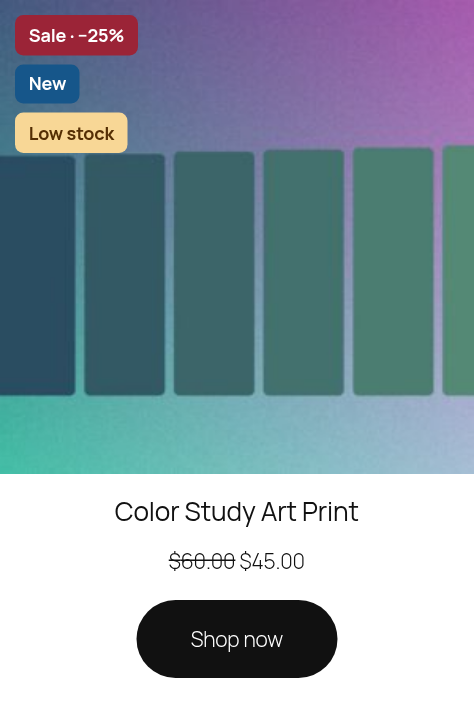
Badges help shoppers scan a product grid and spot what matters, and the Product Badges module in WooToolbox for WooCommerce adds automatic Sale, New, Low stock and Bestseller badges, plus your own custom labels. This guide shows how to set them up, how each badge decides when to appear and how to keep them useful rather than noisy.
Why product badges help
WooCommerce’s default "Sale!" flash tells shoppers something is discounted, but not by how much, and it says nothing about what is new or nearly gone. Well-chosen badges answer the questions shoppers have while scrolling: Is this on offer? Is it new? Should I buy it now?
The key word is well-chosen. Too many badges and none of them stand out.
The automatic badges
Each badge type has its own Show badge switch, Label, Background, Text color and Priority.
- Sale appears on products that are on sale and shows the discount using the Discount format, by default a minus sign and {percent}%. You can set a Minimum discount (%) so tiny reductions do not get a badge. For variable products where variations have different discounts, the badge reads "Up to" followed by the largest discount.
- New appears for products created within the last New for this many days, 14 by default.
- Low stock appears when a product that manages stock is in stock but has reached WooCommerce’s low stock threshold. That threshold comes from your WooCommerce inventory settings or the product’s own low stock setting.
- Bestseller appears on your top sellers, based on WooCommerce sales counts. Set Products to include (the top N, 10 by default) and Minimum sales (5 by default). The list refreshes every 12 hours.
Custom badges
You can add up to 20 custom badges, such as "Vegan", "Handmade" or "Free engraving". Each has a label, colours and priority, and you assign it by Category IDs, Product IDs, or from the product’s edit screen. Each product also has a WooToolbox Product Badges box with a Hide badges for this product option.
Step-by-step setup in WooToolbox
- Go to WooToolbox → Product Badges.
- Tick Enable product badges.
- Choose a Position: Top left, Top right, Bottom left or Bottom right.
- Choose a Shape: Square, Rounded or Pill.
- Set the Maximum badges per product. The default of 2 is a sensible limit.
- Decide where badges show with Show in product grids and Show on product pages.
- Tick Hide WooCommerce sale badge if you want WooToolbox’s Sale badge to replace the default "Sale!" flash, so shoppers do not see two.
- Configure each badge type (Sale, New, Low stock, Bestseller), switching off any you do not need.
- Add custom badges if required, then save and check your shop page.
Where badges appear
Badges are designed for product grids: shop, category and other product listings. They work with classic WooCommerce listings and with the Product Image block used in block-based grids.
On single product pages, placement depends on your theme. WooToolbox adds badges before the product summary area, and themes lay that area out in different ways. Block-based product gallery layouts use their own display. Check a product page after enabling Show on product pages and switch it off if the result does not suit your theme.
How priority works
When a product qualifies for several badges, WooToolbox sorts them by Priority (lower numbers first) and shows only up to your maximum. By default the order is Sale, New, Low stock, then Bestseller. If urgency matters more than discounts in your store, give Low stock a lower priority number than Sale.
Choosing which badges to use
Not every store needs all four automatic badges. A simple way to choose:
- Frequent sales or clearance lines: keep Sale on, with a minimum discount so 2% reductions do not get a badge.
- Regular new arrivals: keep New on and set the number of days to match how often you add products.
- Limited stock or handmade items: keep Low stock on, but only if you track stock carefully.
- A clear set of top sellers: keep Bestseller on once you have enough sales history for it to mean something.
Switch off the rest. A focused set of badges is easier for shoppers to understand.
Practical tips
- Keep it to one or two badges. The first badge gets noticed, the third rarely does.
- Use clear colours with good contrast. Muted backgrounds with dark text are easier to read than bright colours on photos.
- Make Low stock meaningful. Set a realistic low stock threshold in WooCommerce. If every product is "low stock", the badge stops working.
- Use custom badges for real differentiators. Certifications, materials or services customers care about work better than vague labels like "Hot".
- Combine with stock alerts. When low stock items sell out, a back-in-stock waitlist keeps those shoppers.
Common mistakes
- Showing two sale badges. If you keep WooCommerce’s default flash and WooToolbox’s Sale badge, tick Hide WooCommerce sale badge.
- Low stock badges that never appear. The product must manage stock, and its quantity must be at or below the low stock threshold.
- Expecting the same look on every product page. Single product placement varies by theme. Grids are the reliable place for badges.
- Using badges as decoration. Each badge should tell shoppers something useful.
Limits worth knowing
Bestseller badges use WooCommerce’s total sales count and refresh twice a day, so they are not instant. For very large variable products, the exact discount percentage may be replaced by the plain sale label. Badges do not change prices or create discounts. For another visible nudge in the cart, see adding a free shipping progress bar.
FAQ
How do I add a percentage discount badge in WooCommerce?
Enable WooToolbox Product Badges and keep the Sale badge on. Its Discount format uses {percent} to show the discount, and you can set a minimum discount so small reductions are skipped.
Can I show a "New" badge automatically?
Yes. The New badge appears on products created within the number of days you set in New for this many days.
Why do badges not show on my single product page?
Single product placement depends on your theme. Badges are designed for product grids. Check that Show on product pages is on, then review how your theme displays the product summary area.
Can I hide badges on one product?
Yes. Open the product and tick Hide badges for this product in the WooToolbox Product Badges box.
Try it on your store
Badges are a quick win for shop pages when they are kept clear and honest. Start a 30-day free trial of WooToolbox for WooCommerce and preview Sale, New and Low stock badges on your own catalogue.