
If you send invoices from your store, you probably want invoice numbers that run in their own tidy sequence rather than borrowing the order number, and WooToolbox for WooCommerce gives you a dedicated invoice sequence with your own prefix, suffix, start number, digits and optional yearly reset. This guide explains how invoice numbers differ from order numbers, when they are issued and how to configure them.
Invoice numbers vs order numbers
An order number identifies a purchase from the moment it is placed, including orders that are never paid. An invoice number identifies a billing document, so many businesses only want one issued once an order is actually paid or fulfilled.
WooToolbox keeps the two separate:
- Order numbers are issued when an order is created.
- Invoice numbers are issued only when an order reaches one of the statuses you choose, by default Processing or Completed.
That means cancelled or failed orders do not take up invoice numbers, so the invoice sequence stays cleaner than the order sequence.
Step-by-step setup in WooToolbox
- Go to WooToolbox → Order & Invoice Numbers.
- Tick Enable numbering if it is not already on.
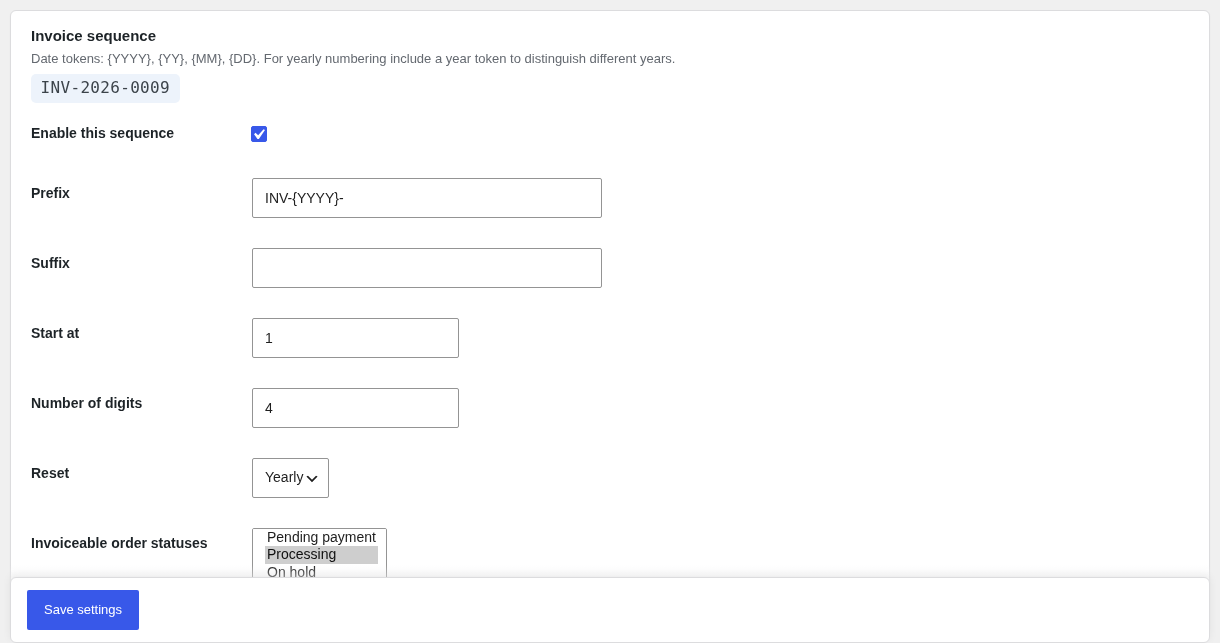
- In the Invoice sequence section, tick Enable this sequence.
- Set the Prefix. The default is INV- followed by a four-digit year token, {YYYY}, and a hyphen. You can change it to any prefix up to 20 characters using letters, numbers, hyphens, underscores, slashes, dots and spaces.
- Add an optional Suffix.
- Set Start at. If you are moving from another system, start one above your last issued invoice number.
- Set the Number of digits, for example 4 to produce 0017.
- Choose Reset: Never or Yearly.
- Under Invoiceable order statuses, choose which statuses trigger an invoice number. Processing and Completed are selected by default.
- Check the live preview, then save.
Date tokens and yearly resets
The prefix and suffix accept {YYYY}, {YY}, {MM} and {DD}. For invoices, the date is the date the number is issued, in your store’s timezone. If you pick a Yearly reset, keep a year token in the format so invoices from different years cannot share the same reference.
If you switch between Never and Yearly later, WooToolbox carries the counter forward so it does not reissue numbers that were already used.
When invoice numbers are issued
An invoice number is assigned:
- when an order moves into one of your Invoiceable order statuses, or
- when the invoice is first generated, as long as the order is already in one of those statuses.
When a number is issued, WooToolbox adds an order note ("Invoice number INV-… assigned.") and shows the Invoice number on the order screen in the admin. Like order numbers, invoice numbers are searchable in the orders list and stay fixed once assigned.
Where the invoice number appears
- On the customer’s HTML invoice, which they can download from My Account and save as a PDF with their browser. Our guide to giving customers a downloadable invoice covers that feature.
- In the subject of the invoice email sent with Email Invoice.
- Anywhere you use the {invoice_number} placeholder, such as WooToolbox post-purchase email sequences.
If invoice numbering is off, or an order has not reached an invoiceable status, the invoice shows the order number instead.
Numbering existing orders
Invoice numbers are only issued for orders created after numbering was enabled. If you need historic paid orders numbered, Number existing orders at the bottom of the page assigns order and invoice numbers to eligible unnumbered orders. It requires a confirmation tick and cannot be undone, so think carefully before using it on an established store.
A worked example
Say you want invoices to read like INV-0001, INV-0002 and so on, restarting each year with the year shown. You would set the prefix to INV-, add {YYYY} and a hyphen after it, keep 4 digits and choose Yearly. The preview then shows the next reference before you commit. The first paid order of the next year starts again at 0001, with the new year in the prefix, so references never repeat.
If you prefer one continuous sequence, choose Never and leave out the year token. Both approaches are common. What matters is choosing one and sticking with it.
Practical tips
- Agree the format with your accountant first. Changing formats mid-year creates a mixed sequence, because numbers already issued never change.
- Choose statuses deliberately. If you take payment on delivery or by bank transfer, decide whether an invoice should exist at Processing or only at Completed.
- Keep order and invoice prefixes distinct. ORD- and INV- make it obvious which reference a customer is quoting. For order numbers, see sequential order numbers with your own prefix.
- Test with a real order. Move a test order through your statuses and confirm the note, admin display and invoice all show the same number.
Common mistakes
- Starting at 1 when you already have invoices elsewhere. Start above your last issued number to avoid duplicates across systems.
- Yearly reset without a year token. Two invoices from different years could end up with the same reference.
- Selecting too many statuses. Including statuses like On hold can issue invoice numbers for orders that are later cancelled.
- Assuming the sequence can never skip. WooToolbox uses an atomic counter to avoid duplicates, but if saving a number fails, that number is skipped.
Limits worth knowing
WooToolbox gives you control over the prefix, suffix, start number, digits, yearly reset and the statuses that issue numbers. It does not claim to meet any particular country’s invoicing law. Rules on numbering, gaps and credit notes vary, so check your local requirements with your accountant. WooToolbox also does not create credit notes for refunds.
FAQ
How do I change the WooCommerce invoice number format?
In WooToolbox, open Order & Invoice Numbers, enable the invoice sequence and set the prefix, suffix, start number and number of digits. The live preview shows the next number before you save.
When does WooCommerce get an invoice number with WooToolbox?
When the order reaches one of your Invoiceable order statuses, Processing or Completed by default, or when the invoice is first generated for an order already in one of those statuses.
Can invoice numbers restart every year?
Yes. Set Reset to Yearly and include a year token such as {YYYY} in the prefix or suffix.
Are invoice numbers separate from order numbers?
Yes. WooToolbox runs two independent sequences, each with its own format.
Try it on your store
A separate invoice sequence keeps your paperwork tidy without changing how customers order. Start a 30-day free trial of WooToolbox for WooCommerce and preview your invoice format today.