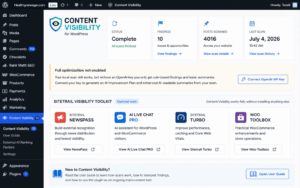


It's 4:40 on a Thursday. A content lead drops a 38,000-row Search Console export into Claude and asks one question: which pages are losing clicks to their own newer pages? Eleven minutes later she has a cannibalisation table, a merge plan and three redirect rules ready for her developer. Down the hall, an agency writer opens a Claude Project that already holds a client's brand book, banned phrases and last year's press coverage. The first draft of a 1,200-word news story comes back sounding like the client, not like a chatbot. In the same browser, Claude in Chrome is filling in a submission form on a publishing dashboard the team is already logged in to, and it stops before the final click so someone can say yes.
None of that needs a developer, and most of it doesn't need a plugin. It needs a clear set of instructions, saved once and reused. That's what this guide is about: 100 Claude automations for marketing and SEO, grouped by the job they do and labelled with exactly how Claude reaches each tool.
The short answer: Claude for marketing works best when you stop treating it as a chat box and start treating it as a colleague with a desk. A Project is the desk: it holds your brand guidelines, sources and examples so every chat starts informed. A Skill is the written procedure: a saved set of instructions (and optional scripts or templates) that Claude loads whenever the task comes up. Connectors bring in live data and actions from tools such as Semrush, Ahrefs, HubSpot, Canva, Notion, Slack and Google Drive. Claude in Chrome and computer use cover everything without a connector by working in websites you're already logged in to. Claude Code handles the technical SEO jobs that need real code: schema, redirect maps, crawls and internal-linking scripts. Put those five together and Claude stops guessing and starts working from your rules and your data.
Every feature named below was checked against Anthropic's help centre, the Claude connectors directory or the tool vendor's own documentation in November 2026. Where a workflow needs a paid Claude plan or a paid plan with the tool, it says so. Claude's features move quickly, so treat plan details as a snapshot and check them in your own account.
Contents
- How Claude reaches your marketing tools: connectors, Chrome, uploads and Claude Code
- The tools covered, at a glance
- How to teach Claude a workflow
- Start here: publish news through NewsPass (1)
- Brand voice, Projects and source control (2–10)
- Keyword and competitor research with live data (11–22)
- Long-form writing in your brand voice (23–34)
- Editing to publication rules and fact-checking (35–42)
- Analysing exports: Search Console, GA4, Semrush and Ahrefs (43–54)
- Technical SEO with Claude Code (55–66)
- Digital PR and news placements (67–76)
- Publishing, design and the CMS (77–83)
- Distribution: social, email and CRM (84–91)
- Reporting, monitoring and team operations (92–100)
- What Claude can't do, and what to keep for yourself
- Frequently asked questions
How Claude reaches your marketing tools: connectors, Chrome, uploads and Claude Code
Claude has five ways into your work, and the best Claude marketing workflows usually combine two or three of them. Knowing which one a task uses tells you how fast it will be, how reliable it will be and what plan you need.
- Connectors (MCP). A connector links Claude to another product through the Model Context Protocol, the open standard Anthropic created for AI tools. You add one from Customize › Connectors in claude.ai or the desktop app and sign in to the tool. Anthropic's directory includes official connectors from Semrush, Ahrefs, Similarweb, HubSpot, Canva, Notion, Slack, Asana, monday.com, Figma, Webflow, Klaviyo, Intuit Mailchimp, WordPress.com, Windsor.ai, Google Drive, Gmail and Google Calendar, among many others. Connectors are the fastest and most reliable route, but each one only does what its developer exposed. Semrush and Similarweb, for example, are read-only research tools; Klaviyo can create a campaign; the WordPress.com connector reads your site but doesn't publish.
- Claude in Chrome. A Chrome extension that lets Claude read a page, click, type, navigate and fill forms using the logins you already have. It covers the many tools that have no connector: LinkedIn, Google Search Console's interface, your WordPress admin, Google Business Profile and partner dashboards such as NewsPass. It's available on every paid Claude plan (Pro, Max, Ultra, Team and Enterprise), in Chrome only, not on mobile or other Chromium browsers.
- Computer use and Cowork. In the Claude desktop app, Cowork can run longer tasks, use the built-in browser, and with computer use switched on, operate desktop apps on your Mac or Windows PC. Claude tries a connector first, then the browser, then your screen. Computer use is available on Pro, Max and Ultra plans and in beta for Team and Enterprise. Cowork also runs scheduled tasks in the cloud on any paid plan, so a weekly report can arrive while your laptop is closed.
- File upload and analysis. Drop in a CSV, Excel file, PDF or Word document and Claude analyses it with code execution, then hands back a cleaned spreadsheet, chart, Word file or slide deck. No connector needed, and it works with any tool that has an export button.
- Claude Code. Anthropic's coding agent, included with Pro and higher plans, runs in your terminal, IDE, desktop app or the web. For SEO it means real scripts: crawling a site, validating schema, building a redirect map from two URL lists or writing an internal-linking report. It can also use the same connectors and Skills.
Two building blocks sit on top of all five:
- Projects hold instructions and knowledge files that apply to every chat inside them. Free accounts can create up to five Projects; paid plans hold far more material because Claude searches the project knowledge rather than loading all of it at once.
- Skills are folders with a SKILL.md file of instructions, plus optional templates and scripts. Claude loads a Skill only when the task matches its description, so you can keep dozens without cluttering every chat. You manage them in Customize › Skills, and they work across Claude's apps, Claude Code and Claude in Chrome's side panel. Anthropic's own help centre says Skills need code execution switched on; Team and Enterprise owners can provision Skills for everyone in the organisation.
The tools covered, at a glance
This table shows how Claude reaches each tool in the workflows below. "Connector" means an official listing in Claude's connectors directory as of November 2026; "Chrome" means Claude works in your logged-in browser session.
| Tool | Marketing job | How Claude reaches it | Worth knowing |
|---|---|---|---|
| NewsPass by Sitetrail | News placements on independent sites | Chrome (your logged-in dashboard), taught with a Project and a Skill | You approve every submission |
| Semrush | Keywords, competitors, site audit, PPC research | Connector | Needs Semrush SEO Classic Pro or Guru (Business and Semrush One Advanced need an API-units add-on); uses API units |
| Ahrefs | Keywords, backlinks, rank tracking, Brand Radar AI visibility | Connector | Needs Ahrefs Lite or higher; each request uses API units |
| Similarweb | Traffic and market intelligence | Connector | Read-only |
| Google Search Console | Queries, clicks, indexing | File upload (export), Chrome, or third-party connector (Windsor.ai) | No official Google connector in Claude's directory |
| Google Analytics 4 | Traffic, conversions, sources | File upload, Windsor.ai connector, or Google's open-source analytics-mcp in Claude Code or Desktop | Google's server is read-only and needs a Google Cloud project |
| Google Drive, Docs, Sheets | Briefs, drafts, trackers | Connector (Google Drive) plus file upload | Gmail and Google Calendar have their own connectors |
| WordPress | Publishing | Chrome (wp-admin), WordPress.com connector (read-only), or Claude Code with the REST API | Keep posts as drafts until you approve |
| Webflow | Publishing and CMS | Connector | Can build pages and manage CMS items |
| Canva | Social graphics, featured images | Connector | Search, create, autofill and export designs |
| Figma | Landing page and ad design context | Connector | |
| HubSpot | CRM, lists, campaign context | Connector | |
| Klaviyo | Email and SMS performance, campaigns | Connector | Can create campaigns; you send |
| Intuit Mailchimp | Email campaigns | Connector | Saves drafts; you launch in Mailchimp. Standard or Premium, selected countries |
| Notion | Content calendars, wikis | Connector | |
| Asana and monday.com | Editorial workflow and tasks | Connectors | |
| Slack | Team approvals and alerts | Connector | Can send messages, so keep sending behind your approval |
| Social posts, company page | Chrome | No connector; LinkedIn restricts automated activity, so Claude drafts and you post | |
| Google Business Profile | Local SEO | Chrome | |
| Screaming Frog, PageSpeed Insights, Rank Math | Technical SEO | File upload, Claude Code, Chrome | |
| Windsor.ai | GA4, Search Console and ad data in one place | Connector | Read-only for Search Console |
| ElevenLabs | Voiceovers for video and audio | Connector |
How to teach Claude a workflow
The jump from "Claude is helpful" to "Claude does this job for us every week" comes from writing the job down properly once. Here's the method used for every workflow in this guide, including NewsPass.
Step 1: Build a Project that knows your brand
Create a Project for each brand or client. In its instructions, describe who you are, who you write for and what you never say. Add knowledge files: a brand voice guide, your product facts, approved statistics with their sources, three to five of your best pieces, and any client contract terms that affect content. Keep facts in one file so you update them in one place.
Step 2: Write the repeatable task as a Skill
A Project tells Claude who you are. A Skill tells Claude how to do one job. Write the steps the way you'd brief a new hire: the trigger ("when I ask for a NewsPass article"), the inputs, the order of steps, the checks and the exact output format. Then save it in Customize › Skills. The quickest way is to ask Claude to use its built-in skill-creator: describe the job, answer its questions, and it writes and packages the SKILL.md for you. Add a template or checklist file to the Skill folder when the output needs a fixed shape.
Step 3: Test it on a real job, then tighten it
Run the Skill on a job you've done before and compare the result with yours. Every time you correct Claude, add the correction to the Skill as a rule. Three rounds usually turn a rough Skill into one you trust.
Step 4: Use Claude in Chrome for the sites with no connector
Log in to the site yourself in Chrome first. Then open the Claude side panel and run the Skill. Claude works with the session you already have, so you never paste passwords into a chat. On Team and Enterprise plans, your admin can limit which sites Claude may use.
Step 5: Keep the approval steps
Claude in Chrome's side panel can run in a mode that approves routine actions automatically and pauses when something needs you. For anything that sends, posts, publishes, spends a credit or changes a live page, write a hard stop into the Skill: "Stop and show me the final version. Do not click Submit, Publish, Send or Post until I reply 'approved'." Connector tools can also be set to always ask before use.
Step 6: Check its work
Claude is careful, but it can still misread a page, misquote a figure or click the wrong button. Spot-check facts against sources, check links before anything goes live, and read every piece that carries your name. Ask Claude to end every task with a short "what I did and what I'd check" note.
Start here: publish news through NewsPass
1. Let Claude draft, check and submit your news story in NewsPass, then bring back the live link
NewsPass by Sitetrail gives you a dashboard of independent news sites you can publish on without pitching editors, and Claude can run the whole routine inside it. Log in to your NewsPass dashboard in Chrome, then ask Claude to turn your company update into a 700+ word original news article from the facts in your Project. Claude picks a publication on your plan that fits the topic, checks the draft against that site's editorial requirements, and shows you the article, the publication and the one link to your site for approval. Once you say "approved", it submits the article in the dashboard, reads the instant editorial feedback, and if an editor declines it, uses the reason to fix the article or suggest a better-fitting site. When the article is live, it brings you the link and logs it in your placement sheet.
Why it's worth teaching: NewsPass plans give you 7, 15 or 100+ publications, roughly DA/DR 35 to 79, and credits work out to about $3–4 each. Every article must be unique to one site, so this isn't a newswire: you get a spread of original stories and a natural mix of anchors instead of one release copied everywhere. Every plan also includes a Newstrail author profile, which does well on Bing, gets picked up in AI citations and is occasionally syndicated to Newsweek. See NewsPass plans and publications.
Claude uses: Claude in Chrome in your logged-in NewsPass dashboard (any paid Claude plan), a Project holding your brand facts and approved sources, and a "NewsPass submission" Skill. No connector involved.
Skill instructions: NewsPass submission When I ask for a NewsPass article: 1) Read my brief and the facts in this Project. Use only facts I've provided or that you can cite to a reliable source. 2) Write an original news article of at least 700 words with a newsworthy headline and first paragraph that state genuine news, not a sales pitch. 3) Include one link to my site with a natural, varied anchor, plus one or two links to authority sources such as government statistics or research. 4) In the NewsPass dashboard, list the publications on my plan and pick the one whose topic fits best. Never reuse an article already submitted elsewhere. 5) Check the draft against that publication's requirements (length, topic, allowed content). Never write gambling, casino or adult content. 6) Stop. Show me the headline, publication, word count, link and any risks. Do not click Submit until I reply "approved". 7) After submitting, read the editorial feedback. If declined, quote the reason and propose a fix or a different publication. 8) When live, give me the URL and add a row to my placement log.
Brand voice, Projects and source control
2. Turn your 20 best pieces into a voice guide Claude can actually follow
Upload twenty pieces you're proud of and ask Claude to describe the voice in rules, not adjectives: sentence length, how you open, which words you avoid, how you handle numbers and jargon. Edit the result, then save it as the first knowledge file in your brand Project. Every draft after that starts from your voice instead of Claude's default.
Claude uses: File upload, a Project.
Project instructions: brand voice You write for [brand]. Follow the voice guide in this Project's files for every draft. Prefer short sentences and concrete examples. Never use these words: [list]. Use British/American spelling consistently. If a requested tone conflicts with the guide, ask before writing.
3. Keep one facts file that every draft must agree with
Put your product names, prices, founding date, customer counts, executive titles and approved claims in a single "facts" document inside the Project. Tell Claude that any number not in the file must be flagged, not invented. When something changes, you update one file and every future draft follows.
Claude uses: A Project knowledge file; optionally the Google Drive connector so the file stays the live version in Drive.
4. Give every statistic a home: a cited source library inside the Project
Collect the reports, studies and government data you quote most and store them in the Project with a short index: source, date, the exact figure, the URL. Claude will cite from this library first and tell you when a statistic is older than you'd like.
Claude uses: A Project, file upload, web search for checking that sources are still current.
5. Give every client its own Project so nothing leaks between brands
Agencies should keep one Project per client, each with its own voice guide, facts, banned claims and competitor list. It stops one client's phrases showing up in another's copy and makes handover to a new writer a five-minute job.
Claude uses: Projects. On Team and Enterprise plans you can share a Project with colleagues and control who can edit it.
6. Write a "never say" list for regulated or sensitive topics
Finance, health and legal clients need guardrails. Write a Skill that checks every draft against the claims you're not allowed to make, the disclaimers you must add and the words compliance has rejected before. Claude returns a marked-up list instead of a silent rewrite, so a human makes the final call.
Claude uses: A Skill with a checklist file attached.
Skill instructions: compliance check When I ask for a compliance check, compare the draft with checklist.md in this Skill. List every sentence that makes a prohibited claim, lacks a required disclaimer or uses a banned phrase. Quote the sentence, name the rule and suggest a compliant rewrite. Do not change the draft yourself. End with "Needs legal review: yes/no" and why.
7. Turn a product launch pack into a reusable briefing
Drop in the launch deck, pricing sheet and FAQ, and ask Claude to produce a one-page briefing that every writer, designer and salesperson can use: the news, the proof points, the customer quote, the dates and what's still embargoed. Save it to the Project so every later piece reads from the same page.
Claude uses: File upload, a Project, the Google Drive connector to save the briefing.
8. Group your buyers by the problem they're solving, with quotes as proof
Upload sales call transcripts, support tickets and review exports and ask Claude to group people by the problem they're trying to solve, with direct quotes as evidence. You get three or four personas you can defend, each with the words customers actually use, which feed straight into keywords and headlines.
Claude uses: File upload; the HubSpot connector for deal notes and lifecycle stage.
9. Write an editorial style sheet for each publication you write for
Every outlet has its own rules on length, headings, links, quotes and image credits. Have Claude turn each publication's guidelines into a one-page style sheet in the Project, so a draft for one site never goes out in another's format.
Claude uses: Claude in Chrome or web search to read the guidelines, a Project to store them.
10. Keep a decision log so Claude remembers why you chose things
When you pick a keyword, reject a headline or change positioning, ask Claude to add one line to a decision log in the Project: what, why and the date. Six months later, when someone asks why the pricing page says what it says, the answer is there, and Claude won't suggest an idea you already ruled out.
Claude uses: A Project; the Notion connector if your team keeps its wiki there.
Keyword and competitor research with live data
11. Pull a keyword universe from Semrush and cut it to what you can win
Ask Claude, with the Semrush connector on, to pull related keywords for your core topic, then filter by difficulty, intent and whether your domain already has authority in the area. Instead of a 5,000-row spreadsheet, you get forty keywords sorted into "write now", "build up to" and "ignore".
Claude uses: Semrush connector (Semrush SEO Classic Pro or Guru).
Skill instructions: keyword shortlist When I give you a seed topic: 1) Use Semrush to pull related and question keywords for [country database]. 2) Remove branded competitor terms and anything with no clear link to our products in the Project facts. 3) Label each keyword informational, commercial or transactional. 4) Score winnability using keyword difficulty against our domain's current rankings. 5) Return three tables: write now (top 15), build up to (top 15), ignore (with reasons). Show the Semrush data date.
12. Diagnose why each page-two Ahrefs ranking is stuck
Ask Claude to pull your tracked keywords from an Ahrefs project and list everything ranking 11 to 20 with decent volume. For each, it reads the ranking page and suggests the specific change most likely to lift it: a missing section, a weak title or too few internal links.
Claude uses: Ahrefs connector (Ahrefs Lite or higher; uses API units).
13. Compare search demand across countries before you translate anything
Before you localise, ask Claude to check volumes for your main keywords in each target market with Ahrefs' volume-by-country data. Some topics are worth a full translation; others aren't searched at all in that market. You'll spend the translation budget where the demand is.
Claude uses: Ahrefs connector.
14. Map a competitor's content hubs from their top pages
Ask Claude to pull a competitor's top organic pages from Semrush and group them into hubs: which topics drive most of their traffic, which are thin, and where their coverage stops. The output is a map of where you can compete directly and where you can go deeper than they did.
Claude uses: Semrush connector.
15. Compare your channel mix with a competitor's in Similarweb
With Similarweb connected, Claude can compare your traffic mix with a competitor's: search, direct, referral, social and paid. If they get a third of their visits from referrals, that's a PR and partnerships story worth investigating, not just an SEO one.
Claude uses: Similarweb connector (read-only).
16. Measure your share of voice in AI answers
Ahrefs Brand Radar tracks how often AI assistants mention your brand and which pages and domains they cite. Ask Claude to compare your mentions and share of voice with three competitors, then list the domains that get cited most in your category. That list becomes your PR target list.
Claude uses: Ahrefs connector (Brand Radar tools; check your Ahrefs plan includes Brand Radar).
17. Turn a backlink gap into a short outreach list
Ask Claude to pull referring domains for you and two competitors from Ahrefs or Semrush, then keep only domains that link to both competitors but not to you. It removes directories and spam and groups the rest by type: news, industry blog, resource page, partner. Fifty real prospects beat 2,000 rows.
Claude uses: Ahrefs or Semrush connector.
18. Read the search results page before writing a word
For any keyword you're about to target, ask Claude to look at the current top results and describe what Google is rewarding: listicles or guides, fresh news or evergreen pages, brands or publishers, and which questions they all answer. If the results are all product pages, a blog post won't rank, and it's better to know before you write it.
Claude uses: Web search, or Claude in Chrome to read the live results page.
19. Mine closed-won deal notes for keywords sales will actually use
Ask Claude to read recent closed-won deal notes from HubSpot and list the problems, comparisons and objections buyers mentioned, then check each against Semrush for search demand. You get content ideas that sales will actually use, backed by search data.
Claude uses: HubSpot connector, Semrush connector.
20. Track a competitor's pricing and positioning changes
Have Claude visit three competitor pricing and product pages each month and compare them with last month's saved copy in the Project: new plans, changed prices, new claims. A scheduled Cowork task can do this on the first of every month and drop the changes in Slack.
Claude uses: Claude in Chrome or web search, Cowork scheduled tasks (paid plans), Slack connector.
Skill instructions: competitor change tracker On the 1st of each month: 1) Visit the pricing, product and homepage of each competitor in competitors.md. 2) Compare with last month's notes in this Project. 3) List new plans, price changes, new claims and removed features, quoting the page. 4) Rate each change: ignore, watch or respond. 5) Draft a Slack summary and wait for my "send".
21. Research a market you know nothing about in an afternoon
Turn on Research and ask Claude for a cited overview of a new market: who the buyers are, the leading brands, the trade publications, the regulations and the language people use. Then check the main keywords in Semrush. You get a briefing with sources you can verify, not a confident summary of nothing.
Claude uses: Research (paid plans), Semrush connector.
22. Find launch-day opportunities on Product Hunt and in your niche
Ask Claude to search Product Hunt for launches in your category over the last year: what positioning got upvotes, what the comments asked for, which makers succeeded. It's market research and a launch-day playbook in one.
Claude uses: Product Hunt connector.
Long-form writing in your brand voice
23. Turn a keyword into a brief your writers will thank you for
A good brief does the thinking before the writing: angle, audience, search intent, headings, the questions to answer, sources, internal links and what to leave out. Write it once as a Skill and Claude produces the same shape every time, filled from Semrush data and your Project facts.
Claude uses: A Skill, Semrush or Ahrefs connector, the Google Drive connector to save it.
Skill instructions: content brief When I give you a target keyword: 1) Pull volume, difficulty and related questions from Semrush. 2) Read the top five results and note what each covers and misses. 3) Write a brief with: working title, one-sentence angle, reader and their problem, search intent, H2/H3 outline, questions to answer, statistics to use from the Project source library, three internal links from our sitemap, and a "don't include" list. 4) Keep it under 600 words. 5) Save it as a Google Doc in the Briefs folder and give me the link.
24. Draft a 3,000-word pillar page section by section
Long pieces go wrong when they're written in one go. Ask Claude to agree the outline with you, then write one section at a time, checking each against the brief and the facts file before moving on. You review as it goes, and the finished page holds together because the structure was approved first.
Claude uses: A Project; Claude's long context keeps the whole draft and brief in view.
25. Write an expert article from a 20-minute interview
Record a call with your subject-matter expert, upload the transcript and ask Claude to turn it into an article in their voice, with their best lines as direct quotes. The expertise is real, the writing time is gone, and the expert only has to approve, not write.
Claude uses: File upload, a Project for voice.
26. Turn your own research into a data story journalists can cite
Upload a survey or product dataset and ask Claude to find the three most surprising findings, check them with code, chart them and write a 1,000-word report with a methodology note. Original data is the most reliable way to earn links and AI citations, and Claude handles the analysis and the writing.
Claude uses: File upload with code execution; Claude creates the charts and a Word or PDF report.
27. Build a sourced comparison page where every claim has a citation
Ask Claude to build a feature-by-feature comparison from each vendor's own pages and pricing, cite the source for every claim, and say plainly where the competitor is the better choice. Readers trust balanced comparisons, and so do AI answers that quote them.
Claude uses: Claude in Chrome or web search for the sources, a Skill for the page format.
28. Turn one webinar into an article, a newsletter and ten social posts
Upload the transcript and the slides. Claude writes a 1,500-word article first, then derives the newsletter and posts from the article, so the facts and quotes stay consistent everywhere. You approve the article once; the rest follows from it.
Claude uses: File upload, a Skill for the content set.
Skill instructions: repurpose a long-form source When I upload a webinar, podcast or talk transcript: 1) Write a 1,500-word article with a clear angle, using direct quotes and timestamps. 2) Wait for my approval. 3) Then create from the approved article only: a 200-word newsletter section, five LinkedIn posts in our founder's voice, five X posts, and three pull quotes for Canva graphics. 4) Do not add facts that aren't in the article.
29. Turn a customer interview into a signed-off case study
Give Claude the interview transcript, the customer's before-and-after numbers and your case study template. It writes the challenge, solution and results in your format, uses the customer's own words, and lists every number that needs the customer's sign-off before publishing.
Claude uses: File upload, a Skill with the template attached.
30. Localise a page for another market, not just translate it
Ask Claude to adapt a page for another country: local spelling, currency, examples, regulations and search terms (checked in Ahrefs for that market). It flags anything that doesn't travel, such as a US-only offer or a holiday reference, instead of quietly translating it.
Claude uses: Ahrefs connector for local keywords, a Project with market notes.
31. Write product and category page copy at scale from a spreadsheet
Upload your product feed and ask Claude to write unique descriptions within a character limit, in your voice, using only the attributes in the sheet. It returns a new spreadsheet you can import, plus a list of products with too little data to describe well.
Claude uses: File upload; Shopify connector if your store is on Shopify.
32. Turn your best article into a YouTube script with chapters
Turn a top-performing article into a five-minute script with a hook, chapter markers and on-screen text, plus a YouTube title, description and tags built from the article's keywords. Add a voiceover with the ElevenLabs connector if you want a quick audio draft.
Claude uses: A Skill for the script format; ElevenLabs connector (optional).
33. Answer the ten questions buyers ask most in snippet-length answers
Combine "People also ask" questions, Semrush question keywords and your support tickets, then ask Claude to answer the ten most common in 40 to 60 words each. Short, direct answers are what featured snippets and AI answers tend to lift.
Claude uses: Semrush connector, file upload for tickets.
34. Write a glossary that becomes a link magnet
Ask Claude to list every term in your niche that beginners search for, check demand in Ahrefs and write one clear definition per term with an example. A well-made glossary earns links from educational sites and gives you dozens of internal-link targets.
Claude uses: Ahrefs connector, a Project for voice.
Editing to publication rules and fact-checking
35. Edit a draft to a publication's house style
Give Claude a draft and the style sheet for the outlet (workflow 9). It edits for length, headline style, quotes, numbers, links and banned words, and shows every change as a tracked list so the writer learns the rules instead of just receiving a rewrite.
Claude uses: A Project with style sheets, a Skill for the edit.
Skill instructions: house-style edit When I ask you to edit a draft for [publication]: 1) Load that publication's style sheet from the Project. 2) Edit for its rules on headline, length, heading levels, numbers, quotes, links and image credits. 3) Return the edited draft, then a table of every change: original, new, rule. 4) List anything you could not fix without the author's input.
36. Mark every claim in a draft as sourced or unsupported
Ask Claude to list every factual claim in a draft and mark each one: supported by the Project facts or source library, supported by a source it found (with the link), or unsupported. Unsupported claims get cut or sourced. It's the single best habit for avoiding embarrassment and declines.
Claude uses: A Project, web search.
Skill instructions: claim-by-claim fact-check When I ask for a fact-check: 1) List every factual claim, number, date, name and quote in the draft. 2) For each, mark: Project facts (cite file), source found (give URL and date), or unsupported. 3) Flag statistics older than two years. 4) Never fix a claim by inventing a source. 5) Return a table and a verdict: ready, ready with fixes, not ready.
37. Make a draft newsworthy instead of promotional
Editors and Google News reward news, not adverts. Ask Claude to rewrite the headline and first paragraph so they state what happened, who it affects and why now, and to move product claims lower down. It also flags sentences that read like sales copy.
Claude uses: A Skill with your newsroom rules.
38. Add experience and expertise a reader can see
Ask Claude to find places in a draft where first-hand experience would make it more credible: a real example, a screenshot, a test result, a named expert. It suggests what to add and where, and drafts an author bio that states real experience without hype.
Claude uses: A Project with author bios and case notes.
39. Check a draft for originality against your own archive
Before a piece goes out, ask Claude to compare it with your existing articles (uploaded or in Drive) and flag paragraphs that repeat earlier work too closely. This matters most when every article must be unique to one site, as it does on NewsPass.
Claude uses: Google Drive connector or file upload.
40. Tighten a bloated draft by 30% without losing substance
Ask Claude to cut a draft to a target length, keeping every fact, quote and example, and to show what it removed. Most drafts improve when the throat-clearing goes.
Claude uses: Chat; a Project for voice.
41. Review headlines for clicks, accuracy and keyword fit
Give Claude ten headline options and your target keyword. It scores each for clarity, accuracy against the article, keyword placement and length for search results, then writes three better ones. The best headline is honest and specific, and Claude will tell you when yours oversells.
Claude uses: Chat; Semrush connector for keyword checks.
42. Turn your pre-publish checklist into a pass/fail gate
Write your pre-publish checklist as a Skill: facts checked, links working, one own link, alt text, meta title and description, author, category, image rights. Claude runs it on every draft and returns pass or fail per item, so nothing goes live half-finished.
Claude uses: A Skill; Claude in Chrome to check links on the live preview.
Analysing exports: Search Console, GA4, Semrush and Ahrefs
43. Rank pages by clicks lost across two Search Console exports
Export the Performance report for two periods (pages and queries) and upload both. Claude joins them, ranks pages by clicks lost, and separates causes: fewer impressions (demand or ranking), lower click-through (title or a new SERP feature) or lower position. You get a fix list, not a chart.
Claude uses: File upload with code execution. No connector needed.
Skill instructions: Search Console decline analysis When I upload two Search Console exports: 1) Join them by page and query. 2) Rank pages by click loss. 3) For each of the top 25, say whether the loss came from impressions, CTR or position, with the numbers. 4) Suggest one action per page: refresh, retitle, merge, redirect or leave. 5) Output a spreadsheet and a one-page summary. Do not guess at causes you can't see in the data.
44. Spot keyword cannibalisation across 50,000 rows
Upload a full query-and-page export. Claude finds queries where two or more of your pages split impressions, checks which page Google prefers over time, and recommends what to merge, redirect or re-target. Large exports are where Claude's file analysis beats eyeballing.
Claude uses: File upload with code execution.
45. Find quick wins: high impressions, low click-through
Ask Claude to list queries with lots of impressions, an average position in the top ten and a click-through rate below what that position usually earns. Each one gets a rewritten title and meta description. It's the fastest traffic gain most sites have.
Claude uses: File upload; or a Search Console connector from a third party such as Windsor.ai.
Skill instructions: CTR quick wins From the Search Console query export: 1) Keep queries with 500+ impressions and average position 1–10. 2) Compare CTR with a typical CTR for that position. 3) For the 20 biggest gaps, read the ranking page and write a new title (under 60 characters) and meta description (under 155) that match the query's intent and stay accurate. 4) Output a CSV: URL, query, current CTR, new title, new description.
46. Turn a GA4 export into a content-to-conversion report
Export landing pages with sessions, engaged sessions, key events and revenue. Claude ranks content by what it contributes to conversions, not just traffic, and highlights posts with traffic but no next step. Those need a better call to action, not more promotion.
Claude uses: File upload; or the Windsor.ai connector; or Google's analytics-mcp server in Claude Code or Desktop.
47. See which pages AI assistants send visitors to
Ask Claude to filter your GA4 export or report for referrals from ChatGPT, Perplexity, Gemini, Copilot and Claude, then show which pages they land on and how those visitors behave compared with search visitors. It tells you which pages AI answers already trust.
Claude uses: File upload or a GA4 connection via Windsor.ai or analytics-mcp.
48. Group a Semrush site audit by template so one fix covers hundreds of pages
A site audit lists hundreds of issues. Ask Claude to group them by template (so one fix solves 300 pages), weight them by the traffic of affected pages and write tickets your developer can act on. It turns a red dashboard into a two-week plan.
Claude uses: Semrush connector (site audit tools) or a CSV upload.
49. Clean up a backlink export and find the links worth protecting
Upload an Ahrefs backlink export. Claude groups links by referring domain, flags the strongest links pointing at pages that now 404 or redirect, and lists anchors that look unnatural. Fix the broken targets first; that's free link equity.
Claude uses: File upload; or the Ahrefs connector.
50. Read a Screaming Frog crawl like a senior SEO would
Upload the crawl's internal HTML export. Claude finds orphan pages, redirect chains, duplicate titles, thin pages, pages too deep in the structure and canonical conflicts, then explains which matter for this site and which are noise.
Claude uses: File upload with code execution.
51. Explain a traffic drop to your boss in one page
Give Claude the Search Console and GA4 exports around the drop, plus the dates of site releases and confirmed Google updates. It lines up the timing, rules causes in or out with the data, and writes a one-page explanation with next steps, without blaming an update the numbers don't support.
Claude uses: File upload, web search for update dates.
52. Analyse server logs to see what Googlebot and AI crawlers actually fetch
Upload a sample of access logs. Claude counts hits by bot (Googlebot, Bingbot, GPTBot, ClaudeBot, PerplexityBot), finds important pages that bots rarely visit and spots wasted crawling on parameters or old URLs. Few marketers look at logs because they're painful; Claude makes them readable.
Claude uses: File upload; Claude Code for very large log files.
53. Build a forecast you can defend
Upload 24 months of organic clicks. Claude fits a simple seasonal model, shows a range rather than a single number, and states the assumptions. It's honest forecasting for budget meetings, and it won't promise a hockey stick.
Claude uses: File upload with code execution.
54. Produce a monthly SEO report as a Word document or slide deck
Ask Claude to turn this month's exports into a report in your template: wins, losses, causes, actions and what's next. Claude's built-in Word and PowerPoint skills produce a finished file rather than text you have to format.
Claude uses: File upload, Claude's built-in docx and pptx Skills, a Skill for your report template.
Skill instructions: monthly SEO report On the first working day of the month, using the exports I upload (or the Windsor.ai connector): 1) Compare clicks, impressions, CTR, position, organic sessions and key events with last month and the same month last year. 2) List the top five winning and losing pages with likely causes. 3) List placements and new referring domains from the placement log. 4) Write three actions for next month. 5) Build the report in our template.pptx, max eight slides, plain English, no metric without a comparison.
Technical SEO with Claude Code
Claude Code is included with Claude Pro and higher plans. It runs in your terminal, in VS Code or JetBrains, in the Claude desktop app or on the web, and it writes and runs real code. You don't need to be a developer for the workflows below, but someone should review anything that touches your live site.
55. Generate and validate schema for every page template
Point Claude Code at your templates (or a list of URLs) and ask it to write JSON-LD for each type: Article, Product, Organization, FAQPage, BreadcrumbList, LocalBusiness. It fills fields from the page itself, then validates the output against schema.org and flags missing required properties. You get one tested snippet per template rather than hand-written markup on every page.
Claude uses: Claude Code (Pro or higher).
Skill instructions: schema per template When I give you a template name and three example URLs: 1) Fetch the pages and identify the right schema.org types. 2) Write JSON-LD that pulls values from the page's real content; never invent ratings, prices or reviews. 3) Validate the JSON and check required and recommended properties for each type. 4) Output one snippet per template, a list of fields that need a CMS variable, and a test command I can rerun.
56. Build a redirect map for a site migration
Give Claude Code the old URL list (from a crawl or your sitemap) and the new one. It matches pages by slug, title and content similarity, flags anything with no good match, and outputs a redirect file in the format your server or plugin needs (Apache, Nginx, Cloudflare or Rank Math's CSV import). Then it tests the redirects after launch.
Claude uses: Claude Code, file upload of the URL lists.
57. Write a small crawler for checks your SEO tool doesn't do
Need to find every page missing a specific tracking tag, every product page without a price, or every article older than two years with no update date? Ask Claude Code to write a polite crawler (respecting robots.txt and a slow rate) that checks exactly that and writes a CSV.
Claude uses: Claude Code.
58. Generate internal-link suggestions across the whole site
Ask Claude Code to crawl your posts, extract the main topic of each, and find pages that mention a topic you have a dedicated page for but don't link to it. The output is a spreadsheet of source page, anchor sentence and target, ready for an editor to accept or reject. No automatic insertion, so links stay natural.
Claude uses: Claude Code; the WordPress REST API or your sitemap as the source.
Skill instructions: internal link finder When I ask for internal link suggestions: 1) Read every URL in sitemap.xml. 2) Extract title, H1 and main topic per page. 3) For each target page I list, find up to ten other pages that discuss its topic but don't link to it. 4) Quote the exact sentence where a link fits and propose a natural anchor (vary anchors; never use the same one twice). 5) Output a CSV: source URL, sentence, anchor, target URL. Do not edit the site.
59. Catch pages that got slower with a weekly PageSpeed Insights run
Ask Claude Code to call the free PageSpeed Insights API for your top 50 pages, store the results and compare them with last week. Pages that got slower land in a short report with the likely culprit, such as a new script or an unoptimised hero image.
Claude uses: Claude Code; a Cowork scheduled task to rerun it weekly.
60. Compress and rename images in bulk before upload
Point Claude Code at a folder of images. It converts them to WebP, resizes them to your theme's widths, renames them with descriptive file names and writes alt text suggestions from the image content for you to approve.
Claude uses: Claude Code.
61. Audit hreflang on a multilingual site
Ask Claude Code to crawl each language version and check that hreflang tags are reciprocal, use valid language-region codes, point to indexable pages and match the canonicals. Hreflang errors are tedious to find by hand and easy to find with a script.
Claude uses: Claude Code.
62. Write robots.txt and AI crawler rules you understand
Ask Claude to review your robots.txt, list which search and AI crawlers it allows or blocks, and explain the trade-off for each: Googlebot, Bingbot, GPTBot, OAI-SearchBot, ClaudeBot, PerplexityBot and Google-Extended. It drafts a version that matches your policy and tests important URLs against it.
Claude uses: Chat or Claude Code.
63. Compare your XML sitemap with what's actually live
Claude Code fetches your sitemap, checks every URL's status code, canonical and indexability, and lists URLs in the sitemap that shouldn't be there (redirects, 404s, noindex) and live pages that are missing from it.
Claude uses: Claude Code.
64. Check a migration the day it goes live
On launch day, Claude Code runs the redirect map from workflow 56 against the live site, checks titles, canonicals, schema and robots directives on the top 200 pages, and compares them with the pre-launch crawl. Problems surface in hours, not when traffic falls next month.
Claude uses: Claude Code.
65. Pull Search Console data straight into Claude Code
If you're comfortable creating Google Cloud credentials, an open-source Search Console MCP server (such as mcp-gsc) lets Claude Code query your data, inspect URLs and check sitemaps directly, with no exports. Google's own analytics-mcp server does the same for GA4, read-only. Both run on your computer, not in claude.ai.
Claude uses: Claude Code with a local MCP server (open source, needs your own Google Cloud setup).
66. Update meta titles in bulk through the WordPress REST API, with a dry run first
Give Claude Code a spreadsheet of approved new titles and descriptions. It writes a script that shows every change as a dry run, waits for your go-ahead, then updates the posts through the WordPress REST API with an application password you create, and saves a rollback file.
Claude uses: Claude Code, WordPress REST API (self-hosted or a plan that allows it).
Digital PR and news placements
67. Find a genuine headline in your own data and shape it for NewsPass
Ask Claude to find one genuinely new finding in your product data or survey, check the numbers, and write a 700+ word news article built around it with a newsworthy headline and first paragraph. Data-led stories are the easiest to get accepted and the most likely to be quoted elsewhere. Claude then runs your NewsPass submission Skill from workflow 1.
Claude uses: File upload with code execution, the NewsPass submission Skill, Claude in Chrome.
68. Pre-check a draft against a publication's rules before you spend a credit
Before Claude submits anything, have it compare the draft with the chosen publication's requirements: length, topic fit, whether the site accepts that subject, one own link plus one or two authority links, an image you own the rights to, and no gambling or adult content. A draft that fails is fixed first, so credits go on articles that get published.
Claude uses: Claude in Chrome in your NewsPass dashboard, a Skill with the checklist.
Skill instructions: NewsPass pre-check Before any NewsPass submission: 1) Open the chosen publication's details in the dashboard and note its topic and requirements. 2) Check the draft: 700+ words, original, newsworthy headline and first paragraph, relevant to the site, not sales-led, one link to our site, one or two authority links, our own image or one designed in Canva. 3) Refuse gambling, casino and adult topics. 4) Return pass/fail per item and the fixes needed. Do not submit.
69. Fix a declined article using the editor's reason
When an editor declines an article, NewsPass tells you why. Ask Claude to read the reason in the dashboard, rewrite only what's needed (often a more newsworthy opening, fewer promotional lines or a topic mismatch), and either resubmit after your approval or recommend a publication where the piece fits better.
Claude uses: Claude in Chrome, the NewsPass submission Skill.
Skill instructions: NewsPass decline fix When an article is declined: 1) Copy the editor's reason word for word. 2) Decide whether it's fixable on this site (opening, tone, length, links) or a topic mismatch. 3) If fixable, revise only the affected parts and show me a before/after. 4) If not, suggest two publications on my plan where it fits, and note that the article must not be submitted anywhere else as well. 5) Wait for my "approved" before resubmitting.
70. Write a Newstrail author profile and companion pieces
Every NewsPass plan includes a Newstrail author profile with extra monthly posts. Ask Claude to draft an author bio that reads like a credible journalist or analyst (not "SEO expert"), then write companion pieces that add a different angle to each placement. Newstrail performs well on Bing and in AI citations, so it's worth keeping active.
Claude uses: A Project with author notes, a Skill for the bio rules.
71. Plan a quarter of unique placements with varied anchors and topics
Ask Claude to plan twelve weeks of NewsPass articles for a brand or client: one news angle per week, a publication per angle from your plan, a different anchor each time and a mix of topics so no two articles overlap. It drafts the calendar in Notion or Asana, and each week's article goes through workflow 1 with your approval.
Claude uses: Notion or Asana connector, a Project, the NewsPass submission Skill.
Skill instructions: placement calendar For [client] next quarter: 1) List 12 news angles from the Project facts, product roadmap and industry news. 2) Assign each a different publication on our NewsPass plan by topic fit. 3) Give each a different anchor and target page; never repeat an anchor. 4) Make sure no two articles share an angle or a lead paragraph. 5) Create one task per week in Asana with brief, publication and due date.
72. Write a press release as a source document, not a mass mailing
Ask Claude to write a release with the news in the first sentence, a real quote from a named person, three facts with sources and a short "about" section. It removes superlatives and explains anything a non-specialist wouldn't know. Use it as a source document for your news articles rather than sending it everywhere.
Claude uses: A Project, a Skill with your release template.
73. Profile the reporters on your beat from their last three stories
Ask Claude to search recent coverage of your topic, list the reporters and outlets that wrote it, and summarise each reporter's angle from their last three articles. You pitch fewer people with better-matched stories.
Claude uses: Web search or Research; Claude in Chrome for paywalled sites you subscribe to.
74. Draft personalised pitches that reference the reporter's work
For each reporter on the list, Claude drafts a short pitch that mentions a specific recent story, explains why your news fits their beat, and offers one exclusive detail. You review and send from your own inbox; Claude can save them as Gmail drafts.
Claude uses: Gmail connector (drafts only), a Skill for pitch rules.
75. Have a spokesperson quote ready within the hour when news breaks
When news breaks in your industry, ask Claude to summarise what's known, draft three comment angles from your spokesperson's past views (in the Project), and write a 150-word quote for media requests. Speed matters, but accuracy matters more: Claude marks anything that's still unconfirmed.
Claude uses: Web search, a Project.
76. Confirm every placement is live, linked and indexed each month
Ask Claude to keep a Google Sheet of every placement: publication, date, URL, anchor, link type, indexed or not, and coverage notes. After each NewsPass article goes live, Claude adds the row; once a month it checks every URL still resolves and is indexed.
Claude uses: Google Drive connector or file upload for the sheet, Claude in Chrome for checks, a Cowork scheduled task.
Publishing, design and the CMS
77. Stage an approved article in wp-admin with the Rank Math fields filled
Log in to wp-admin in Chrome and ask Claude to create a new post from the approved Google Doc: headings, images, categories, author, and the Rank Math or Yoast fields (focus keyword, SEO title, meta description, permalink). It saves as a draft and sends you the preview link. Publishing stays your click.
Claude uses: Claude in Chrome in wp-admin, Google Drive connector for the source doc.
Skill instructions: WordPress draft When I say "load to WordPress": 1) Open the approved Google Doc. 2) In wp-admin, create a new post; paste content with H2/H3 headings intact. 3) Upload images from the Doc's image folder with the approved alt text. 4) Set category, tags and author from the brief. 5) Fill Rank Math: focus keyword, SEO title under 60 characters, meta description under 155 characters, permalink. 6) Save as draft only. Never click Publish or Schedule. 7) Send me the preview link and a list of anything you couldn't set.
78. Build and update Webflow CMS items from a brief
With the Webflow connector, Claude can create CMS items and pages from your brief and update fields across a collection, such as adding a new author bio or fixing meta descriptions on 40 pages. Keep items as drafts or staged until you've reviewed them.
Claude uses: Webflow connector.
79. Autofill your Canva brand template for every article's image set
Ask Claude to use the Canva connector to autofill your brand template with the article title and key stat, then export a featured image (1200×630), a square social image and a LinkedIn carousel. Because it uses your brand template, it stays on brand without a designer touching each one.
Claude uses: Canva connector.
Skill instructions: article image set For each approved article: 1) Pick the headline and one key statistic. 2) In Canva, autofill our "Article hero" brand template with them. 3) Export 1200×630 (featured), 1080×1080 (social) and a five-slide LinkedIn carousel. 4) Write alt text for each image. 5) Save links in the article's Doc and tell me if any text overflows the template.
80. Turn a Figma landing-page design into copy that fits
Give Claude access to the Figma file and the brief. It reads the layout, character space and hierarchy, then writes headline, subhead, body and button copy that fits each frame, in your voice. Designers stop pasting lorem ipsum, and copy stops breaking the layout.
Claude uses: Figma connector, a Project for voice.
81. Run the editorial calendar in Notion, Asana or monday.com
Ask Claude to read the calendar, list what's due this week, chase missing briefs or drafts by creating tasks, and move items through stages as they're approved. It keeps the board honest without anyone spending Friday afternoon updating it.
Claude uses: Notion, Asana or monday.com connector.
82. Compare the live page with the approved draft before you promote it
After publishing, ask Claude to open the live URL and compare it with the approved draft: missing sections, broken images, wrong links, missing schema, a noindex left on by mistake. Five minutes now saves a quiet traffic leak later.
Claude uses: Claude in Chrome or web fetch, Claude Code for schema checks.
83. Create a "last updated" refresh routine for evergreen pages
Each month, Claude lists your evergreen pages older than a year with falling clicks, checks what's changed in the topic, and drafts the refresh: updated stats from the source library, new sections, new FAQ answers. An editor approves, then workflow 77 loads it.
Claude uses: Cowork scheduled task, file upload or Windsor.ai for clicks, a Project.
Distribution: social, email and CRM
84. Stage a week of founder LinkedIn posts for you to publish
Ask Claude to write five LinkedIn posts in your founder's voice from this week's article and news placement, each with a different angle: a lesson, a number, a story, a question and a link post. With your approval, Claude can open LinkedIn in Chrome and paste each one into the composer for you to post. LinkedIn doesn't allow automated posting tools, so the final click stays yours.
Claude uses: A Project with the founder's voice; Claude in Chrome to stage posts.
Skill instructions: founder LinkedIn week From this week's article or placement: 1) Write five LinkedIn posts in [founder]'s voice from the Project: a lesson, a number, a story, a question, and a short post with the link. 2) Max 1,300 characters each; no hashtags beyond two; no engagement bait. 3) Show me all five. 4) Only after I approve a post, open LinkedIn in Chrome and paste it into the composer. Never click Post.
85. Summarise launch feedback from Slack into one action list
Ask Claude to read your launch channel in Slack and turn a week of comments into themes, bugs, customer quotes worth reusing and questions marketing should answer in content. It can post the summary back to the channel once you approve the text.
Claude uses: Slack connector.
86. Get a weekly Klaviyo performance summary with what to try next
Ask Claude to pull last week's Klaviyo campaign and flow results and compare them with your averages: opens, clicks, conversions and revenue per recipient. It suggests one test for next week and can create the campaign as a draft for your review.
Claude uses: Klaviyo connector.
87. Save a Mailchimp newsletter draft built from your top performers
Ask Claude to pick the three best-performing articles and the latest news placement, write the newsletter in your template and save it as a Mailchimp draft. You check it, test it and launch it in Mailchimp.
Claude uses: Intuit Mailchimp connector (Standard or Premium; available in the US, Canada, UK and Australia).
88. Find which content brings deals, using HubSpot
Ask Claude to look at contacts and deals in HubSpot, find the first and last content pages people viewed before converting, and rank content by pipeline influenced. The content team learns what sales actually benefits from.
Claude uses: HubSpot connector.
89. Write a nurture sequence matched to the buyer's stage
Ask Claude to draft a five-email sequence for each persona from workflow 8, mapping each email to a question that buyer has at that stage and linking to the article that answers it. Load the copy into HubSpot or Klaviyo as drafts.
Claude uses: HubSpot or Klaviyo connector, a Project.
90. Prepare a Product Hunt launch kit
Using what you learned in workflow 22, ask Claude to write your tagline, description, first comment from the maker, gallery captions and answers to the five questions most likely to come up. Then it builds a launch-day checklist with times.
Claude uses: Product Hunt connector, a Project.
91. Send sales a Monday Slack note on what to share and with whom
Every Monday, Claude reads what was published and placed last week and writes a short Slack message for sales: what each piece says, who to send it to and a one-line opener. Content gets used instead of sitting in the blog.
Claude uses: Cowork scheduled task, Slack connector (message waits for your approval if the tool is set to always ask).
Reporting, monitoring and team operations
92. Get a cross-channel marketing dashboard without building one
With the Windsor.ai connector, Claude can pull GA4, Search Console, Google Ads, Meta and LinkedIn Ads data into one conversation and answer questions across them: cost per lead by channel, organic versus paid on the same keywords, which campaigns drive engaged visitors.
Claude uses: Windsor.ai connector (read-only for Search Console; any ad changes need your confirmation).
93. Put Ahrefs Brand Radar share of voice on the same page as rankings
Once a month, Claude pulls Ahrefs Brand Radar mentions and share of voice alongside your top rankings and organic clicks, then writes a one-page view of both. Leadership sees whether you're gaining ground in AI answers as well as in Google.
Claude uses: Ahrefs connector, Cowork scheduled task.
94. Get a Monday morning briefing in Slack
A scheduled Cowork task runs every Monday at 7am: it checks last week's numbers, new links, new placements, competitor changes and anything due, then posts a short summary for you to forward to the team.
Claude uses: Cowork scheduled task (paid plans), connectors you choose, Slack connector.
Skill instructions: Monday briefing Every Monday at 07:00: 1) Pull last week's organic clicks and conversions (Windsor.ai) and compare with the week before. 2) List new and lost referring domains (Ahrefs). 3) List placements that went live, from the placement log. 4) List competitor changes from the tracker. 5) List tasks due this week (Asana). 6) Write max 200 words, numbers first, and send it to me as a draft. Post to #marketing only after I reply "send".
95. Walk into every client call with a one-page prep sheet
Before each client call, Claude reads the client's Project, the latest report, open tasks in Asana and recent emails, then writes a one-page prep sheet: wins to lead with, risks to raise, decisions needed and questions the client is likely to ask.
Claude uses: A Project, Asana and Gmail connectors.
96. Scope an SEO proposal from Semrush or Ahrefs data on the prospect
Give Claude the prospect's domain. It pulls traffic, keywords, backlinks and competitors from Semrush or Ahrefs, finds three clear opportunities, and writes a proposal in your template with a realistic scope and timeline. No inflated promises.
Claude uses: Semrush or Ahrefs connector, a Skill with your proposal template.
97. Spin up a new client's Project, voice guide and baseline in an afternoon
Claude creates the client's Project, drafts the voice guide from their best content, builds the facts file from their website, runs a baseline audit and sets up the calendar in Notion or Asana. A week of onboarding becomes an afternoon, and nothing gets skipped.
Claude uses: Projects, Semrush or Ahrefs connector, Notion or Asana connector, Claude in Chrome.
98. Run an honest planned-versus-published retrospective
Ask Claude to compare what was planned in the calendar with what was published and placed, and list what slipped and why. It's the honest retrospective most teams skip.
Claude uses: Notion or Asana connector, the placement log.
99. Connect content to revenue for your next budget meeting
Combine the HubSpot pipeline view from workflow 88 with GA4 conversions and placement data, and ask Claude to estimate which content and placements influenced revenue. It states clearly what's measured and what's estimated. If you run on Stripe or WooCommerce, see our guides to Stripe automations and WooCommerce automations in Google Workspace Studio for the revenue side.
Claude uses: HubSpot connector, Windsor.ai or a GA4 export.
100. Package your team's Skills so everyone works the same way
Once your Skills work, share them. On Team and Enterprise plans, owners can provision Skills for the whole organisation, so every writer runs the same brief, edit and NewsPass submission process. Name them clearly, put an owner and a "last reviewed" date in each, and review them quarterly as tools change.
Claude uses: Skills with organisation-wide provisioning (Team and Enterprise).
What Claude can't do, and what to keep for yourself
Claude is very good at reading, writing, analysing and following instructions. It isn't a replacement for judgement, and some limits are worth knowing before you build on it.
- Connectors only do what they expose. Semrush and Similarweb are read-only. The WordPress.com connector reads content but doesn't publish. There's no official Google Search Console connector in Claude's directory as of November 2026, so use exports, Claude in Chrome or a third-party connector.
- Browser work is slower and more fragile than a connector. Claude in Chrome can misread a page or stall when a site changes its layout. It uses more of your plan's usage than chat, too. Keep browser Skills short and specific, and check the results.
- Computer use needs your computer awake. Scheduled Cowork tasks run in the cloud, but anything that needs computer use or "this computer" runs only while your desktop is on and the Claude app is open.
- Some sites don't allow automation. LinkedIn and others restrict automated activity. Use Claude to draft and stage, then do the final action yourself.
- Claude can still be wrong. It can misquote a figure or overstate a claim. Keep facts in your Project, ask for sources, and read everything that carries your name.
- Prompt injection is real. A web page or email can contain hidden instructions aimed at AI agents. Anthropic has built classifiers to catch this, but you should still limit browser Skills to the sites they need and keep approvals on anything that sends, posts, publishes or spends.
- Plans and features change. Claude in Chrome, Claude Code, scheduled tasks and computer use need a paid plan; Team and Enterprise admins can switch features on or off. Recheck the details in your account before you build a process around them.
What to keep for yourself: the final yes on anything public, relationships with editors and journalists, the strategy, and the call on what your brand stands for.
Frequently asked questions
What are Claude automations?
Claude automations are repeatable jobs Claude does for you from saved instructions: a Project holds your brand context, a Skill holds the step-by-step method, and connectors, Claude in Chrome, Claude Code and scheduled tasks give it access to your tools. You write the job down once, test it, and then run it whenever it's needed, with your approval on anything that goes public.
Is Claude good for SEO?
Yes, especially for the work that eats time: analysing large Search Console and GA4 exports, writing briefs and long-form drafts, editing to style rules, and technical jobs such as schema, redirect maps and internal-linking reports in Claude Code. Claude SEO work is strongest when it uses real data from Semrush, Ahrefs or your own exports rather than its general knowledge.
What are the best Claude AI SEO tools?
The most useful Claude AI SEO tools are the official Semrush and Ahrefs connectors for keyword, competitor and backlink data, Similarweb for traffic intelligence, Windsor.ai for GA4 and Search Console data in one place, and Claude Code for crawls and schema. For anything without a connector, Claude in Chrome works in your logged-in tools.
Can Claude publish articles for me?
Claude can prepare everything and do the clicks, but you should keep the final approval. It can load a WordPress draft through Chrome, create Webflow CMS items, save Mailchimp and Klaviyo campaigns as drafts and submit a NewsPass article after you say "approved". Write that approval step into every Skill.
What’s the difference between a Claude Project and a Skill?
A Project is a workspace with instructions and knowledge files that apply to every chat inside it; use it for a brand or client. A Skill is a reusable set of instructions (and optional files or scripts) for one task, which Claude loads whenever that task comes up, in any chat or Project. Most Claude marketing workflows use both: the Project for who you are, the Skill for how the job is done.
Which Claude plan do I need for Claude for marketing?
You can start on the free plan with Projects, file analysis and some connectors. Claude in Chrome, Claude Code, Research, scheduled tasks and computer use need a paid plan (Pro, Max, Ultra, Team or Enterprise). Team and Enterprise add shared Projects and organisation-wide Skills. Connectors such as Semrush and Ahrefs also need a qualifying plan with that vendor.
How do I get my brand mentioned in Claude and other AI answers?
Make your facts clear and consistent on your own site, then earn independent, original coverage that repeats them. AI assistants favour information they can corroborate across several trustworthy sources. Unique news articles on independent sites, published through a service such as NewsPass, add those sources, and Ahrefs Brand Radar (workflow 16) shows whether your share of voice is moving.
Pick your first three
If you're starting from zero, set up workflow 2 (your voice guide), workflow 43 (Search Console decline analysis) and workflow 1 (NewsPass). Between them, they'll show you how Projects, Skills, file analysis and Claude in Chrome work together, and they pay off in the first week.