
Stripe invoice reminder automation works best when each invoice has a clear next step. Create it in Stripe from an approved billing request, send it with Stripe’s payment instructions, then use Google Workspace to follow up if the balance stays open. The Stripe Connector for Google Workspace Studio provides the invoice action and overdue starter. Gmail sends the reminder, Chat alerts finance, and Docs and Calendar give the escalation an owner and a record.
The example below uses seven days past due for the first reminder and 30 days past due for internal escalation. Each threshold has its own Studio flow. Start with a Stripe sandbox, a private Sheet, a test Chat space and an email address you control.
1. Create a Stripe invoice from an approved request
Install the connector from Google Workspace Marketplace, activate the subscription, and connect a Stripe sandbox using a restricted test key. Use the same Google account in Marketplace, the connector dashboard, and Studio. The connector setup guide lists the permissions and shows how to authorize background delivery when you configure the first Stripe starter.
Create a private billing Sheet with Request ID, Customer email, Currency, Due date, Line items and Status. If billing requests arrive in Gmail, use a separate When I get an email flow filtered to your approved billing sender and subject. Have it add a pending intake row or notify finance. Review the customer, amount and due date before marking an invoice row ready.
- In Studio, choose When a sheet changes. Select the billing tab and watch the Status column for the value Invoice. Use Check if to continue only when one row changed. Mark requests individually, because Google can group a bulk edit into one run.
- Add Find customer by email in the [TEST] connection. Map the row’s Request ID to Request reference and its Customer email to the lookup field. Continue only when the lookup’s
statusisfound. Resolve missing or ambiguous matches before invoicing. - Add Create invoice in the same Stripe account and mode. Map the returned
customerIdto the Stripe customer ID. Map Request ID, Currency, Due date and Line items from the changed row’s Latest values. Start with Save as draft.
Use a permanent Request ID such as invoice-001 and a future due date as plain text in YYYY-MM-DD format. The connector uses the end of that date in UTC. Enter one to 20 line items as JSON. The sample below bills US$150 for one consultation because unitAmount uses cents for USD.
[{"description":"Consultation","unitAmount":15000,"quantity":1}]Open the returned invoiceId in the Stripe sandbox and verify the customer, line items, currency and due date. Keep the same reference and inputs when retrying a request. See the invoice-from-Sheets recipe for the field-by-field setup.
2. Send the invoice through Stripe
For a new approved invoice, choose Finalize and send to customer on the Create invoice step. The connector uses Stripe’s manual-payment collection method, send_invoice. Stripe sends the original invoice and the customer uses its hosted payment page. Gmail handles the follow-up messages you configure in Studio.
If you already created the invoice as a draft, open that draft in Stripe and finalize and send it there. Changing the delivery option on the same request changes the action inputs. Issuing a fresh request for the same bill can create a second invoice. Check the invoice ID and Stripe invoice status before retrying or doing anything that would create another invoice.
3. Send a Gmail reminder and post an overdue alert in Chat
Create a separate flow with the connector’s Invoice overdue starter. Use the same Stripe connection and set Days past due to 7. The connector scans daily for open manual-payment invoices with a remaining balance. It emits one event per invoice, due date and threshold, so the seven-day flow does not send another reminder every day.
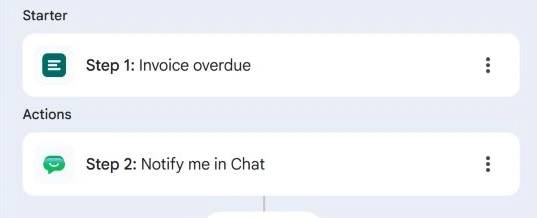
- Add Google Chat → Post in a space and choose a private finance space. Put
invoiceNumber,amountDisplay,currency,daysPastDueandinvoiceUrlin the alert using Variables +. - Add Check if below the Chat step. Require both
customerEmailandinvoiceUrlto have values. This keeps the internal alert available even when the email cannot be sent. - Inside the condition, add Gmail → Send an email. Map
customerEmailto To, and useinvoiceNumberin the subject. Paste the reminder below and replace its placeholders with Studio variables.
Subject: Reminder about invoice [invoiceNumber]

Hello,

Invoice [invoiceNumber] still shows an outstanding balance of [amountDisplay] ([currency]). You can review and pay it on Stripe’s secure invoice page:
[invoiceUrl]

If you have already paid or need a copy for your records, please reply and we’ll check.

Thank you,
[Your billing team]
Google Workspace admin policies can require approval for Gmail or Chat steps. Check Studio’s Activity and Approvals if a run pauses.
4. Use a Docs template and a Calendar task to escalate
Create a second Invoice overdue flow and set the threshold to 30. Add Docs → Create a doc and choose a restricted billing folder. Name it Overdue invoice [invoiceNumber]. Copy this template into Content to add and insert the bracketed variables from the starter. You can also keep the same template as a master Google Doc for manual cases.
Overdue invoice escalation

Invoice number: [invoiceNumber]
Stripe invoice ID: [invoiceId]
Outstanding balance: [amountDisplay] ([currency])
Days past due: [daysPastDue]
Hosted Stripe invoice: [invoiceUrl]

Internal review
Current status in Stripe:
Previous contact and date:
Next action and owner:
Next review date:

Before contacting the customer, open Stripe and confirm the balance is still outstanding.
Then add Google Tasks → Create a task. Use a title such as Review 30-day overdue invoice [invoiceNumber] and include the invoice reference and link in the details. The task goes to the flow owner’s primary Tasks list. Set a date for the follow-up so the task appears on that owner’s Google Calendar with Tasks visible. If the flow’s date field does not fit your rolling queue, date the task in Calendar during triage. For a reserved review slot, add the native Calendar Block time step.
A seven-day reminder and a 30-day escalation are separate triggers. You can also add a third flow with Invoice paid to update your tracker or tell finance that the invoice has been paid. Keep the Stripe invoice ID in your records so the team can match it and close the right follow-up task.
Test the full invoice reminder workflow
- Creation. Mark one test row ready, then confirm the draft invoice and its details in Stripe.
- Reminder. Use an open, finalized sandbox invoice sent for manual payment and check Studio after it crosses a test threshold and the daily scan runs. Confirm Chat, Gmail and the hosted link. Use a one-day threshold in the sandbox if you want a shorter test.
- Escalation. Check the Docs permissions, task owner and Calendar visibility. Make sure the task details let the owner locate the Stripe invoice.
- Live cutover. Connect a separate restricted live key. Select [LIVE] on each Stripe starter and action, and verify the Sheet, Chat space, email and Docs destinations before enabling the live flows.
Frequently asked questions
Can I create a Stripe invoice from Google Workspace?
Yes. Use the Create invoice action in Workspace Studio. A common setup reads an approved Sheet row, finds the existing Stripe customer by email, and creates a draft or finalizes and sends a new invoice.
Can Gmail automatically send Stripe invoice reminders?
Yes. Start with Invoice overdue and add Gmail Send an email. Require both a customer email and the hosted Stripe invoice link. Your organization’s Google Workspace policy may require approval before sending.
Does the invoice reminder run every day for the same invoice?
The connector scans daily, but emits one event per invoice, due date and selected threshold. Configure separate flows to send reminders at different thresholds.
How do I create an escalation task that shows in Google Calendar?
Use the native Google Tasks Create a task step in the later overdue flow, then give the task a date. Dated Tasks appear in the flow owner’s Google Calendar when Tasks is enabled.
To connect your account, see the Stripe Connector for Google Workspace Studio. For other ways to use Stripe events in Workspace, start with 100 Stripe Automations for Google Workspace Studio. If you’re following up after a card attempt fails, use the Gmail and Gemini dunning workflow. For a sales log that updates after payment, see how to log Stripe payments to Google Sheets.