
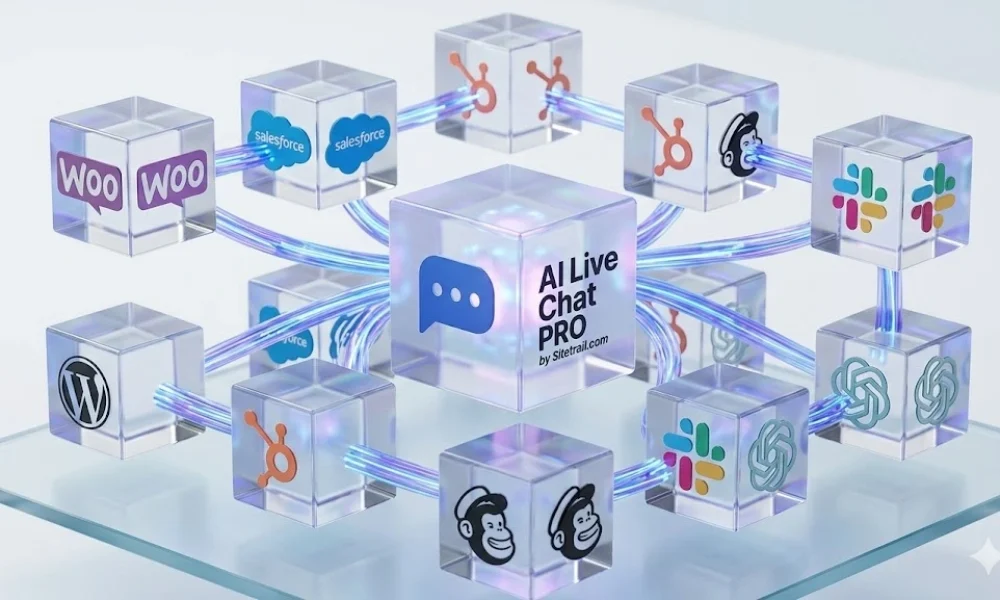
If you run a WooCommerce store and want an AI chatbot that can quote real prices, recommend relevant packages, explain product differences, and link visitors to actual product pages, the bot needs more than a clever prompt.
It needs your catalog inside a knowledge base.
After reading this article, try Using AI Live Chat PRO from Sitetrail!
That catalog must be kept current, structured for retrieval, and indexed so the right product surfaces when a shopper asks an imperfect question such as:
- “Gold plan?”
- “bulk guest posts?”
- “is that monthly?”
- “what is the cheaper option?”
- “tell me more about this”
- “and NewsPass?”
Those are normal ecommerce questions. Shoppers rarely type carefully formatted prompts. They ask short questions, use product nicknames, omit context, switch between plans, and assume the chatbot understands which page they are viewing.
A generic AI widget often struggles because it is trying to answer ecommerce questions without a properly synchronized ecommerce knowledge base.
This guide explains how to sync WooCommerce products into the AI knowledge base using AI Live Chat PRO: what happens behind the scenes, which WordPress admin screens to use, how RAG indexing fits into the workflow, how to verify that the chatbot sees the correct product information, and how to avoid filling your knowledge base with unnecessary content that weakens retrieval.
Why WooCommerce Product Sync Matters
WooCommerce is not merely a collection of webpages.
It is a structured ecommerce system containing product names, URLs, SKUs, categories, descriptions, prices, sale prices, subscription periods, product statuses, and other commercial information. Depending on the store, it may also contain service packages, digital products, subscriptions, bundles, tiered plans, or product variations.
Visitors expect a chatbot to understand that store.
When somebody asks:
How much is the Gold option?
they are not asking for a general explanation of the website. They want the current commercial answer.
When somebody asks:
Is this still available?
they expect the chatbot to understand the page they are currently viewing.
When somebody asks:
What is the difference between Basic and Silver?
they expect the chatbot to identify the correct pricing or product information rather than return a generic marketing paragraph.
A chatbot can only answer reliably when your store information reaches it through a proper pipeline:
- WooCommerce product data is synchronized into the knowledge base
- Product content is stored in a structured form
- The content is indexed for retrieval
- The chatbot searches that indexed content when a visitor asks a question
- The model receives the most relevant facts during the live conversation
Without that pipeline, even a capable language model is working with incomplete information.
Why a Prompt Alone Is Not Enough
Some chatbot setups rely heavily on a system prompt.
The store owner writes instructions such as:
Be helpful. Answer questions about our products. Never invent prices.
That is useful, but it does not solve the underlying problem.
The chatbot still needs access to the product catalog.
A prompt can tell a model how to behave. It cannot magically provide the current price of a WooCommerce subscription product, the correct URL for a service package, or the latest description of a product that was updated yesterday.
The same principle applies to large product pages.
A store owner may assume that the bot can simply read the website. But a typical ecommerce site contains many layers of content:
- WooCommerce product records
- Product descriptions
- Short descriptions
- Long Elementor landing pages
- Pricing tables
- FAQ sections
- Blog posts
- Category pages
- Policy pages
- Old promotional pages
- Product comparisons
- Checkout links
- Archived offers
If all of that content is dumped into one large unstructured pool, the bot may retrieve the wrong paragraph.
The goal is not merely to give the chatbot more content.
The goal is to give it the right content in a form it can retrieve accurately.
What Product Sync Solves
A generic AI chatbot does not automatically read your WooCommerce database.
It sees whatever text you provide at conversation time. Without a synchronized knowledge base:
- Prices can be wrong or missing
- Product names can be confused across a large catalog
- Long Elementor product pages can bury important pricing details inside marketing copy
- Subscription periods can be overlooked
- Product URLs may not surface when the chatbot recommends something
- Updates in WooCommerce may not reach the bot until somebody remembers to retrain it
- Old content may remain visible to the chatbot after a product is removed or unpublished
- Similar product names may compete during retrieval
- Blog posts may crowd out commercial product answers
Syncing solves that by copying WooCommerce product content into the plugin’s knowledge base on a schedule you control.
For each product, the system also builds a structured WooCommerce Product Facts block containing the product title, URL, SKU, categories, and current displayed price. That gives the retrieval system and the AI model a clean commercial summary before they encounter longer marketing copy.
Sync is the first stage.
RAG indexing is the second stage.
The sync stores the content. RAG indexing creates embeddings and searchable chunks so the bot can retrieve the right information during a live conversation.
Structured Product Facts Matter More Than They Seem
Many ecommerce pages are designed for humans rather than retrieval systems.
A landing page may begin with:
- A large headline
- A product promise
- Customer testimonials
- A comparison section
- A list of benefits
- A call to action
- An FAQ
- A pricing table halfway down the page
A shopper can scan that page visually.
A chatbot does not see the page in the same way.
If the retrieval system extracts only a small mid-page chunk, it may retrieve a benefit statement while missing the current price entirely.
That is why the WooCommerce Product Facts block is useful.
It puts the essential commercial information near the top of the stored knowledge base entry, where it is easier for the retrieval system and the language model to use.
The chatbot should not have to infer the product price from a 10,000-word landing page if the current WooCommerce price is already available as structured data.
What You Need Before You Start
Before syncing products, make sure the core pieces are in place.
- WooCommerce must be active on your WordPress site
- AI Live Chat PRO must be installed and licensed
- An OpenAI API key must be configured under AI Live Chat → AI Configuration
- Action Scheduler must be available for background bulk sync
The OpenAI API key is needed for AI replies and for generating embeddings.
Action Scheduler is bundled with the plugin and also ships with WooCommerce. If it is not loaded, bulk Website Content Sync is disabled until WooCommerce or the standalone Action Scheduler plugin is active. Settings still save and take effect once Action Scheduler becomes available.
You do not need to manually copy product text into the chatbot prompt.
The intended workflow is:
WooCommerce product data → knowledge base sync → RAG indexing → live retrieval during chat
Two Ways to Add WooCommerce Products to the Knowledge Base
There are two practical ways to get WooCommerce products into the KB.
| Method | Best for | Keeps products updated automatically? |
|---|---|---|
| Website Content Sync | Ongoing catalog maintenance | Yes — on save and scheduled runs |
| WordPress Content by IDs | Quick test or a small number of products | No — unless you later add them to sync |
For a real store, Website Content Sync is the better default.
Manual import is useful when you want to test a few products before configuring broader catalog synchronization.
Step-by-Step: Website Content Sync for WooCommerce
1. Open the Knowledge Base screen
In WordPress admin, go to:
AI Live Chat → Knowledge Base
At the top of the screen, you will see Website Content Sync.
This dedicated section appears above the Trained Sources table and manual import forms.
2. Choose the WooCommerce products you want to sync
Under WooCommerce Products, choose one of three modes:
- Do not automatically sync products — no automatic product sync; use manual or one-time imports only
- Automatically sync all published WooCommerce products — sync the entire published catalog
- Automatically sync selected WooCommerce products only — sync a specific list of product IDs
For selected products, enter comma-separated IDs such as:
12, 18, 22
To find a product ID, go to WooCommerce → Products and hover over the relevant item. The ID appears in the admin URL as post=123.
Which sync mode should you use?
For a small store with a clean catalog, syncing all published products may be reasonable.
For many stores, selected products are the better starting point.
That is particularly true when the catalog contains:
- Old products
- Drafts
- Internal products
- Legacy packages
- Rarely purchased items
- Products with similar names
- Thin product records
- Archived promotions
- Large numbers of low-priority items
A leaner knowledge base often produces better answers because the retrieval system has fewer irrelevant rows competing for attention.
Sync the products shoppers are most likely to ask about first:
- Best sellers
- Subscription packages
- High-margin services
- Bundles
- Flagship products
- Products with complicated pricing
- Products that commonly generate pre-sales questions
You can expand later.
3. Optionally sync related WordPress pages
Many WooCommerce businesses sell through long landing pages rather than simple product cards.
A WooCommerce product may exist mainly as a checkout item while the detailed explanation lives on a separate WordPress page.
In the same Website Content Sync panel, you can configure:
- WordPress Pages — all, selected, or none
- WordPress Posts — all, selected, or none
Pages are often useful for:
- Pricing tables
- Tier comparisons
- Service descriptions
- Package explanations
- Bulk-order information
- Subscription details
- Product comparisons
- Sales pages
- FAQ pages
- Shipping pages
- Returns pages
If the pricing for a service appears on a landing page as well as a WooCommerce product, sync both when both contain useful information.
If the product record is thin and the landing page contains the real tier table, make sure the page is included.
Be careful with posts
Blog posts can help when they answer real customer questions.
But syncing every blog post is not always a good idea.
A large blog archive may contain:
- Old product references
- General industry commentary
- News articles
- Historical pricing
- SEO pages
- Broad educational content
- Content unrelated to purchasing decisions
Those posts can expand the knowledge base and increase embedding and token usage without improving product answers.
Use posts selectively.
The best knowledge base is not necessarily the largest one.
It is the one that gives the chatbot the clearest route to the correct answer.
4. Set the automatic sync frequency
Under Automatic Website Content Sync, choose:
- Disabled — manual reconciliation only when settings are saved or products change
- Daily
- Weekly
Then click:
Save Website Content Sync Settings
Saving the settings queues an initial reconciliation in the background.
You do not need to keep the admin page open. The work runs through Action Scheduler in batches so the live chat and WordPress admin remain responsive.
5. Monitor the sync status
Below the save button, the status panel shows:
- Status — Idle, Running, Completed, Failed
- Last successful sync
- Next scheduled run
- Counters — Queued, Processed, Added, Updated, Unchanged, Stale/excluded, Failed
If items fail, expand:
Show failed item(s)
This reveals the relevant error details.
A small number of products should finish quickly.
A large catalog may take longer because the plugin processes work in background batches rather than trying to complete everything in one browser request.
That background approach matters for ecommerce sites. A store should not become slow or unstable merely because hundreds of products are being synchronized.
What Happens When a WooCommerce Product Syncs
For each WooCommerce product, the plugin performs several steps.
1. It pulls live product data from WooCommerce
Using WooCommerce APIs after the product is fully saved, the plugin pulls information including:
- Name
- Permalink
- Product type
- Product status
- SKU
- Current price
- Regular price
- Sale price
- Currency formatting
- Subscription billing period where applicable
- Short description
- Long description
- Product categories
This is important because ecommerce accuracy depends on live store data.
The chatbot should not be expected to reconstruct a product from scattered page copy when WooCommerce already stores the key commercial facts.
2. It prepends a WooCommerce Product Facts block
Before page-builder content or marketing copy, the stored knowledge base entry begins with a structured block similar to this:
--- WooCommerce Product Facts ---
Title: ...
Product page URL: ...
Current displayed price: $X.XX / month
SKU: ...
Categories: ...
--- End WooCommerce Product Facts ---
This block is one of the most important parts of the ecommerce retrieval workflow.
It makes the product’s commercial facts easy to identify.
Retrieval is designed to force this facts section into the snippet sent to the AI when that product matches, even if vector search initially lands on a chunk from the middle of a long product description.
That reduces a common failure mode:
The chatbot finds the right product page but still misses the price.
3. It cleans product-page content
Product descriptions from Elementor and other page builders are cleaned and deduplicated.
This matters because page builders often create repetitive or visually structured content that does not translate neatly into plain text.
A page can contain repeated calls to action, duplicated mobile sections, hidden layout elements, pricing cards, and multiple versions of the same copy.
Cleaning reduces unnecessary noise.
For long pages with tiered pricing in prose, a Page Pricing Summary may also be built and prepended.
That is useful for plan-based services where the visitor may ask about:
- Basic
- Silver
- Gold
- Monthly tiers
- Bulk packages
- Agency plans
- Subscription levels
- Service bundles
The pricing summary helps those commercial details surface even when the landing page is very long.
4. It stores the product in Trained Sources
Each synced product appears in the Trained Sources table with:
- Title
- Source type
- A Sync-managed badge
- Inspect
The Sync-managed badge distinguishes synchronized content from manual entries.
Inspect allows you to view exactly what the chatbot can access.
This is important because it turns knowledge-base troubleshooting into a practical process.
Instead of guessing whether the chatbot knows a price, you can inspect the stored content directly.
5. It refreshes on product save
When you edit and save a WooCommerce product, and that product is part of the active sync selection, a background refresh can be queued.
That allows price changes and description updates to propagate without requiring a full manual re-import.
For a living ecommerce site, that is essential.
Catalogs change.
Prices change.
Descriptions improve.
Subscription plans evolve.
Products get unpublished.
The chatbot knowledge base needs to follow the store.
Step Two: Index the Knowledge Base With RAG
Stored text alone is not enough for strong retrieval.
The chatbot also needs vector embeddings.
Embeddings are mathematical representations of content chunks. They allow the system to retrieve conceptually related information alongside exact keyword matches.
That matters because shoppers do not always use the same language as the product page.
A shopper may ask:
Do you have a cheaper package?
while the page says:
Basic plan
A shopper may ask:
Can I buy in bulk?
while the page says:
Volume pricing
A shopper may ask:
What is your agency option?
while the page uses a branded product title.
Embeddings help the retrieval system connect those questions to relevant content.
After products are in the knowledge base:
- Go to AI Live Chat → RAG System
- Run Test RAG System
- Run Complete RAG Coverage
- Use Process All Knowledge Base Content only when you need a full rebuild
What each RAG action does
Test RAG System confirms the API connection and index health.
Complete RAG Coverage embeds only items that have not yet been indexed. It is the efficient option for first setup or after adding products.
Process All Knowledge Base Content performs a full rebuild and re-embeds everything. Use this after a rebrand, major catalog overhaul, or significant knowledge-base restructuring.
A full rebuild uses more API credits, so it should not be your default action after every small change.
Embedding also runs in background batches.
Check the RAG dashboard for job progress.
The practical rule is:
Sync first → Complete RAG Coverage second → test chat third
Why RAG Improves WooCommerce Chatbot Accuracy
RAG stands for retrieval-augmented generation.
In plain terms, it means the chatbot does not answer from the model’s general knowledge alone.
Before responding, it searches the knowledge base for relevant store content and supplies that context to the AI model.
For WooCommerce, that can include:
- Product facts
- Pricing information
- Product descriptions
- Product-page URLs
- Subscription details
- Category information
- Synced landing pages
- FAQ content
- Policy pages
A strong ecommerce chatbot should not improvise a price.
It should retrieve the price.
It should not invent a product link.
It should retrieve the product URL.
It should not recommend a package that does not exist.
It should retrieve the relevant catalog items and explain the real options.
That is the practical value of the sync-and-index pipeline.
Verify That Sync Worked Before You Trust the Chatbot
Do not assume everything worked because the status says Completed.
Spot-check real products.
Go to:
Knowledge Base → Trained Sources
Find a synced product and click:
Inspect
Confirm that you see:
--- WooCommerce Product Facts ---at or near the top- The correct Current displayed price
- The correct Product page URL
- The expected categories
- The expected descriptions
This is one of the most useful checks in the setup process.
If the Product Facts block is missing, you may have imported a page or post rather than a WooCommerce product, or the item may predate sync enrichment.
If the Product Facts block is present and correct, but live chat still gives a weak answer, the problem is likely elsewhere:
- RAG coverage may be incomplete
- The retrieval query may be too vague
- The chatbot instructions may be too cautious
- The KB may contain too much irrelevant content
- A stale row may still be competing with the correct product
- The shopper may be asking about a different product than expected
Inspect tells you whether the source data is correct before you start troubleshooting conversational behavior.
One-Time Import Without Full Auto-Sync
You can also pull specific products into the knowledge base once without configuring ongoing automatic sync.
Go to:
Knowledge Base → WordPress Content by IDs
Enter product IDs such as:
42, 156, 203
Then click:
Add WordPress Content
This imports posts, pages, and WooCommerce products.
It is useful for quick tests.
For production use, move those product IDs into:
Website Content Sync → selected products
That way, the product data stays current when you edit the items in WooCommerce.
A one-time import is useful for experimentation.
It is not a substitute for a proper sync strategy if the product changes over time.
Keeping the Knowledge Base Fresh
A WooCommerce catalog is not static.
Even a small store changes over time.
You may:
- Change a price
- Add a sale
- Edit a product description
- Add a new subscription tier
- Replace a landing page
- Publish a new product
- Unpublish an old product
- Rename a service
- Discontinue a package
- Add a seasonal offer
- Change a product URL
The chatbot needs to reflect those changes.
When you change a product
Edit the product in WooCommerce and save it.
If the item is in your active sync selection, a refresh queues automatically when Action Scheduler is ready.
Scheduled reconciliation
Daily or weekly runs reconcile your selected catalog against the knowledge base.
That process can:
- Add new products
- Update changed products
- Preserve unchanged items
- Mark removed or excluded products
- Surface failures
Stale rows
If a product is removed from your sync selection or unpublished, its row may be marked Stale in Trained Sources.
Stale means embeddings were cleared so outdated catalog items do not influence chat.
The source record may remain for audit purposes.
That is useful because ecommerce stores often change gradually. You may want a record of the old source without allowing it to affect current answers.
Major catalog overhauls
After a rebrand, discontinued product line, or full catalog replacement, use the Knowledge Base option to remove all trained sources only when you truly need a clean slate.
That is destructive.
After clearing the sources:
- Re-run Website Content Sync
- Run Complete RAG Coverage
- Inspect several products
- Test live chat again
How to Decide What to Sync
A common mistake is syncing everything simply because the option exists.
More content is not always better.
A store assistant should know the information visitors are likely to ask about.
That often means prioritizing:
- Products people actually buy
- Products with complex pricing
- Subscription products
- Service packages
- Best sellers
- High-value products
- Frequently compared products
- Products that generate support questions
- Landing pages with pricing tables
- FAQ pages
- Shipping pages
- Returns pages
- Cancellation policies
- Relevant checkout guidance
A useful starting strategy is to sync the commercial core of the site first.
Then test real questions.
Expand only when you identify genuine gaps.
Best Practices for WooCommerce Stores
Sync what shoppers ask about
Do not automatically sync every piece of content you have ever published.
Selected products often outperform “sync all” for service businesses, subscription businesses, and stores with large catalogs.
A cleaner knowledge base reduces retrieval competition.
Sync landing pages with pricing tables
WooCommerce products are sometimes thin wrappers around long sales pages.
If your tier pricing lives on a landing page, include that page ID.
The chatbot may need both:
- The structured WooCommerce Product Facts block
- The detailed page explanation
Use blog posts selectively
Blog content can improve answers when it directly addresses a customer question.
But a large archive can add noise.
Use selected posts when they provide practical value, such as:
- Product guides
- Comparison articles
- Shipping explanations
- Returns guidance
- Use-case tutorials
- Subscription explanations
- Frequently asked questions
Do not sync unrelated editorial content merely to make the knowledge base larger.
Inspect product facts after synchronization
Open Inspect on several products.
Confirm:
- The current price
- The product URL
- The product title
- The categories
- The descriptions
This should become part of your routine whenever you make major product changes.
Re-index after bulk additions
If you add 20 new products, run:
Complete RAG Coverage
That gives the new rows embeddings.
Tune chatbot instructions for pricing
Go to:
Messages & Behavior → Bot Personality & Instructions
Tell the chatbot to:
- Quote prices when they appear in retrieved content
- Ask one clarifying question when the relevant price is missing
- Never invent prices
- Never invent checkout URLs
- Link to product pages when recommending products
- Distinguish between monthly and one-time pricing when the KB provides that information
Sync supplies the data.
Instructions tell the model how to use it.
Enable page context
Under:
AI Configuration
enable Context Awareness.
That allows visitors on a product page to ask:
Tell me more about this
or:
Is this monthly?
The chatbot can use the current page context alongside the knowledge base.
Test messy questions
Do not test only with perfect prompts.
Customers do not behave like QA testers.
Try:
- “How much is gold?”
- “Bulk options?”
- “and newspass?”
- “is that monthly?”
- “what is the cheaper one?”
- “tell me more about this”
- “do you have something for agencies?”
Good sync means Inspect shows the answer.
Good indexing means retrieval finds the answer.
Good instructions mean the chatbot says the answer clearly.
Common Failure Scenarios
The product exists, but the bot cannot quote the price
Possible causes:
- The KB contains an old row
- The product was not synchronized after a change
- RAG coverage is incomplete
- The product was imported as a generic page rather than as a WooCommerce product
- The chatbot instructions are too cautious
- A large amount of unrelated content is competing during retrieval
Start with Inspect.
Check whether the current price is stored in the Product Facts block.
The bot answers with an old price
Possible causes:
- The product has not refreshed
- Embeddings are stale
- An old landing page is still synchronized
- The product was removed from sync but an older manual row still exists
Re-save the product, run sync, and run Complete RAG Coverage if needed.
The bot gives weak answers even though the sync completed
Possible causes:
- Products were stored but not indexed
- The KB contains too many irrelevant posts
- The relevant product is not in the selected sync list
- The bot instructions do not tell the model to use retrieved pricing confidently
- The shopper is asking a vague follow-up without enough context
Run RAG System → Complete RAG Coverage and test again.
The bot understands one product but fails after the conversation switches
A shopper might ask about one package and then type:
and NewsPass?
That requires topic switching.
Make sure the newly named product exists in the synchronized KB and test whether retrieval surfaces the correct source when the conversation pivots.
Product Facts are missing in Inspect
Possible causes:
- The content was imported as a page or post
- The product predates enrichment
- The wrong content ID was used
- The product was not synchronized through Website Content Sync
Re-sync the product or re-import the correct WooCommerce product ID.
Troubleshooting Quick Reference
| Symptom | Likely cause | What to do |
|---|---|---|
| Bulk sync disabled warning | Action Scheduler not loaded | Activate WooCommerce or the Action Scheduler plugin |
| Product appears in the list but chat quotes the wrong price | Stale KB or embeddings | Re-save product, run sync, then run Complete RAG Coverage |
| No Product Facts block in Inspect | Wrong content type or legacy import | Re-sync through Website Content Sync or re-import the correct product ID |
| Sync completed but chat remains weak | RAG not indexed | Go to RAG System and run Complete RAG Coverage |
| Too many incorrect or vague answers | KB too large or noisy | Switch to selected products and remove irrelevant posts |
| Row marked Stale | Product deselected or unpublished | Re-add the product to the sync selection or remove the row from Trained Sources |
| New products do not surface | Missing embeddings | Run Complete RAG Coverage |
| Product-page questions like “this one?” fail | Context Awareness disabled | Enable Context Awareness in AI Configuration |
The Complete Workflow
Use this checklist when setting up a WooCommerce AI knowledge base.
- Configure the OpenAI API key under AI Configuration
- Open Knowledge Base → Website Content Sync
- Set WooCommerce Products to selected IDs or all published products
- Add key WordPress pages containing pricing or product explanations
- Select Daily or Weekly synchronization if appropriate
- Click Save Website Content Sync Settings
- Allow background synchronization to complete
- Check the sync counters
- Inspect two or three products
- Confirm the Product Facts block, current price, and URL
- Open RAG System
- Run Test RAG System
- Run Complete RAG Coverage
- Configure Bot Personality & Instructions
- Enable Context Awareness
- Test the chatbot with real shopper-style questions
- Re-check sync and RAG coverage after major catalog changes
Why This Workflow Matters for Ecommerce Conversion
An AI chatbot is not useful merely because it can produce polished sentences.
For an ecommerce store, it needs to reduce uncertainty.
A visitor may be one answer away from buying.
They may need to know:
- The price
- The billing period
- The product difference
- The relevant tier
- Whether a service is available
- Which option fits their use case
- Where to purchase
- Whether a bulk option exists
- Whether a lower-cost alternative exists
When the chatbot answers correctly, it removes friction.
When it guesses, escalates too early, or returns a generic answer, it introduces friction.
That is why knowledge-base quality matters.
The chatbot should not behave like a general AI assistant visiting your site for the first time.
It should behave like a store assistant that understands the catalog.
Bottom Line
Syncing WooCommerce products into an AI knowledge base is not a one-click magic trick.
It is a pipeline:
WooCommerce → structured knowledge base storage → RAG embeddings → live retrieval during chat
AI Live Chat PRO automates that pipeline with Website Content Sync, WooCommerce Product Facts, background batch processing, RAG coverage tools, and an Inspect option that lets you see what the bot knows before a customer does.
The most important practical steps are simple:
Sync the right products.
Include the landing pages that contain real pricing information.
Index the knowledge base with RAG.
Inspect several product rows.
Keep the catalog fresh.
Test the chatbot with imperfect shopper questions.
Give the model instructions that encourage accurate, confident answers without allowing it to invent commercial details.
Do that, and your WooCommerce chatbot stops guessing.
It starts selling with the real catalog data already inside your store.