

WooCommerce order numbers often jump from #1043 to #1051 for no obvious reason, and WooToolbox for WooCommerce fixes that with its own sequential order numbers, using a prefix, suffix and number format you choose. This guide explains why the default numbers skip, how to set up your own sequence and how to avoid clashing with existing order IDs.
Why WooCommerce order numbers skip
By default, WooCommerce shows the order’s internal ID as the order number. That ID is not reserved for orders alone. Other records created in the database, and draft or abandoned checkouts, can use up numbers in between, so your visible order numbers have gaps.
Gaps are harmless technically, but they look odd to customers and make life harder for anyone who reconciles orders, talks to customers on the phone or works with a warehouse. A clean sequence like ORD-0042, ORD-0043, ORD-0044 is easier to read, quote and search. At Sitetrail we’ve built 1,000+ websites, and order numbering is one of those details that is far easier to settle before a store grows than after.
How WooToolbox order numbers work
- WooToolbox gives each new order a separate display number stored on the order. The internal order ID does not change, so admin links and integrations that use the ID keep working.
- The number is shown wherever WooCommerce displays the order number, such as the customer’s account, order emails and the admin.
- Numbers are searchable in the WooCommerce orders screen.
- Numbers are assigned when orders are created, including orders from the classic checkout and the Checkout block. Draft checkouts are not numbered.
- Once assigned, a number stays fixed, even if you later change the format.
Order numbers and invoice numbers are two separate sequences in WooToolbox. This guide covers order numbers; see sequential invoice numbers in WooCommerce for the invoice side.
Step-by-step setup in WooToolbox
- Go to WooToolbox → Order & Invoice Numbers.
- Tick Enable numbering.
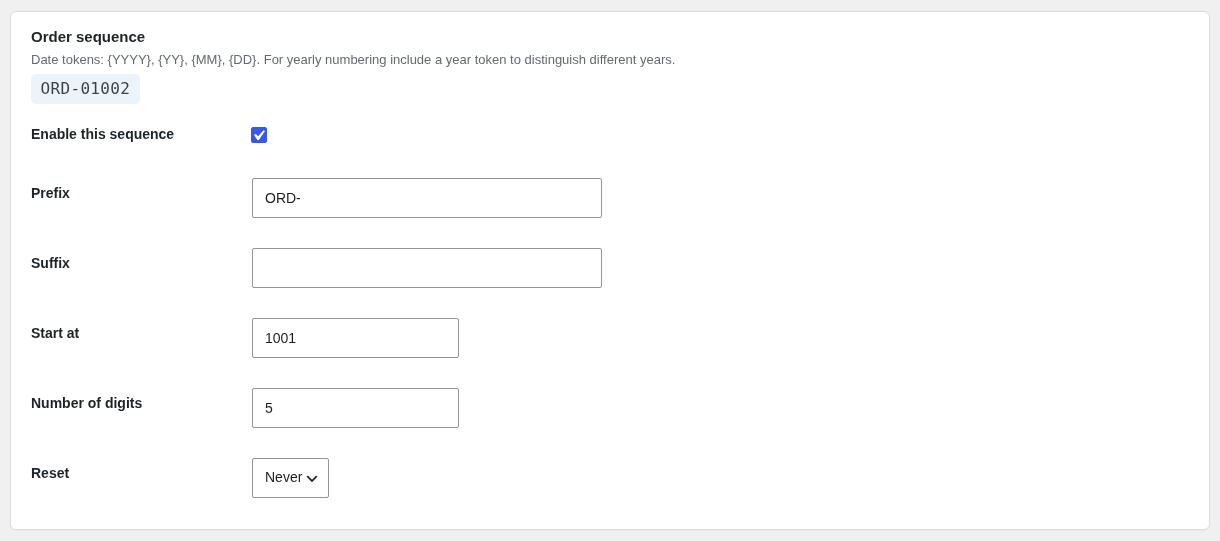
- In the Order sequence section, tick Enable this sequence.
- Set a Prefix. The default is ORD-. Letters, numbers, hyphens, underscores, slashes, dots and spaces are allowed, up to 20 characters.
- Add an optional Suffix.
- Set Start at, the first number to issue.
- Set the Number of digits. With 4 digits, 42 becomes 0042.
- Choose Reset: Never, or Yearly to restart the count each year.
- Watch the live preview at the top of the section, which shows what the next number will look like.
- Save, then place a test order.
Date tokens
You can use {YYYY}, {YY}, {MM} and {DD} in the prefix or suffix. For orders, the date comes from the order’s creation date in your store’s timezone. If you choose a Yearly reset, include a year token, such as a prefix of ORD-{YY}-, so numbers from different years cannot look identical.
WooToolbox video walkthrough
Avoid collisions with existing order IDs
This is the most important setting decision. If you use a purely numeric format (no prefix or suffix) and a Start at value lower than your existing order IDs, a new sequential number could match the number an older order already shows. Customers and staff could then confuse two different orders.
WooToolbox warns you about this on the settings page: "Numeric numbers may collide with existing order IDs. Use a prefix or choose a higher starting number." Take that warning seriously. The simplest fix is a prefix. If you must stay numeric, start above your highest current order ID.
What happens to existing orders
Orders created before you enable numbering keep the numbers they already have. If you want older orders numbered too, use Number existing orders at the bottom of the page. You must tick a confirmation box first, because it assigns numbers to eligible unnumbered orders, including orders placed while numbering was off, and it cannot be undone. It runs in the background and shows how many orders it has processed.
Most stores are better off leaving historic orders alone and starting the new sequence from today.
Practical tips
- Use a short, meaningful prefix. Something like your store initials keeps numbers easy to read aloud.
- Pick enough digits. If you expect thousands of orders, use 4 or 5 digits so numbers stay a consistent length.
- Tell your team. Support staff should know that customers will quote the new number, and that admin search finds it.
- Check connected tools. Shipping, accounting and fulfilment tools may record the internal ID or the display number. Place a test order and check what each tool receives. Partner emails from WooToolbox, for example automatic supplier order emails, use the display number.
Common mistakes
- A numeric format starting at 1 on an established store. This is exactly the collision case above.
- Changing the format often. Existing numbers stay fixed, so frequent changes leave a mix of styles.
- Yearly reset without a year token. Numbers from different years would look the same.
- Expecting a guaranteed gap-free sequence. WooToolbox uses an atomic counter, but if saving a number fails, that number is skipped.
Limits worth knowing
WooToolbox changes the order number customers and staff see, not the internal order ID used in URLs and the database. Some third-party tools may still show the internal ID. Numbering applies to regular orders only, not refunds or drafts.
The manual alternative is custom code using WooCommerce’s order number filter, which means handling concurrency, search and backfilling yourself.
FAQ
How do I make WooCommerce order numbers sequential?
Enable numbering in WooToolbox under Order & Invoice Numbers, turn on the order sequence, set a prefix, start number and digits, and save. New orders get sequential numbers from then on.
Will my existing order numbers change?
No, not unless you run Number existing orders. Existing orders keep their current numbers by default.
Can I add the year to WooCommerce order numbers?
Yes. Use a date token such as {YYYY} or {YY} in the prefix or suffix. The date comes from the order’s creation date.
Can I search orders by the new number?
Yes. The WooToolbox order number is searchable in the WooCommerce orders list.
Try it on your store
Clean order numbers make every conversation about an order easier. Start a 30-day free trial of WooToolbox for WooCommerce and preview your new format before your next order comes in.