


Most small teams that take payments through Stripe run the rest of the business in Google Workspace. The sales log lives in Sheets, the client conversation lives in Gmail, the team talks in Chat and the onboarding call sits in Calendar. The gap between them is usually filled by copy-paste, a forwarding rule or a third-party relay such as Zapier.
Google Workspace Studio closes most of that gap. With our connector, Stripe for Google Workspace: Payments & Invoices, a Stripe event can start a Studio flow directly, and a Studio flow can act back in Stripe. You can build the workflows below without a separate relay, custom webhook code or scripts.
This guide lists 100 Stripe automations you can build today. Every one uses a real Stripe starter or a native Studio starter, native Google steps, and at most one Stripe action (the Sheets-to-invoice recipe, which uses two, is noted). We also cover what is not built in, the Google and connector limits, and how runs are counted, so you can plan before you build.
On this page
- How the connector works
- Successful payments (1–15)
- Failed payments (16–27)
- New customers (28–39)
- Invoices (40–57)
- Subscriptions (58–71)
- Refunds (72–81)
- Disputes (82–90)
- Gemini workflows (91–100)
- Six setup recipes
- What the connector can do and where the limits are
- Pricing and runs
- FAQ
- Start building
How Stripe and Google Workspace Studio work together
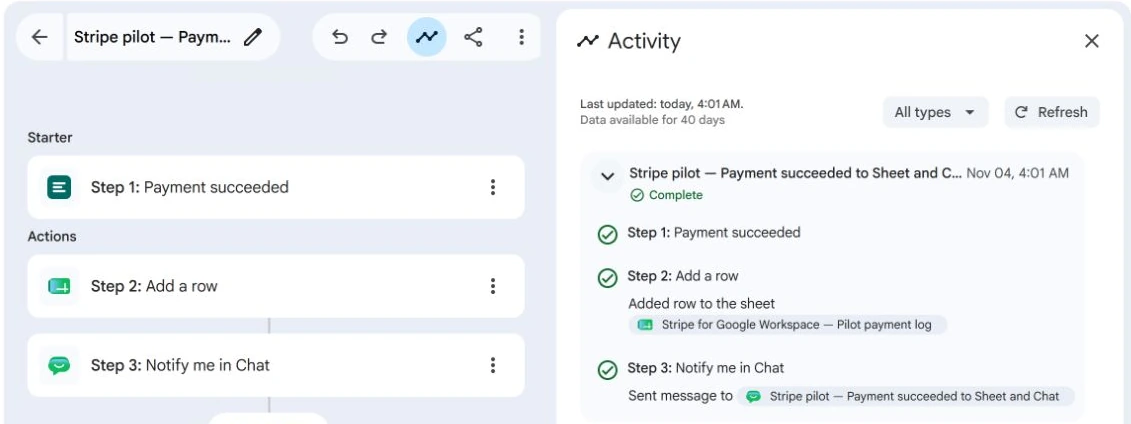
Workspace Studio flows have two parts: a starter that launches the flow and steps that do the work. Our connector adds both.
Nine Stripe starters (Stripe starts a Studio flow): payment succeeded, payment failed, new customer created, invoice paid, invoice overdue, subscription started, subscription cancelled, refund issued and dispute opened.
Seven Stripe actions (Studio acts in Stripe):
- Find a customer by email
- Create a customer
- Create an invoice as a draft, or finalize and send it
- Create a payment link from an existing Stripe price, with a quantity
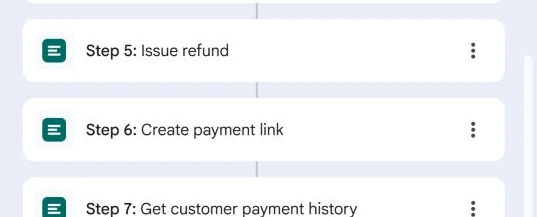
- Issue a full or partial refund (needs a PaymentIntent or Charge ID)
- Cancel a subscription immediately or at period end
- Retrieve a customer’s recent successful payments (up to 50 payments, scanning up to 500 PaymentIntents, with gross totals grouped by currency and a flag when totals are partial)
Everything else comes from Studio’s native steps: Gmail (send, draft, label, notify me by email), Sheets (add a row, update rows, get sheet contents), Chat (post in a space, send a message, notify me), Calendar (set up a meeting, block time), Docs and Drive (create a doc, add to a doc, create or copy folders and files), Google Tasks, logic steps (Check if, Wait until, Repeat for each) and Gemini steps (Ask Gemini, Decide, Extract, Summarize).
One point matters for everything below: each recipe is built in your own Studio. The connector supplies the Stripe cards; you choose the destinations, map the fields and turn the flow on. Test everything against a Stripe sandbox first, then switch the starter and every Stripe action to your live connection.
| Stripe starter | Fields you can typically map | Common Google destinations |
|---|---|---|
| Payment succeeded | Payment ID, customer email, amount, currency, date, receipt link and invoice link when available | Sheets, Gmail, Chat |
| Payment failed | Payment ID, customer email, failure code, decline code | Chat (internal), Gmail (customer) |
| New customer created | Customer ID, email | Sheets, Drive, Gmail |
| Invoice paid | Invoice number, amount, customer email | Sheets, Chat, Gmail |
| Invoice overdue | Invoice number, amount, days past due, hosted invoice link | Gmail, Chat, Tasks |
| Subscription started | Subscription ID, customer ID, email, status (active or trialing), date | Sheets, Calendar, Gmail |
| Subscription cancelled | Subscription ID, customer email | Sheets, Chat, Gmail |
| Refund issued | Refund and payment details, amount, currency | Sheets, Chat, Gmail |
| Dispute opened | Dispute ID, payment ID, amount, reason, evidence deadline when Stripe supplies it | Chat, Sheets, Tasks |
In the lists below, each automation reads Starter → steps → result. “Check if” is Studio’s native condition step. Stripe amount fields use the currency’s minor units, such as cents for USD. Use the display amount for customer-facing messages when it’s available.
Payment succeeded automations (1–15)

- Payment succeeded → Sheets: Add a row (event ID, payment ID, email, amount, currency, date, receipt link) → a sales log that updates itself.
- Payment succeeded → Check if customer email has a value → Gmail: Send an email with the amount and any available receipt link → customers with an email on file receive a thank-you.
- Payment succeeded → Chat: Post in a space (amount, currency, customer) → the sales team sees wins as they happen.
- Payment succeeded → Check if amount is above your threshold → Chat: Notify me in Chat → the owner hears about large payments only.
- Payment succeeded → Check if currency is not your base currency → Sheets: Add a row to an FX tab → foreign-currency payments are ready for reconciliation.
- Payment succeeded → Docs: Add to a doc (date, amount, customer) → a plain-language payments ledger for people who don’t live in Sheets.
- Payment succeeded → Check if receipt link is empty → Chat: Post in a space for finance → payments without a Stripe receipt get checked.
- Payment succeeded → Check if customer email → Gmail: Send an email with your Google Calendar booking page → service clients book their own kickoff call.
- Payment succeeded → Drive: Create a folder named with the customer email and payment ID → agencies get a client folder per sale.
- Payment succeeded → Drive: Copy a file or folder (your project template) → a ready-made project workspace for each new job.
- Payment succeeded → Tasks: Create a task ("Fulfil order for [email]") → fulfilment lands on someone’s to-do list.
- Payment succeeded → Wait until (3 days) → Gmail: Send an email asking for a review → a delayed follow-up without a separate tool.
- Payment succeeded → Stripe: Get recent successful payments for the customer → Check if the count meets your threshold → Chat: Post in a space → repeat customers are flagged for account managers.
- Payment succeeded → Sheets: Update rows where email matches, setting "Last paid" and "Status = Paid" → a lightweight CRM stays current.
- Payment succeeded → Check if the invoice link has a value → Sheets: Update rows in your invoice tracker → invoiced payments update their tracker. A separate flow can log direct payments.
Payment failed automations (16–27)
The connector does not retry a failed charge and cannot charge a saved card. Recovery runs through the customer: your Stripe customer portal link for subscribers, or a fresh payment link created from an existing Stripe price. A payment link is a new payment for that price; it is not attached to the failed charge, so reconcile it in your records.
- Payment failed → Chat: Post in a space (payment ID, failure code, decline code) → an internal billing record of every failure.
- Payment failed → Check if customer email → Gmail: Send an email ("Update your payment method") with your Stripe customer portal link → subscribers fix their own card.
- Payment failed → Stripe: Create payment link from the matching existing price → Gmail: Send an email with the link → one-off buyers get a clean way to pay again.
- Payment failed → Sheets: Add a row to a failed-payments tab → measure failures and compare the log with successful payments to track recoveries.
- Payment failed → Check if decline code is insufficient funds → Wait until (3 days) → Gmail: Send an email with the portal link → a gentle second nudge, worded for customers who may have already paid.
- Payment failed → Check if decline code suggests a lost, stolen or fraudulent card → Chat: Notify me in Chat → a manual review with no automatic customer email.
- Payment failed → Tasks: Create a task ("Call [email] about failed payment") → a human follow-up for key accounts.
- Payment failed → Check if amount is above your threshold → Calendar: Block time for a recovery call → high-value failures get time on the calendar.
- Payment failed → Gmail: Notify me by email with the customer and payment details → an account manager can compose and review a personal message.
- Payment failed → Sheets: Update rows for the customer, setting "At risk" → the customer list shows billing risk.
- Payment failed → Stripe: Get recent successful payments → Check if there is payment history → Chat: Post in a space → long-standing customers are prioritised over first-time failures.
- Payment failed → Gmail: Notify me by email → solo founders who don’t use Chat still hear about it.
Keep decline codes in internal steps. Customer emails should ask the customer to update their details, not explain the bank’s decline reason.
New customer created automations (28–39)
- New customer created → Sheets: Add a row (customer ID, email, date) → a customer register that matches Stripe.
- New customer created → Check if email has a value → Gmail: Send an email → the new customer receives a welcome message.
- New customer created → Chat: Post in a space → sales and success see new accounts.
- New customer created → Drive: Create a folder per customer → a consistent place for contracts and files.
- New customer created → Drive: Copy a file or folder (onboarding checklist template) → each client starts with the same checklist.
- New customer created → Docs: Create a doc ("Account notes – [email]") → a running notes document per account.
- New customer created → Tasks: Create a task ("Send onboarding pack") → onboarding has an owner.
- New customer created → Calendar: Block time to prepare for the new client → prep time is protected.
- New customer created → Stripe: Create payment link for your setup-fee price → Gmail: Send an email → setup fees are collected up front.
- New customer created → Stripe: Create invoice (draft) for a standard onboarding fee → Chat: Post in a space for finance → a draft waits in Stripe for review.
- New customer created → Wait until (7 days) → Gmail: Send an email → a one-week check-in.
- New customer created → Sheets: Update rows in your lead tracker where email matches, setting "Converted" → the lead-to-customer loop closes.
Invoice automations (40–57)
Two facts shape these flows. First, the connector’s invoices use manual payment (Stripe’s send_invoice collection method): they are created as drafts or explicitly finalized and sent. Second, the invoice overdue starter is checked daily. It covers open invoices awaiting manual payment, lets you set a threshold from 1 to 90 days past due, and fires once per invoice, due date and threshold.
Because a Studio Wait until step can pause for at most 14 days, build a reminder ladder as separate flows, one per threshold, rather than one long flow with waits.
Invoice paid (40–45)
- Invoice paid → Sheets: Update rows where invoice number matches, setting "Paid" → the invoice tracker closes itself.
- Invoice paid → Gmail: Send an email thanking the client and quoting the invoice number → a courteous receipt of payment.
- Invoice paid → Chat: Post in a space for finance → the team knows cash has landed.
- Invoice paid → Check if amount is above your threshold → Chat: Notify me in Chat → owners see the big invoices.
- Invoice paid → Tasks: Create a task ("Release deliverables / start phase 2") → paid work moves forward.
- Invoice paid → Docs: Add to a doc (client account log) → a client history anyone can read.
Invoice overdue ladders (46–53)
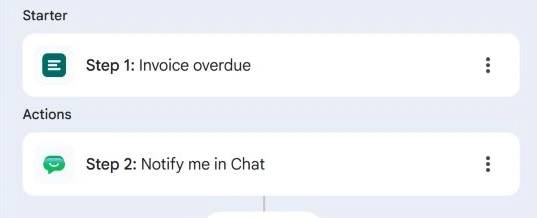
- Invoice overdue (7 days) → Check if email and invoice link → Gmail: Send an email with the hosted invoice link → a friendly first reminder.
- Invoice overdue (30 days) → Gmail: Send an email (firmer wording) → Chat: Post in a space for finance → the second rung of the ladder.
- Invoice overdue (60 days) → Chat: Notify me in Chat → Tasks: Create a task ("Decide: pause service or escalate") → a human decision at the final rung.
- Invoice overdue (1 day) → Chat: Post in a space (internal only) → finance gets a heads-up before any customer contact.
- Invoice overdue (any threshold) → Sheets: Add a row (invoice number, amount, days past due) → an aged-receivables log.
- Invoice overdue (14 days) → Calendar: Block time for a collections call → overdue accounts get a slot on someone’s calendar.
- Invoice overdue (30 days) → Tasks: Create a task with the invoice details and hosted link → sensitive accounts get a reviewed, personal reminder.
- Invoice overdue (45 days) → Sheets: Update rows in your client list, setting "On hold" → delivery teams see who is behind on payment.
Sheets-to-Stripe invoicing (54–57)
- Sheets: When a sheet changes (Status = Invoice) → Check if one row changed → Stripe: Find customer by email → Check if status is found → Stripe: Create invoice (draft) → our setup recipe; it uses two Stripe actions.
- Sheets: When a sheet changes (Status = Invoice, with a Stripe customer ID column) → Stripe: Create invoice (draft) → Sheets: Update rows with the returned invoice ID → a single-action version for known customers.
- Sheets: When a sheet changes (Status = Send) → Stripe: Create invoice (finalize and send) → Sheets: Update rows ("Sent") → the customer receives the Stripe invoice. Use this only after the draft path is verified.
- Forms: When a form response comes in (internal billing request with customer ID, line items, due date) → Stripe: Create invoice (draft) → Chat: Post in a space → staff request invoices without Stripe access.
Sheets-triggered invoicing handles one changed row at a time, because Studio groups bulk edits into one run. Mark rows individually, give each a permanent Request ID (for example invoice-001) and enter due dates as YYYY-MM-DD. Line items use JSON with amounts in minor units, for example [{"description":"Consultation","unitAmount":15000,"quantity":1}].
Subscription automations (58–71)
Subscription started (58–63)
- Subscription started → Sheets: Add a row (subscription ID, customer ID, email, status, date) → a subscriber register.
- Subscription started → Check if email → Gmail: Send an email with your booking link → subscribers choose their onboarding slot.
- Subscription started → Calendar: Set up a meeting with the subscriber as guest → onboarding at a fixed time your team uses.
- Subscription started → Chat: Post in a space (status active or trialing) → the team sees new sign-ups.
- Subscription started → Check if status is trialing → Wait until (up to 14 days) → Gmail: Send an email → a trial check-in before conversion.
- Subscription started → Tasks: Create a task ("Provision access") → access is granted by a named person.
Subscription cancelled (64–68)
- Subscription cancelled → Sheets: Update rows where subscription ID matches, setting "Cancelled" and the date → the register stays accurate.
- Subscription cancelled → Gmail: Send an email with a short feedback form link → you learn why customers leave.
- Subscription cancelled → Chat: Post in a space for customer success → churn is reviewed every week.
- Subscription cancelled → Tasks: Create a task ("Revoke access and offboard") → clean offboarding.
- Subscription cancelled → Stripe: Create payment link for a win-back price → Wait until (7 days) → Gmail: Send an email → a single, timed win-back offer.
Cancel from a Sheet or Form request (69–71)
- Forms: When a form response comes in (internal request with subscription ID) → Stripe: Cancel subscription at period end → Gmail: Send an email confirming → support handles cancellations without Stripe dashboard access.
- Sheets: When a sheet changes (Status = Cancel) → Stripe: Cancel subscription at period end → Sheets: Update rows ("Cancellation scheduled") → row-by-row cancellations with an audit trail.
- Sheets: When a sheet changes (Status = Cancel now) → Stripe: Cancel subscription immediately → Chat: Post in a space for finance → a note to handle any credit or final charge manually.
Immediate cancellation through this action does not create a final invoice or proration. If you owe a credit or need a final charge, handle it in Stripe. The connector also cannot change a subscription’s plan.
Refund automations (72–81)
- Refund issued → Sheets: Add a row (payment, amount, currency, date) → a refunds register.
- Refund issued → Chat: Post in a space for finance → refunds are visible on the day.
- Refund issued → Gmail: Send an email confirming the refund → fewer "where’s my money?" emails.
- Refund issued → Sheets: Update rows in the sales log with the refund amount and status → the team can account for partial and full refunds.
- Refund issued → Check if amount is above your threshold → Chat: Notify me in Chat → large refunds get owner attention.
- Refund issued → Docs: Add to a doc → a refunds summary your accountant can read.
- Forms: When a form response comes in (payment ID, optional amount, reason) → Stripe: Issue refund → Chat: Post in a space → approved staff request refunds through a form.
- Sheets: When a sheet changes (Status = Refund, with a PaymentIntent or Charge ID column) → Stripe: Issue refund → Sheets: Update rows with the result → a refund queue in a Sheet.
- Refund issued → Tasks: Create a task ("Cancel fulfilment / restock") → operations catch up with finance.
- Refund issued → Gmail: Notify me by email with the refund details and suggested next steps → the team can review and write a personal recovery message.
The refund action needs a PaymentIntent or Charge ID. A partial amount is in minor units; leaving it empty refunds the remaining refundable balance. Use a permanent request reference per refund so a retry doesn’t create a second operation.
Dispute automations (82–90)
Disputes need speed and a paper trail. The connector alerts the team and helps organise evidence. Submit the evidence in Stripe.
- Dispute opened → Chat: Post in a space (dispute ID, payment ID, amount, reason, evidence deadline) → finance knows immediately. The deadline can be empty if Stripe has not supplied it yet.
- Dispute opened → Sheets: Add a row → a disputes tracker with outcomes added later.
- Dispute opened → Calendar: Block time the next business day, with the deadline in the description → evidence prep is scheduled.
- Dispute opened → Tasks: Create a task ("Prepare evidence for [dispute ID], due [deadline]") → one owner per dispute.
- Dispute opened → Drive: Create a folder ("Dispute [ID]") → receipts, emails and delivery proof in one place.
- Dispute opened → Docs: Create a doc with the dispute details and your evidence checklist → a working brief.
- Dispute opened → Gmail: Notify me by email → the owner is told even outside Chat.
- Dispute opened → Stripe: Get recent successful payments for the customer → Chat: Post in a space → context on whether this is a long-standing customer.
- Dispute opened → Sheets: Update rows in the sales log, setting "Disputed" → fulfilment and finance see the flag.
Gemini-powered automations across events (91–100)
Gemini steps, including Ask Gemini, Decide, Extract and Summarize, are native Studio steps operated by Google. They need Gemini access in your Workspace account. Route proposed messages to an internal reviewer when wording matters.
- Payment failed → Ask Gemini to write a short, non-technical payment-method update message → Gmail: Notify me by email with the suggested copy → review it before contacting the customer.
- Dispute opened → Ask Gemini for an evidence checklist based on the dispute reason → Docs: Create a doc → a starting point for the evidence pack.
- Invoice overdue → Sheets: Get sheet contents (client notes) → Ask Gemini to match the reminder tone to the relationship → Docs: Create a doc with the proposed reminder for review.
- Subscription cancelled → Ask Gemini to draft a two-question exit survey email → Gmail: Send an email → better churn feedback.
- Gmail: When I get an email (new-client form notifications) → Extract name and email → Stripe: Create customer → Chat: Post in a space → leads become Stripe customers without retyping.
- Gmail: When I get an email → Decide whether it is a refund request → Check if true → Summarize → Chat: Post in a space → refund requests are triaged before a human decides.
- On a schedule (weekly) → Sheets: Get sheet contents (payments log) → Ask Gemini to summarise revenue by currency and notable changes → Chat: Post in a space → a weekly revenue note.
- On a schedule (monthly) → Sheets: Get sheet contents (refunds and disputes tabs) → Ask Gemini → Docs: Create a doc → a monthly exceptions report.
- Forms: When a form response comes in (internal account lookup with a Stripe customer ID) → Stripe: Get recent successful payments → Ask Gemini to write an account summary → Gmail: Send an internal email to the account manager for renewal prep.
- New customer created → Ask Gemini (using your onboarding doc as a source) to draft a welcome note → Gmail: Notify me by email with the suggested copy → review and personalise the message before sending.
Six setup recipes to start with
If you are new to Studio, don’t build 100 flows. Start with the six recipes in our setup guide, each with step-by-step field mapping:
- Log and acknowledge a payment – Payment succeeded → Sheets row → thank-you email when an email exists.
- Follow up on an overdue invoice – Invoice overdue → finance Chat post → Gmail reminder with the hosted invoice link.
- Help a customer recover a failed payment – Payment failed → internal Chat record → email with your Stripe customer portal link.
- Onboard a new subscriber – Subscription started → Sheets row → Calendar meeting or booking-link email.
- Route a dispute to finance – Dispute opened → finance Chat post with reason and evidence deadline.
- Create an invoice from a Sheet – Sheet row marked Invoice → find customer by email → draft Stripe invoice.
Test each with a Stripe sandbox connection, a Sheet only you can access and a private Chat destination. Check Studio’s Activity panel to see what ran.
What the connector can do and where the limits are
Not built into the connector:
- Charging a saved card
- Retrying a failed charge
- Changing subscription plans
- Managing payouts
- Submitting dispute evidence
For failed payments, the recovery route is your customer portal or a new payment link. For disputes, the connector alerts and organises; you submit evidence in Stripe.
Google Workspace Studio limits (Google’s limits page):
- 25 created flows per user, whether on or off. A 7/30/60-day reminder ladder uses three of them.
- 100 steps per flow.
- A separate daily run limit across all your flows. Google doesn’t publish the number, and flows stop until it resets.
- Wait until pauses a flow for at most 14 days.
Custom starter quotas (Google’s developer documentation): custom starter requests are capped at 100 per minute per user and 1,000 per minute per project. Very bursty event volumes can hit these.
Admin and setup requirements:
- Your Google Workspace administrator’s policy can block the add-on. Ask them to allow it and to confirm Studio access.
- Stripe starters need a one-time background authorization so events can start flows while you are away.
- Testing a custom starter needs an enabled flow and a Stripe sandbox event.
- Use the same Google account in Marketplace, the connector dashboard and Studio.
Pricing and runs
$19 USD per month or $190 USD per year, per connected Stripe account. Each plan includes 10,000 connector runs per month. There is no free trial. Test and live runs share the same allowance.

How runs are counted:
- One Stripe event delivered to one enabled flow = 1 run. The same event delivered to two enabled flows = 2 runs.
- Each successful Stripe action = 1 run.
- Native Google steps (Gmail, Sheets, Chat, Calendar, Docs, Drive, Gemini) = 0 runs.
- Duplicate retries with the same request reference = 0 runs.
At the limit, new connector work pauses. There is no automatic overage. Pending event payloads are kept for seven days, so you can review and retry them.
Worked example
A consultancy with roughly 600 card payments a month runs the following:
| Flow | Monthly volume | Connector runs |
|---|---|---|
| Payment succeeded → Sheets log + Chat post (flow A) | 600 events | 600 |
| Payment succeeded → thank-you email (flow B, same event) | 600 events | 600 |
| Payment failed → payment link action → Gmail | 40 events + 40 actions | 80 |
| Invoice overdue ladder (7, 30, 60 days, three flows) | 30 + 12 + 5 reminders | 47 |
| Sheets-to-invoice (find customer + create invoice) | 80 rows × 2 actions | 160 |
| Refund issued → Sheets + Gmail | 15 events | 15 |
| Dispute opened → Chat + Tasks | 3 events | 3 |
| Weekly Gemini revenue summary (schedule starter, native steps) | 4 runs | 0 |
| Total | 1,505 |
Two lessons. Merging flows A and B into one flow would save 600 runs, because native steps are free. And the Sheets-to-invoice flow costs nothing for the Sheets starter itself; only the Stripe actions count. This business uses about 15% of its allowance, leaving plenty of room for sandbox testing.
FAQ
Do I need Zapier or another relay to connect Stripe to Google Workspace Studio?
No. Stripe for Google Workspace adds Stripe starters and actions directly to Workspace Studio. Stripe events start your Studio flows, and Studio steps can act in Stripe, without Zapier, Make or your own webhook code.
Can I test Stripe automations in test mode before going live?
Yes. Connect a Stripe sandbox with a restricted test key, select the [TEST] connection on the starter and each Stripe action, enable the flow and trigger a sandbox event. Check Studio’s Activity panel. Test and live runs share the 10,000-run monthly allowance.
What does my Google Workspace admin need to allow?
Your admin must allow the Stripe for Google Workspace add-on from Google Workspace Marketplace and make sure you have access to Workspace Studio. Admin policy can block the add-on. You also complete a one-time background authorization so Stripe events can start your flows.
Can I send Stripe invoices from Google Sheets?
Yes. Mark a row as Invoice and a Studio flow looks up the customer by email and creates a Stripe draft invoice. You can also choose to finalize and send it. Invoices use manual payment. Mark one row at a time, because Studio groups bulk edits into one run.
What happens when I reach the monthly run limit?
New connector work pauses, with no automatic overage charge. Pending Stripe event payloads are kept for seven days so you can review and retry them. Native Google steps don’t count as runs, and duplicate retries with the same request reference don’t count either.
Start building
Install Stripe for Google Workspace: Payments & Invoices from the Google Workspace Marketplace, connect a Stripe sandbox and build your first recipe in Studio. For pricing, privacy details and a walkthrough, see Stripe for Google Workspace.
If you run a WooCommerce store, the same Studio approach works for orders and products with our Studio Connector for WooCommerce. And if you publish on WordPress, our PR, SEO & AI Search Studio plugin helps your content reach search, AI answers and the press.