
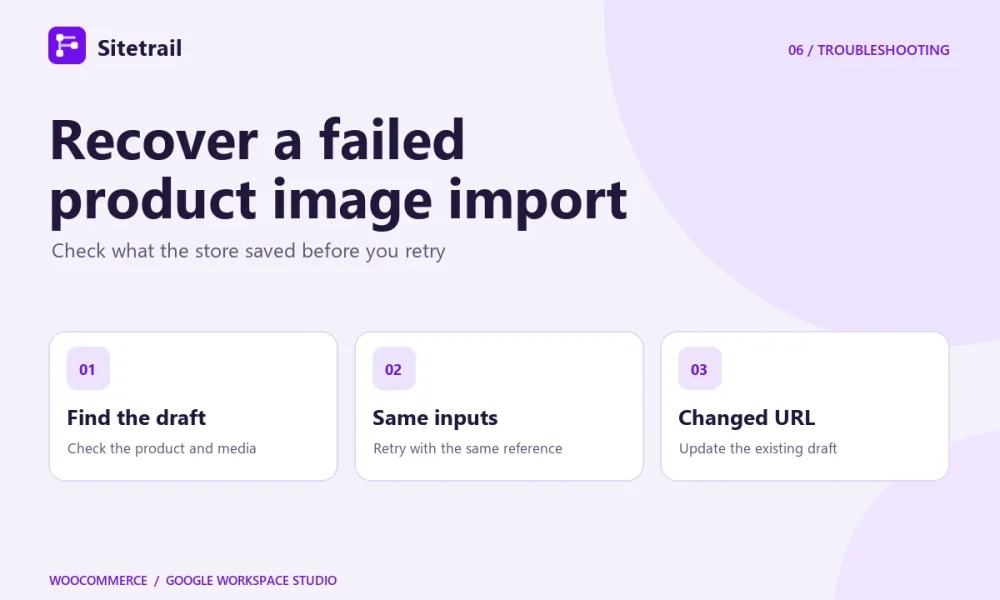
A failed image import can leave a draft and some of its images saved in WooCommerce. For example, the bridge might create the product and import two gallery images before a third URL fails. Check the store before starting a new create action. The right recovery depends on whether you can keep the original inputs.
Check the image source first
- Use a URL the store can fetch. Open the link without signing in and check that it returns the image itself. A private Drive link, an HTML preview page or an expired link can fail even if the image looks fine in your signed-in browser. The WooCommerce host makes the download, so its outbound connection must also be able to reach the source.
- Check the format and size. Use JPEG, PNG or WebP over HTTPS, with a limit of 5 MiB and 24 million pixels per file. The connector accepts one featured image and up to five gallery images per product action. The gallery field expects a JSON array. Each variation action takes a single variation image.
- Confirm attachment IDs belong to this site. If an image already exists in the paired store’s Media Library, you can use its attachment ID instead of a URL. An ID copied from another site may refer to a different item or no item at all.
Find out how far the run got
- Open Studio Activity. Find the failed run and check whether it stopped at Prepare, Send a webhook, or Read WooCommerce result. A non-success webhook response can stop Studio before the result step, sometimes with only a generic error.
- Check the bridge’s recent errors. In WordPress, open Google Workspace Studio Connector → WooCommerce Connector → Recent WooCommerce request errors. Use the error and request reference to identify the run.
- Inspect WooCommerce and the Media Library. Look for the draft by its distinctive name or SKU. Note the product ID and what already exists. An image may already be in the Media Library even if the full gallery was not applied. If you are unsure which product the run affected, pause and resolve that before retrying.
Choose the recovery that matches the failure
The original URL works again. If the source is reachable at the same URL, rerun the whole direct action with the same request reference and unchanged inputs. The bridge can resume saved progress and reuse the draft and completed image imports. Running Prepare again also requests a fresh permission if the previous one expired during an approval delay.
The URL needs to change. If a draft already exists, use Prepare WooCommerce product update with the saved product ID and a new reference for the changed action. For a gallery replacement, supply the complete intended gallery in order. You can reference existing media by their attachment IDs and use the corrected source URL for the missing image. For a variation, use Prepare WooCommerce variation update with both IDs.
Only some fields need changing. On a product update, leave image fields unset to preserve existing media. Use the explicit removal controls when you intend to remove a featured image or gallery. After the update, reopen the draft and verify both the image selection and gallery order.
See how the WooCommerce connector handles product images · View the Google Workspace Marketplace listing · Read the bridge’s troubleshooting guide