

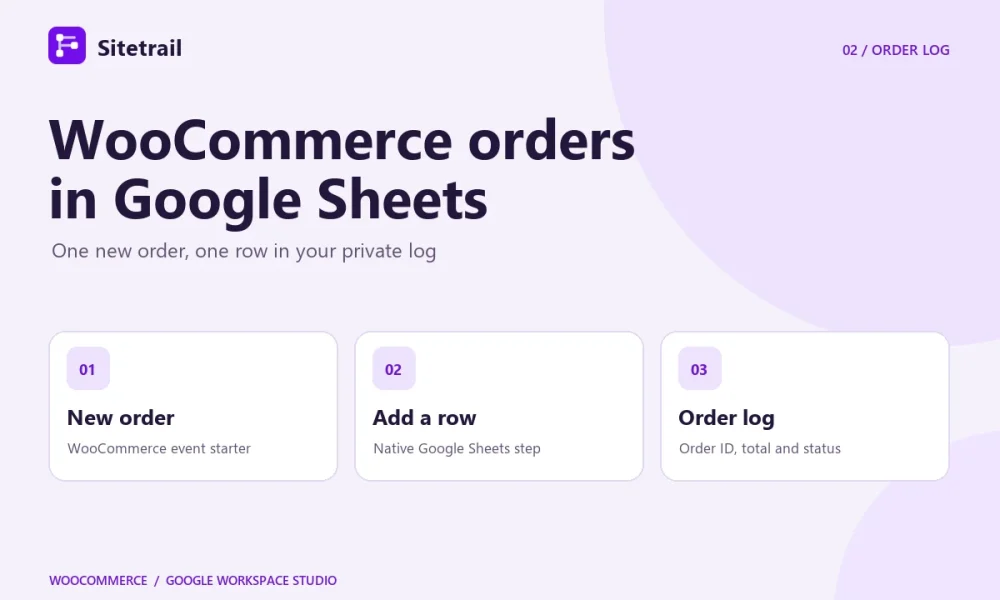
Use Sitetrail’s New order starter to pass each new WooCommerce order to Google Workspace Studio, then use Studio’s Add a row step to record it. This is useful for a private intake log that you can scan without opening each order in WooCommerce.
Prepare a sheet that Studio can write to
Create a private spreadsheet under the Google account that will own the flow. Give the tab one header row with unique names such as Order number, Event time, Total, Currency, Status and Order ID. Keep the WooCommerce order ID in its own column so you can look up the source record. Format the order number column as plain text if your store uses leading zeros or prefixes.
Google’s Add a row step currently requires a spreadsheet that is private to the flow owner. Sharing the spreadsheet can cause later runs to fail. Keep this recipe’s destination private and use only the order fields you need. A basic intake log usually works without customer names, email addresses or shipping details. See Google’s guidance on Sheets steps.
Build and test the flow
- Confirm event access. Use a connected WooCommerce store and a Google account with access to the Sitetrail add-on in Studio. For a store paired through the bridge, turn on Send WooCommerce events in the WooCommerce module if events are off. If you use the existing API-key connection, follow the event starter setup guide.
- Choose the New order starter. Select the connected store. Leave Minimum order total blank for a general order log, or set it if the log is intended only for orders at or above your chosen minimum.
- Add the Sheets step. Choose Add a row and select your spreadsheet and tab. Choose to append after existing content. Map the starter’s order number, event date, total, currency, order status and order ID to the corresponding columns. Map the values as variables so they change with each order.
- Send a sample. Turn on the flow and select it under Send a sample event in connector settings. The sample uses fictional order data and runs the configured steps, so use a test sheet or remove the sample row afterward. Verify that Studio added one row and that values landed in the right columns. A fictional result might show order 1001, total 49.00 USD, status Processing and order ID 1001. The separate currency column helps you interpret totals if your store accepts more than one currency.
Read the log as a record of new orders
A row captures the values delivered when the order was created. A later status change in WooCommerce does not refresh that row in this recipe. The New order starter also works for guest checkout orders because it listens for orders rather than new customer accounts. Use WooCommerce as the source of truth for current order status, payment details and refunds.
If a sample appears in connector delivery history but the sheet stays empty, open the run in Studio’s Activity view. Check the selected tab and spreadsheet permissions first. If there is no starter delivery, check that the flow is on, the selected store matches, and the connection can send events.
See how the WooCommerce connector brings orders into Studio · View the Google Workspace Marketplace listing