

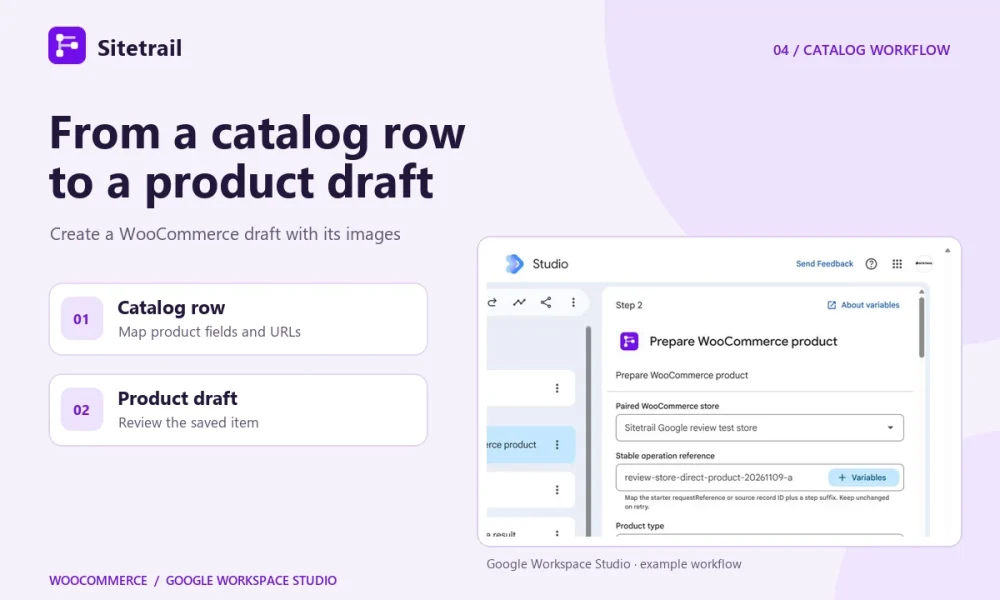
When product details already live in a spreadsheet, you can turn a ready row into a WooCommerce draft and hand the saved product to a merchandiser for review. Google Workspace Studio reads the row and passes the values you choose to Sitetrail’s direct WooCommerce action. Start with one simple product so you can verify the mapping before using the flow for everyday work.
You’ll need the direct WooCommerce cards in Studio, a store paired through Sitetrail Studio Bridge and permission from your Workspace administrator to use Send a webhook. Check the direct-action setup guide if you haven’t paired the store yet.
Set up one catalog row
Create unique column headings starting in A1. For a first run, use Catalog reference, Name, SKU, Regular price, Description, Featured image URL, Gallery JSON and Ready for draft. Give the row a stable catalog reference such as catalog-mug-blue-001. Use a plain decimal such as 24.00 for the price. Fill the product details first and set Ready for draft to Yes when the row is complete.
The store downloads the images from their source. Use accessible HTTPS JPEG, PNG or WebP files or attachment IDs from that same store. A private Google Drive link does not give WordPress access to the file. Keep the first run to one featured image and a small gallery. The connector accepts up to five gallery images, with limits of 5 MiB and 24 million pixels per file.
Use a JSON array in the Gallery JSON cell. Each entry can point to an accessible source URL or an existing attachment. The array order becomes the gallery order. Replace the example URLs with your own.
[
  {"src":"https://assets.example.com/mug-side.jpg"},
  {"src":"https://assets.example.com/mug-detail.jpg"}
]
Map the row into a draft
- Watch the approval column. In Studio, choose When a sheet changes. Select the catalog tab and watch Ready for draft for the new value Yes. Change one row at a time. Google can group a multi-row edit into one run, so use Check if with the starter’s changed-row count to continue only when one matching row changed.
- Prepare the product. Add Prepare WooCommerce product for the paired store. Set product type to simple and visibility to draft. In the variable picker, map the starter’s latest values for name, SKU, regular price, description and the image fields. Map Gallery JSON to Gallery images JSON and Catalog reference to Stable operation reference.
- Send the action and read the result. In Google’s Send a webhook step, use POST and the paired store’s exact bridge endpoint. Map Prepared payload as the entire payload. In Read WooCommerce result, map the native webhook response and Prepare’s connection ID, request ID, site URL and action.
- Open the returned edit URL. Check the draft’s SKU, price and description in WooCommerce. Compare the featured image and gallery order with the row. To hand it off, send the edit URL to a merchandiser who has access to edit the product, for example through a native Studio Chat step.
Keep creation and updates separate
The row is input for this flow. Later spreadsheet edits do not automatically update the WooCommerce product. Save the returned product ID against the catalog reference. Use Prepare WooCommerce product update for intentional changes. For a retry of the same create action, keep the original reference and inputs. Reusing that reference with changed inputs can cause a conflict.
See the connector’s product and image features · View the Google Workspace Marketplace listing · See Google’s guide to sheet changes and variables