
An espresso machine buyer gets the right setup video before the box arrives. Support finds out a parcel is stuck before the customer writes in. Merchandising turns an approved supplier spreadsheet into draft products with photos for every colour. Those are three of the 100 workflows below, built around the jobs WooCommerce merchants do every week.
After the sale
1. Help buyers pull their first good espresso shot
A new espresso machine can end up back in its box after one frustrating morning. Give the buyer something useful before delivery. A 90-second setup video for their exact model, a tip for their first shot, and a support address they can reply to are enough.
Flow
WooCommerce order status changes → Confirm payment and find the model in the order → Send the setup guide from support Gmail
Paste into Gemini in Workspace Studio
Build a flow for [STORE] using Sitetrail’s Studio Connector for WooCommerce and Gmail. Start when an observed WooCommerce order changes to Processing from [PAID TRANSITION'S PREVIOUS STATUS]. Continue if the event’s line items contain an exact product ID of [PRODUCT ID], or variation ID [VARIATION ID] for the model-specific version, and the customer email is present. Send one email for the matching order from [SUPPORT GOOGLE ACCOUNT]. Use the subject “Your first espresso with the [MODEL].” Include [APPROVED VIDEO URL] and this first-use tip [APPROVED TIP]. End with “If your first shot doesn’t come out right, reply here and we’ll help you dial it in.”
Configure in Studio
Choose Order status changed. Map Order status, Previous status, Customer email, and Line items JSON from the starter. Match a parsed item’s numeric ID using a structured parsing step or helper available to your Workspace. For a variation-specific guide, check both the parent and variation IDs. Set the previous-status filter to the transition your gateway actually uses for paid orders and verify that the connector observes it. The first observed update establishes a baseline. If your gateway skips the transition, use a confirmed payment event from your provider instead. A shop with reprocessing or multiple payment paths should record a sent marker keyed by order ID and guide before enabling live sends, using a system that supports deduplication. Connect Gmail as the support account that will receive replies.
Test before turning it on
Use a test address and run a matching paid order, a paid order for another model, and a repeat of the same eligible event. The customer should get the right guide once.
How to build these workflows
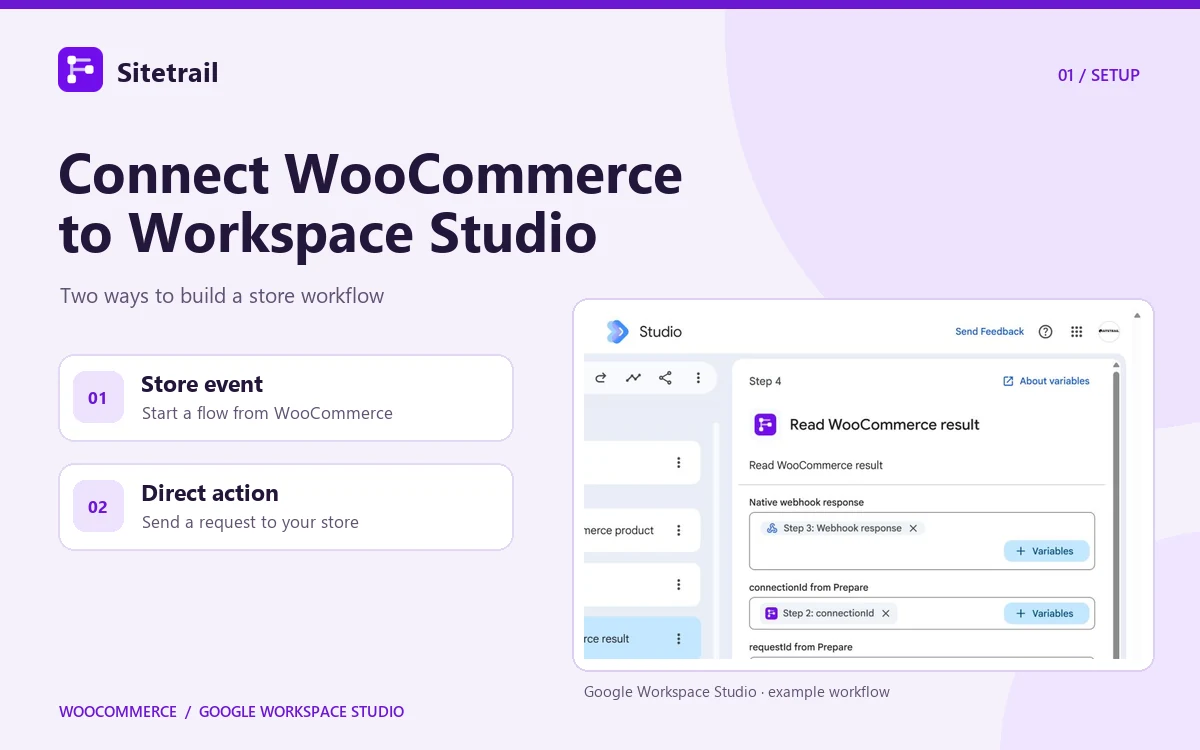
Open Describe a task for Gemini in Google Workspace Studio and paste one of the prompts. Gemini can draft the flow. Review the result, add any missing WooCommerce cards, and map the variables before running it. Requires marks an extra data source, app, or capability to bring into the workflow.
Sitetrail’s WooCommerce connector has five store starters. They cover new orders, observed order-status changes, new registered customers, product updates, and managed stock crossing a threshold. Guest purchases can start order flows. The new-customer starter fires for registered accounts.
For a direct WooCommerce action, install and pair the free Sitetrail Studio Bridge, then connect Prepare → Send a webhook → Read WooCommerce result in Studio. Check that your Workspace administrator allows the native webhook step. Enable WooCommerce event delivery for recipes that start with a store event. Use a test store, internal Gmail addresses, and fictional sample data while checking sends and store writes. A sample event can execute any actions configured in the flow.
2. Make the first delivery easier to use
Paid order for a large appliance → Check the product ID → Send a pre-delivery checklist with doorway measurements, electrical requirements, and unboxing instructions. Use approved model-specific copy.
3. Turn common setup mistakes into a public how-to campaign
Support lead labels repeated “won’t turn on” emails for a model → Studio creates an internal brief for a short setup video and three social captions → Marketing reviews and posts through its existing scheduler. Use a manual starter or match the issue in new inbound Gmail messages. Keep customer details out of the public copy.
4. Give gift buyers a printable insert
Paid order contains the gift version of a product → Match its product or variation ID → Send the purchaser a printable note explaining what the recipient will get. Use a public link or approved attachment delivery method.
5. Help buyers check the fit while they can still exchange it
Carrier confirms delivery → Match the order ID → Send the care and fit-check guide for the exact item so the customer can assess it before wearing or washing it. Requires a delivery feed with a reliable order reference.
6. Remind buyers about care after the first use
Paid order for a product that needs maintenance → Wait three days → Recheck order status → Send an approved cleaning or storage tip if the order is still eligible. Pick a delay suited to when customers receive or use the product.
7. Get custom-print jobs out of the approval bottleneck
New order contains a custom-print product → Open a proofing task with the order ID and deadline → Send the buyer the proof once the designer approves it. Requires a proofing queue or app for the approval handoff.
8. Give pickup customers the right directions
Pickup system sends a ready-for-collection email → Match the order → Draft a Gmail message with the correct entrance, opening hours, and collection reference. Requires a pickup notification that identifies the order and location.
9. Hand off white-glove installation
Order for a product with installation → Notify the scheduling team in Google Chat with the order link → Assign a call to confirm the site is ready. The team can catch access or scheduling problems before dispatch.
10. Help repeat buyers reuse compatible accessories
Paid order for a replacement machine → Check the consented purchase-history feed for accessories the buyer already owns → Send approved compatibility guidance to eligible recipients. Requires purchase history and a product compatibility table.
Shipping and fulfillment
11. Save the sale when a parcel stalls
An exception email from the carrier can arrive days before the buyer asks where the parcel is. Put the exception on the order and send support the tracking number, so they can contact the carrier or give the buyer a useful update.
Flow
Carrier exception email → Match the WooCommerce order → Add a private order note → Notify fulfillment in Chat
Paste into Gemini in Workspace Studio
Start when Gmail receives an exception email from [CARRIER SENDER] matching [SUBJECT PATTERN]. Extract the order reference, tracking number, and carrier exception. Look up the exact order using Sitetrail’s WooCommerce connector. If the reference cannot be matched uniquely, notify [FULFILLMENT SPACE] for manual lookup and stop before any WooCommerce write. For a confirmed match, add a private order note with the tracking number and carrier message. Post the order number, tracking number, and next action to [FULFILLMENT SPACE].
Configure in Studio
Filter Gmail by the carrier’s sender and subject. The connector’s order lookup takes a WooCommerce order ID. If the carrier only provides a tracking number or a custom order number, use your dispatch table to resolve it to one internal ID first. Map Order ID into the lookup and internal note cards. Use a stable operation reference tied to the order and carrier event for the note.
Test before turning it on
Run a known tracking number and an unmatched one. Check that the unmatched message reaches the team without updating an order.
12. Catch paid orders still awaiting fulfillment
Paid-order transition → Wait until your dispatch target → Look up current order status → Alert fulfillment if the order is still Processing. Use this where WooCommerce status reflects your dispatch progress.
13. Route address corrections before the label is printed
Address-change email → Extract the order reference → Look up the order → Alert staff to verify and correct the address before dispatch. Keep the address change in the verified store or shipping workflow.
14. Give split shipments a single point of contact
Warehouse sends two tracking notices for one order → Group them by order ID in the dispatch tracker → Create a support task to explain which items are in each parcel. Requires warehouse data that lists parcel contents.
15. Keep frozen orders out of weekend transit
Paid order contains a frozen item → Check the local dispatch calendar → Flag orders placed after the cutoff for the cold-chain team. Use the warehouse’s approved cutoff and holiday calendar.
16. Book the right delivery service for oversized orders
Paid order contains a freight-only product → Identify the item from order line items → Create a freight quote task with the item ID and quantity. Requires approved freight dimensions in a lookup table.
17. Escalate a parcel marked delivered but reported missing
Buyer emails support → Identify the order and delivery issue → Attach the order link to a carrier investigation task. Requires carrier tracking lookup or a delivery feed to confirm the recorded status.
18. Flag a return-to-sender scan
Carrier return-to-sender notice → Resolve tracking number to order ID → Add a private note and ask support to verify the address with the buyer. Requires a tracking-to-order lookup.
19. Tell the warehouse when an order is cancelled
Observed order changes to Cancelled → Post the order ID and item quantities to the warehouse Chat space → Ask for confirmation that the pick ticket was stopped. Automated pick-ticket cancellation requires a warehouse system action.
20. Rebook a missed delivery appointment
Carrier marks appointment missed → Start a support task with the order and carrier reference → Draft available rebooking instructions from approved copy. Requires an appointment feed or carrier email.
Returns and support
21. Turn “it arrived damaged” into a complete case
Give support the order link and the next evidence to request without making the buyer repeat what they already sent.
Flow
Damage report in support Gmail → Resolve order ID → Read the order → Add a private note and notify returns staff
Paste into Gemini in Workspace Studio
Start when Gmail receives a message in [SUPPORT ACCOUNT] that reports an item damaged on arrival. Extract the order reference and the customer’s short description. Resolve the reference to one WooCommerce order ID. Use Sitetrail’s WooCommerce order lookup and send unmatched cases to [RETURNS SPACE] for manual review. For a verified match, add a private order note with the reported issue and post the order number, store link, and whether the email includes photos to [RETURNS SPACE]. Leave the refund decision to the returns team.
Configure in Studio
Use Gmail filtering and an extraction step for the report, then map the verified ID into the lookup and note. Check the sender against the order’s billing email or have staff confirm identity before any customer-facing reply. Keep attachments in the support inbox or a restricted case folder.
Test before turning it on
Try a message with photos and a valid reference, then an email with an ambiguous reference. Confirm the note is private and only the matched order is updated.
22. Identify the wrong item in a parcel
Wrong-item email → Extract what was ordered and what arrived → Compare with the order’s item data and request a warehouse pick check. Requires a reliable way to match the customer email to the relevant order.
23. Route warranty claims to the right team
Warranty form arrives by Gmail → Match the order and product → Check the approved warranty rules → Send the case to the manufacturer or in-house team for review.
24. Flag repeated defects in a particular variation
Quality team logs verified damage cases by variation ID → Scheduled Studio flow groups by variation and defect → Alert quality when one pattern passes a chosen threshold. Requires a structured case log.
25. Stop sending onboarding emails after a return starts
Return system opens a case → Record the order ID in a suppression list → Check that list before the next onboarding email. Requires a returns feed and a suppression lookup shared by both flows.
26. Turn a fit complaint into an exchange option
Returns inbox receives a sizing complaint → Resolve the variation ID → Look up availability for the recommended alternate size → Draft an exchange option for support to check.
27. Chase a replacement that never shipped
Support records a replacement order ID → Scheduled flow checks open replacement cases → Alert the owner when the replacement order has stayed in Processing beyond its deadline.
28. Prevent double handling on two support channels
Helpdesk and Gmail report the same problem → Match by order ID and case type → Add the second reference to the existing case for the assigned agent. Requires a helpdesk or case log that supports an exact lookup.
29. Review repeat returns consistently
A return is requested → Pull verified past return counts from the returns system → Route repeated cases to a reviewer with the reasons and dates. Requires a returns-history feed.
30. Report what buyers keep asking before they return
Scheduled flow reads a private sheet of confirmed return reasons → Summarise the top questions by product → Assign improvements to the relevant product guide or size chart.
Stock and purchasing
31. Give purchasing a reorder decision while there is still stock
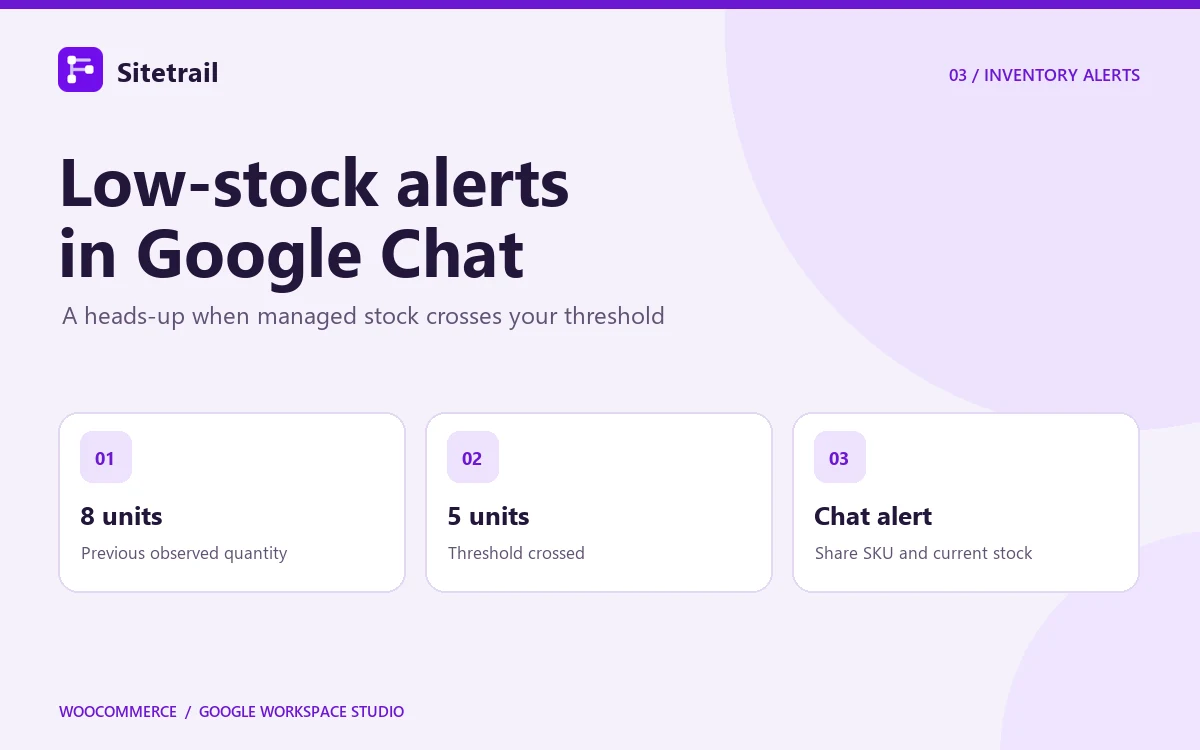
A warning that stock is low tells a buyer very little. Add the exact variation, current quantity, vendor lead time, and existing open purchase orders so they can decide whether to reorder.
Flow
Managed stock crosses threshold → Match product or variation to supplier data → Notify purchasing with the evidence
Paste into Gemini in Workspace Studio
Start when Sitetrail’s WooCommerce low-stock starter fires. Read the product ID, variation ID when present, SKU, and stock quantity. Find the matching row in [PURCHASING SHEET] using the variation ID for variants and product ID for simple items. Post the SKU, quantity remaining, supplier, lead time, and any open purchase-order reference to [PURCHASING SPACE]. Flag missing supplier records for review. Keep purchasing approval with the buyer.
Configure in Studio
Enable the low-stock starter for the relevant threshold. Use Studio’s Get sheet contents to retrieve a bounded supplier range, then use an exact ID match from that data. Stock alerts depend on managed stock and a known prior quantity crossing the threshold. Set up a separate scheduled report if you also need to catch items that were already below threshold.
Test before turning it on
Move a test variation from above to below the threshold. Confirm the message identifies the correct size or colour and shows the right supplier.
32. Restore stock from a verified warehouse count
Approved cycle count row → Match product and variation IDs → Compare the quantity in WooCommerce → Set the approved absolute count. Requires a source-of-truth policy for inventory shared across channels.
33. Reorder packaging before the warehouse runs out
Paid-order items → Calculate boxes or inserts needed from a packaging lookup → Record expected usage → Alert purchasing when the packaging supply crosses its reorder point. Requires packaging counts and consumption rules.
34. Flag an inventory feed that has stopped updating
Scheduled Studio flow checks the most recent successful supplier-feed timestamp → Alert inventory operations if the feed is stale before another stock import runs. Requires a feed timestamp or delivery log.
35. Catch a negative quantity after reconciliation
Approved stock reconciliation → Look up affected products and variations → Create an exception for quantities below zero where the store’s backorder policy forbids them.
36. Build a stock-transfer shortlist for two locations
Location A falls below its reorder level → Compare Location B’s sellable stock and reservations → Draft a transfer recommendation. Requires a warehouse or multi-location inventory feed.
37. Prepare the next preorder release from confirmed receipts
Warehouse confirms a receipt → Match the product and compare allocated units with confirmed stock → Send an approved release list to fulfillment. Requires purchase-order and preorder allocation data.
38. Warn buying about stock arriving after a promotion starts
Weekly schedule → Compare promotion dates in Sheets with purchase-order arrival dates → Flag affected products for buying and marketing. Requires a reliable inbound stock feed.
39. Spot a best seller that will run out before replenishment
Daily schedule → Combine recent unit sales with WooCommerce stock and supplier lead time → Flag SKUs whose projected cover ends before the next delivery. Requires a sales and inbound stock dataset.
40. Check returned stock before putting it back on sale
Warehouse inspection marks a returned unit sellable → Look up the current SKU → Queue an approved stock adjustment against the warehouse count. Requires a returns inspection feed and a reliable current stock count.
Products and merchandising
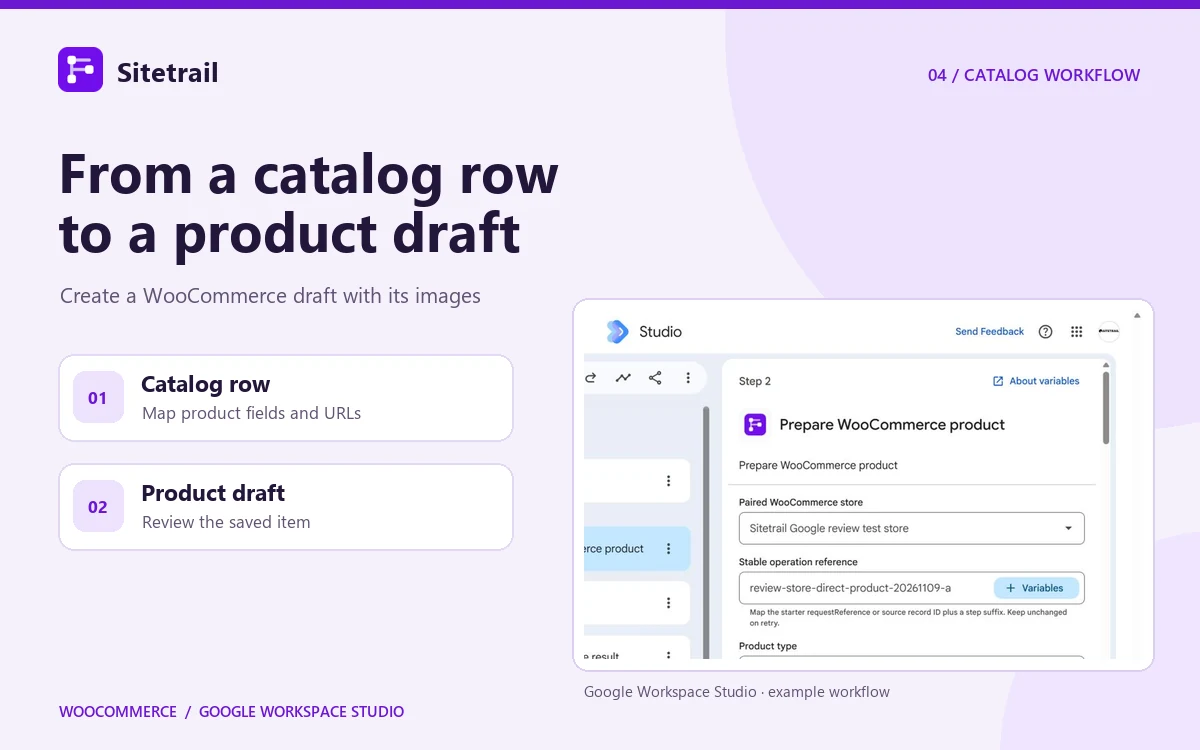
41. Turn a supplier launch sheet into draft products with images
A supplier sends a launch sheet on Monday. By the time the merchandiser opens WooCommerce, the first products can already be ready to review with descriptions, prices, and photos in place.
Flow
Scheduled Studio run → Read approved supplier rows in Sheets → Create WooCommerce drafts with images → Return product IDs and edit links for review
Paste into Gemini in Workspace Studio
Run at [SCHEDULE]. Read a small batch from [LAUNCH SHEET] with a unique import ID, approval status, product name, SKU, price, stock, featured image URL, and gallery image URLs. Repeat for each approved simple-product row. Use Sitetrail’s direct Prepare WooCommerce product step with visibility set to Draft, Google’s Send a webhook to [PAIRED STORE ENDPOINT], and Read WooCommerce result. Map each row’s immutable import ID to the operation reference. Record the returned product ID and edit URL in [PRIVATE IMPORT LOG] or send them to [MERCHANDISING SPACE]. Route incomplete rows for review.
Configure in Studio
Use Get sheet contents and Repeat for each with a bounded range. Map Product name, SKU, Regular price, Stock quantity, and Featured image HTTPS URL. Supply Gallery images JSON from approved URLs or existing store attachment IDs. Keep the operation reference and input values stable on retry. For a variable product, create the variable parent first, then create the approved variations against the returned product ID with one image per variation.
Test before turning it on
Create one draft and open its edit link. Check the featured image and gallery order, then repeat with the same reference and inputs and confirm WooCommerce returns the existing draft. Exclude completed rows from future batches.
42. Give every colour its own photo
Approved variation row → Match its parent ID and attribute option → Create or update the variation with its corresponding image → Return the variation ID to merchandising. Requires a parent and variation mapping.
43. Replace a hero image without disturbing the gallery
Photo team approves a replacement → Map the WooCommerce product ID and public HTTPS image URL → Update the featured image field → Return the new image URL for inspection. Leave the gallery input blank to preserve it.
44. Check a new listing for missing product photos
Product updated → Look up the product and read its featured-image and gallery fields → Send the edit link to merchandising if required images are missing.
45. Map supplier categories to your store taxonomy
Approved supplier sheet → Translate supplier category codes to existing WooCommerce category IDs → Update the matching draft with the approved IDs. Requires a maintained category mapping.
46. Create copy that answers the questions buyers ask
Support lead approves a list of recurring pre-purchase questions → Studio prepares a revised product description in a review doc → Merchandising applies the approved text to the matching WooCommerce product.
47. Add accurate alt text as images are imported
Photo team approves an image row and its descriptive alt text → Import the featured image or gallery entry with the approved alt text → Review the result in the product editor.
48. Audit variation photos against colour swatches
Scheduled Studio run reads a list of variation IDs and expected images → Look up each variation → Flag entries whose image differs from the approved asset. Requires an image manifest keyed by variation ID.
49. Catch an accidental product slug change
Product updated → Compare the current slug with the approved URL register → Alert the SEO owner with the edit link and expected slug so they can review redirects and campaign links.
50. Give older products a spec refresh
Manufacturer sends a verified specification change → Match affected WooCommerce product IDs → Draft revised copy for review → Apply the approved description through the connector. Requires a manufacturer-to-store ID mapping.
Promotions and paid media
51. Stop paying for traffic to a sold-out size
An ad can keep taking buyers to a product long after its most popular size has sold out. Get the affected SKU and campaign in front of the person who can act on it.
Flow
Managed stock crosses threshold → Look up the exact variant → Match the SKU to the campaign → Notify the ads owner
Paste into Gemini in Workspace Studio
Start on a WooCommerce low-stock event. Use the event product and variation IDs to look up the affected item through Sitetrail’s WooCommerce connector. Read [CAMPAIGN MAP SHEET] and find the exact SKU. If the SKU has an active promotion and the remaining quantity is at or below [AD THRESHOLD], post the SKU, quantity, product link, and campaign reference to [PAID MEDIA SPACE]. If the item has no campaign mapping, end the flow.
Configure in Studio
Maintain the SKU-to-campaign mapping in Sheets. Match at variation level for size or colour campaigns. Leave pausing with the ads owner unless you have a supported ad-platform action and an agreed rule for what happens when one variant sells out.
Test before turning it on
Use a promoted variation and a variation with no active campaign. Check that only the promoted one produces an alert.
52. Create an approved service-recovery coupon
Support approves a goodwill offer → Create a limited-use WooCommerce coupon → Return the code to the case owner. Add recipient restrictions in WooCommerce or through a tool that supports them before treating the code as buyer-specific.
53. Retire a campaign coupon on time
Scheduled run checks the campaign end date → Map the existing coupon ID → Set its approved expiry through WooCommerce → Ask marketing to remove the live promotion. Use the store’s date and time conventions.
54. Catch a campaign price that never went live
Campaign start time → Look up the promoted product → Compare its WooCommerce sale price with the approved amount → Notify marketing if they differ.
55. Route abandoned checkouts to an opt-in recovery tool
An eligible abandoned checkout appears in your checkout recovery app → Use Studio to pass an approved recovery event to the messaging platform → Suppress orders already paid. Requires a cart or checkout event source and a marketing platform with consent and suppression controls.
56. Bring back buyers who asked for a restock alert
Warehouse receipt restores stock → Confirm the item is sellable in WooCommerce → Trigger the opt-in back-in-stock list for the exact variation. Requires a restock or marketing platform with a subscriber list and send action.
57. Draft a real launch message from approved product copy
Merchandising approves a draft product → Studio pulls approved specs and images → Create a campaign brief in Docs with the product details and suggested copy for review.
58. Give creators the right product links and assets
Campaign brief is approved → Look up the linked WooCommerce product → Assemble the landing link, product image, and approved talking points in the creator’s handoff doc.
59. Stop advertising products with broken landing pages
Scheduled flow reads destination URLs for active ads → Check each URL using a monitoring service → Send marketing the failures and corresponding WooCommerce product IDs. Requires ad destination data and a URL monitoring service.
60. Find promotions that are growing sales at the expense of margin
Daily schedule → Combine eligible order data, campaign spend, and item cost in a sheet → Alert the campaign owner when contribution margin falls below the agreed floor. Requires cost and spend feeds.
Customer retention and wholesale
61. Get a wholesale application to the right account manager
A serious trade enquiry can look like any other email in the sales inbox. Give the account manager the registration match and details needed to pick up the conversation.
Flow
Wholesale application arrives in Gmail → Find the registered WooCommerce customer by exact email → Route the enquiry to sales
Paste into Gemini in Workspace Studio
Start when Gmail receives a wholesale application from [FORM SENDER] with [SUBJECT PATTERN]. Extract the applicant’s submitted business email, company, and territory from the form message. Use Sitetrail’s WooCommerce customer lookup with the submitted email. If it matches exactly one account, send the account manager the customer ID, company, and application reference. If the match is missing or ambiguous, add the application to [SALES REVIEW QUEUE]. Do not change the customer’s account or pricing.
Configure in Studio
Use the email entered on the application as the lookup input. The sender address may belong to the form system. Map the match count and customer ID from the lookup output. The direct Read WooCommerce result card labels the match total Count. Keep the review queue restricted to the sales team.
Test before turning it on
Run one application from a known registered account and one from an unknown address. Check that both are visible to sales and each lands in the correct queue.
62. Send new registered buyers a useful account guide
WooCommerce new registered customer → Send approved instructions for viewing orders and getting help. Keep this separate from WooCommerce’s existing account email or decide which message should own the instructions.
63. Hand high-value repeat buyers to a real person
Eligible order → Match customer ID against verified repeat purchase data → Notify the account owner when the customer reaches the agreed milestone. Requires an order history feed.
64. Remind customers when a consumable is due
Paid order for a consumable → Calculate a product-specific refill date → Hand it to an opt-in campaign or a scheduled queue that checks for a later purchase. Requires purchase history and a messaging tool that honours consent and suppression.
65. Give sales a heads-up before a trade reorder is due
Weekly schedule → Read account purchase cadence and latest confirmed order → Create a follow-up task when a trade account is overdue. Requires customer purchase history and a reorder interval per account.
66. Catch a wholesale buyer approaching their credit limit
New trade order → Match the account in the accounting system → Compare the order total with available credit → Route for manual approval. Requires trade account IDs and an accounting credit feed.
67. Alert the account owner to a trade buyer’s backorder
New backorder alert from the inventory system → Match the WooCommerce order and trade account → Ask the account owner to confirm the ETA or offer a substitute. Requires an inventory or fulfillment backorder signal.
68. Route cancellation follow-up by reason
Order becomes Cancelled → Check the reason recorded in the service desk → Route address problems to support and stock problems to purchasing. Requires a separate cancellation-reason source.
69. Flag loyalty rewards that were earned but never issued
Nightly flow compares completed order IDs with the loyalty platform’s award log → Send missing awards to a review queue. Requires a loyalty points export or action.
70. Close the loop when a customer reports a fix worked
Support receives a follow-up email confirming resolution → Match the case and order → Record the outcome and close the support task. Requires a helpdesk or structured case log.
Finance and reporting
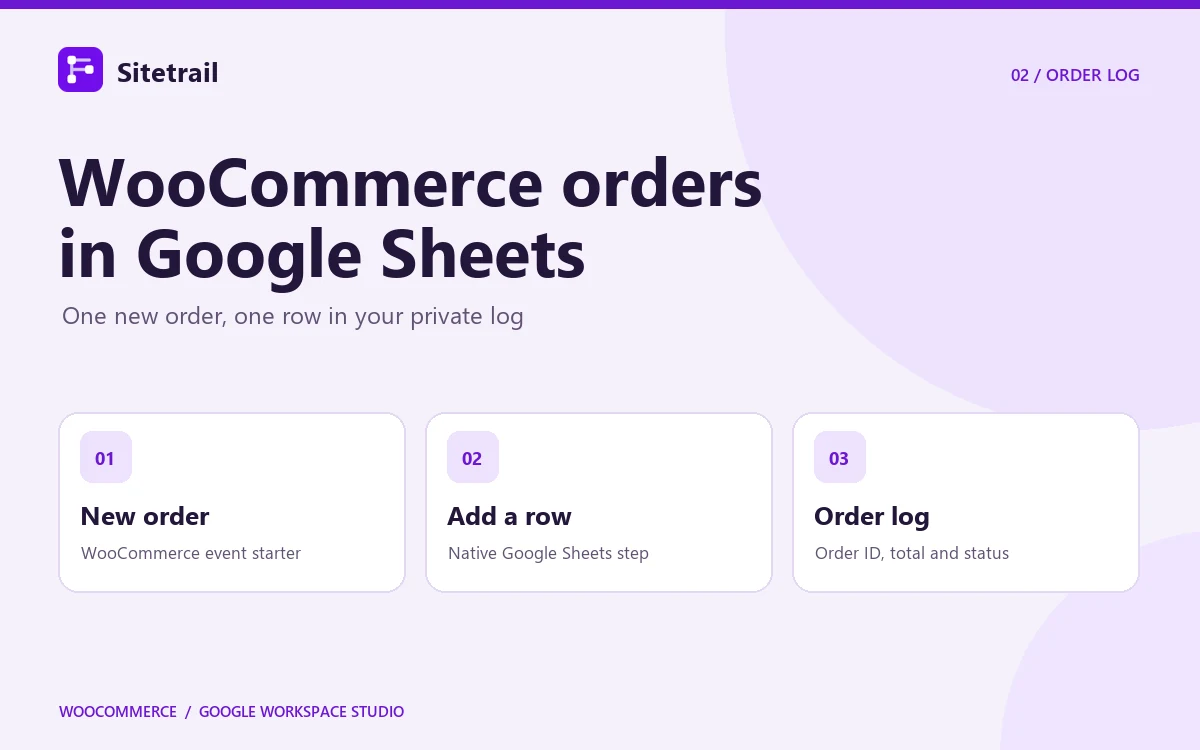
71. Log WooCommerce orders in Google Sheets
Build a daily order register that staff can reconcile against WooCommerce without copying each order by hand.
Flow
WooCommerce new order → Map the order fields → Add a row to a private Google Sheet
Paste into Gemini in Workspace Studio
Start when Sitetrail’s WooCommerce New order starter fires. Add a row to the Orders tab of [PRIVATE ORDERS SHEET]. Map Order ID, Order number, Order status, Order total, and Currency from the starter. Keep the internal Order ID in its own column. Leave customer names and emails out of the register. Do not treat the order event as proof of payment.
Configure in Studio
Create one header row and choose Add a row. Set order numbers to plain text if they use prefixes or leading zeros. Use a private destination owned by the flow owner for this native Sheets step. Keep the internal ID as the lookup key for later reconciliation.
Test before turning it on
Send a fictional test order to the flow. Verify the amount, currency, status, and order identifier all land in the correct columns.
72. Catch a WooCommerce order missing from the payout
Processor settlement report arrives → Match transaction references against the order ledger → Send unmatched rows to finance. Requires processor data and a WooCommerce order-to-transaction mapping.
73. Flag a currency mismatch before close
Scheduled flow reads order amounts and processor records → Compare the order currency with the charged currency → Create a reconciliation exception. Requires the processor’s charge data.
74. Compare refunds against the gateway’s actual refunds
Observed order status changes to Refunded or the returns tool sends a refund event → Match the gateway record → Alert finance to missing or mismatched amounts. Requires processor refund data and a separate signal for partial refunds where applicable.
75. Start a chargeback evidence task
Gateway sends a dispute email → Map the charge to the WooCommerce order → Create a task with the dispute deadline and approved evidence checklist. Requires the dispute notification and transaction mapping.
76. Separate tax exceptions for accountant review
Daily export includes a tax exception code → Match the affected WooCommerce order → Log it for finance to investigate. Requires a tax engine or export that flags exceptions.
77. Check that net sales agree across dashboards
Weekly schedule → Compare WooCommerce sales data with the BI dashboard export using the same refund and date conventions → Flag differences above the agreed threshold. Requires both reports.
78. Catch an order with an unexpectedly large discount
New order → Compare approved promotion limits with line totals and the source price list → Send finance the order reference and the amount to verify. Requires an approved price and discount baseline.
79. Close the week with an owner’s digest
Weekly schedule → Read the private order register and exception log → Send the owner one digest showing volume, outstanding fulfillment issues, and items needing a decision.
80. Detect a broken accounting export
Scheduled Studio run checks the latest accounting sync timestamp or receipt → Notify finance if yesterday’s export has no acknowledgement. Requires sync logs or accounting confirmation emails.
Team operations and quality checks
81. Catch an unapproved price change on an advertised product
When a price changes mid-campaign, merchandising and paid media should see the same information before anyone makes a second change.
Flow
WooCommerce product update → Look up the current price → Compare with the approved price → Alert the owner
Paste into Gemini in Workspace Studio
Start when Sitetrail’s WooCommerce Product updated starter fires. Use the event’s product ID and variation ID when available to look up the changed item. Retrieve the approved advertised price from [PRICE REGISTER] by exact item ID. If the item is listed for an active campaign and its WooCommerce price differs from the approved price, post the SKU, expected and current values, and WooCommerce edit link to [MERCHANDISING SPACE]. Do not change the price.
Configure in Studio
Use the product or variation lookup to map the price field that matches your register, such as Regular price or Sale price. Normalise decimal formats before comparing. Use separate rows for variants with different prices.
Test before turning it on
Change the price on one test item and edit only the description on another. Check that the flow only reports a real price discrepancy.
82. Flag active products with missing category assignments
Scheduled Studio run reads the launch register → Check current category assignments via a catalog export or supported lookup → Give merchandising a list of products that still need assignment. Requires category assignments in a readable data source.
83. Review all catalog changes made during a launch window
Product updated → Log product or variation ID, current fields and event timestamp → Send the launch owner a summary of recorded changes at the end of the window. Requires a private event log for the digest.
84. Give a new supplier a structured onboarding checklist
Approved supplier email or form notification → Create a task list covering image rights, tax documents, SKU conventions, and the first catalog batch → Send the checklist to the buyer.
85. Create a launch-ready handoff when every requirement is checked
Scheduled Studio run reads the launch checklist → Confirm photography, pricing, stock, and copy are approved → Send the launch owner the matching WooCommerce edit links for final review.
86. Make errors from product imports easy to investigate
Scheduled Studio run compares approved import references with successful result rows → Send merchandising the rows with no success record for investigation. Requires separate import and result logs.
87. Spot two approved import rows using the same SKU
Studio reads the approved batch from Sheets → Check repeated SKUs before any store write → Route the duplicate rows to catalog operations. Requires an exact duplicate check on the source data.
88. Check that the live catalog agrees with the feed sent to shopping channels
Scheduled flow compares WooCommerce and channel export values by SKU → Alert merchandising when availability or price diverges. Requires a channel feed export and a WooCommerce catalog snapshot.
89. Keep approval records with every bulk catalog change
Approved catalog task → Apply the changes using stable references → Record reviewer, affected IDs, and resulting edit links in a private change log. Requires an approval source and a writeable log.
90. Put unresolved exceptions in the shift handover
Scheduled flow reads the fulfillment and support queues → Group open cases by deadline and owner → Post a shift handover with links to the original cases. Requires a structured exception queue.
Shopify Flow ideas and platform handoffs
Shopify Flow’s template library offers useful benchmarks for merchant jobs. The first four ideas below translate those patterns to a WooCommerce stack and identify the data or control each one needs.
91. Route high-risk orders for review before dispatch
This borrows Shopify Flow’s risk review pattern. On WooCommerce, use the actual decision from your fraud provider and send the order to a person who can verify it before the warehouse ships it.
Flow
Fraud provider issues a high-risk decision → Match the WooCommerce order → Add a private note → Notify the reviewer
Paste into Gemini in Workspace Studio
Start when Gmail receives a high-risk order decision from [FRAUD PROVIDER SENDER] matching [SUBJECT PATTERN]. Extract the provider event ID, WooCommerce order reference, risk level, and a short reason. Resolve the reference to one WooCommerce order. If there is an exact match, add a private order note with the event ID and risk reason and notify [FRAUD REVIEW SPACE]. Route unmatched alerts for manual lookup. Do not cancel, refund, or capture payment.
Configure in Studio
Map the verified WooCommerce order ID into the lookup and note. Use the provider event ID in the note’s operation reference. Requires a fraud signal and a fulfillment hold or an approval process that keeps risky orders out of the dispatch queue. Configure that hold in the system that controls fulfillment.
Test before turning it on
Use test alerts and confirm the warehouse’s approval gate blocks release. The Chat alert is the reviewer’s notification.
92. Take an out-of-stock product off sale and bring it back after replenishment
Shopify Flow has inventory-based hide and republish templates. On WooCommerce, define whether the store should hide products or keep them visible with an out-of-stock message. Review the entire product before changing its visibility.
Flow
Stockout alert or confirmed warehouse receipt → Check sellable stock → Route the visibility decision → Apply approved change
Paste into Gemini in Workspace Studio
Build a review flow for one simple WooCommerce product. Start on a low-stock event for [PRODUCT ID] if the configured threshold detects the move to zero, or on a confirmed stockout event from [INVENTORY SYSTEM]. Look up its current stock, stock status, and visibility. If sellable stock is zero and [CATALOG POLICY] calls for hiding it, send [MERCHANDISING SPACE] the product ID and edit link with a request to review visibility. For restoration, build a companion flow that starts from a confirmed warehouse receipt or approved replenishment row, looks up the same product, and requests restoration only when it has sellable stock and the prior visibility change was recorded by this process. Keep both changes subject to approval.
Configure in Studio
Use Prepare WooCommerce product update after approval if you want Studio to apply the change. A public status requires the bridge’s publication permission and the action’s publication confirmation. For variable products, check all sellable variations before changing the parent. Requires a replenishment source and a record of visibility changes so the flow can distinguish a stock-related hide from a separate merchandising decision.
Test before turning it on
Run the stockout and replenishment paths in a test store. Include a product deliberately taken off sale and confirm the flow leaves it out of the restoration queue.
93. Flag unusually large quantities before warehouse release
Shopify Flow includes a large-quantity alert pattern. WooCommerce paid-order event → Check each line’s quantity against the SKU’s normal maximum → Notify fulfillment to verify availability and packing. Use a SKU-level threshold and add a separate warehouse hold if review must block dispatch.
94. Follow up on a scheduled payment that comes due
Shopify Flow offers due-date reminder templates. Scheduled Studio run → Read eligible open invoices → Confirm the current balance → Send approved reminder copy through the billing workflow. Requires an invoice or payment-schedule source and a current paid-status check.
95. Flag orders that never reached the shipping platform
Scheduled flow compares WooCommerce order IDs against shipping-platform import receipts → Alert operations to missing orders. Requires a shipping platform export or receipt feed.
96. Open a purchasing exception when a supplier rejects a line
Supplier acknowledgement email → Match the purchase order and unavailable SKU to affected WooCommerce products → Notify buying to review customer commitments. Requires purchase-order mapping and allocation data.
97. Catch a marketplace sale before the last unit oversells
Marketplace order event → Reconcile the shared SKU against the authoritative stock system → Update the absolute WooCommerce stock count if approved. Requires marketplace order events and a central inventory source with reservations or concurrency controls.
98. Open a packaging change request when carriers surcharge a product
Carrier invoice or surcharge report → Match the shipment to the order’s products → Open a packaging review task for the affected SKUs. Requires item-level dispatch and carrier charge data.
99. Alert support when a digital delivery provider reports a failed handoff
Provider failure email → Resolve the WooCommerce order → Record the error and alert support to verify delivery. Requires a licensing or digital delivery provider that sends a reliable failure signal.
100. Catch subscriptions paid at the gateway but missing a renewal order
Billing provider sends a confirmed renewal-payment event → Look up the expected WooCommerce renewal in the subscription system → Alert support if there is no matching order. Requires the subscription platform and a customer or invoice-to-order mapping.
Pick one workflow to build first
Choose the task that cost your team the most time last week. Start with one product, one inbox, or one test order. When the flow handles both the expected case and the exception, turn it on for the people who will use it.