
SITETRAIL · APP DOCUMENTATION
Build media presence.
Keep your workflow in Webflow.
NewsPass brings your SEO, digital PR and generative engine optimization (GEO) campaigns into the Webflow Designer. Use this guide to install the app, connect your Sitetrail account, prepare press releases and articles, and follow editorial feedback and live results.
Connect Webflow View NewsPass plans
One existing NewsPass account. The same plan, publication access and shared credits on Webflow and Sitetrail.
1. Install and open NewsPass
You need a Webflow account with access to the site where you want to use the app. For paid media placements, you also need an eligible Sitetrail NewsPass subscription and available allowance.
- Open the NewsPass installation link using Connect Webflow above, or install from the NewsPass listing when accessing it through the Webflow Marketplace.
- Read Webflow’s permission screen and select the site or workspace you intend to connect. Choose Authorize app to continue. If you select Cancel, access is not granted and your NewsPass account is unchanged.
- After the connection confirmation, open that site in the Webflow Designer.
- Open Apps → NewsPass → Launch App. If the app asks you to retry after connecting, choose Try again.
NewsPass runs inside the Designer. It does not add a widget to your public website or change your site design or CMS content. Webflow may display design-viewing and editing permissions as part of the embedded app authorization.
2. Connect your existing Sitetrail account
Connecting Webflow and connecting NewsPass are two separate steps. The first verifies your Webflow access; the second brings in your Sitetrail subscription, publications and article history.
- In the app, open Help & connection.
- Select Get your connection key on Sitetrail and sign in to your Sitetrail account.
- Create a Webflow submission connection to send articles using your existing NewsPass allowance. A read-only connection can display account information and history, but cannot submit articles.
- Copy the key when it is shown, return to the app, paste it into Connection key and choose Connect NewsPass.
- Check your connection status and current allowance. Use Refresh account details when you want an updated account snapshot.
Keep your key private. It is shown once on Sitetrail and expires after one year. If it expires or is revoked, create a replacement and use Replace connection key. Neither connection type can buy subscriptions or change billing.
3. Choose a publication and prepare your article
Submit Article opens the publication directory first. Search or filter for a suitable audience, review the publication’s information using its i icon, then select the destination. The directory indicates which publications your plan includes. You can change the publication from the editor.
Prepare a press release, company announcement, original research, expert perspective or useful guide. Articles currently need to be in English and meet the selected publication’s requirements.
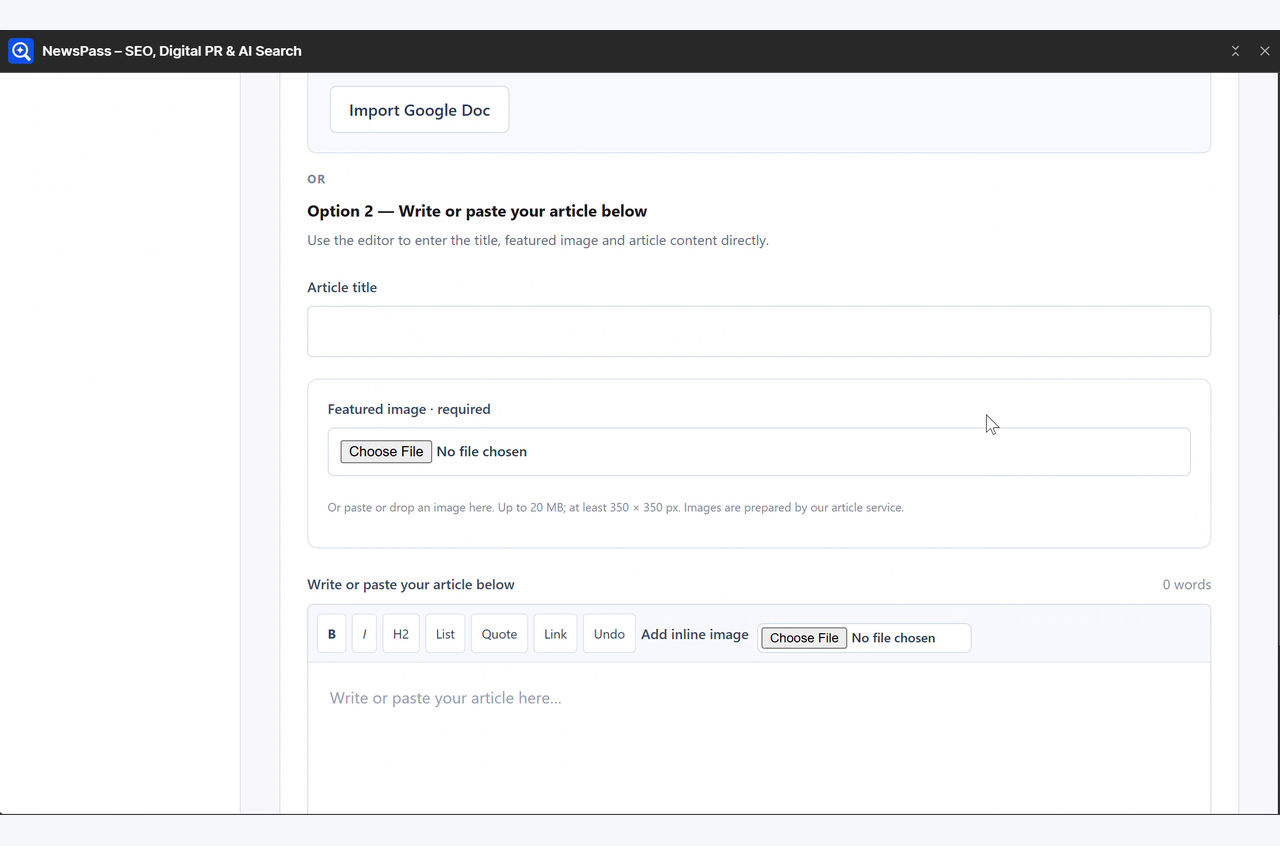
- Write or paste directly. Add your headline and article in the editor. Use its formatting tools for headings, lists, links and inline images.
- Or import a Google Doc. Paste a document link into the import section and choose Import Google Doc. The document must be accessible to the import service. Import replaces the current draft content, so check the title, links, images and paragraph spacing afterward.
- Add the required featured image. Use the file picker, or the supported paste/drop options. Follow the size and file-type guidance displayed in the app. Add inline images where they improve the story.
- Save and preview. Choose Save article to retain your draft. Select Preview & Submit Article to check its layout, title, featured image and body before sending it.
- Submit when ready. In the preview, choose Check & Submit to enter the standard NewsPass editorial workflow. Your existing account’s review and credit rules apply.
Saving or previewing a draft does not use a placement credit. A Google Doc archive is created automatically after submission; it may take a little time to appear in history.
Start with a stronger story
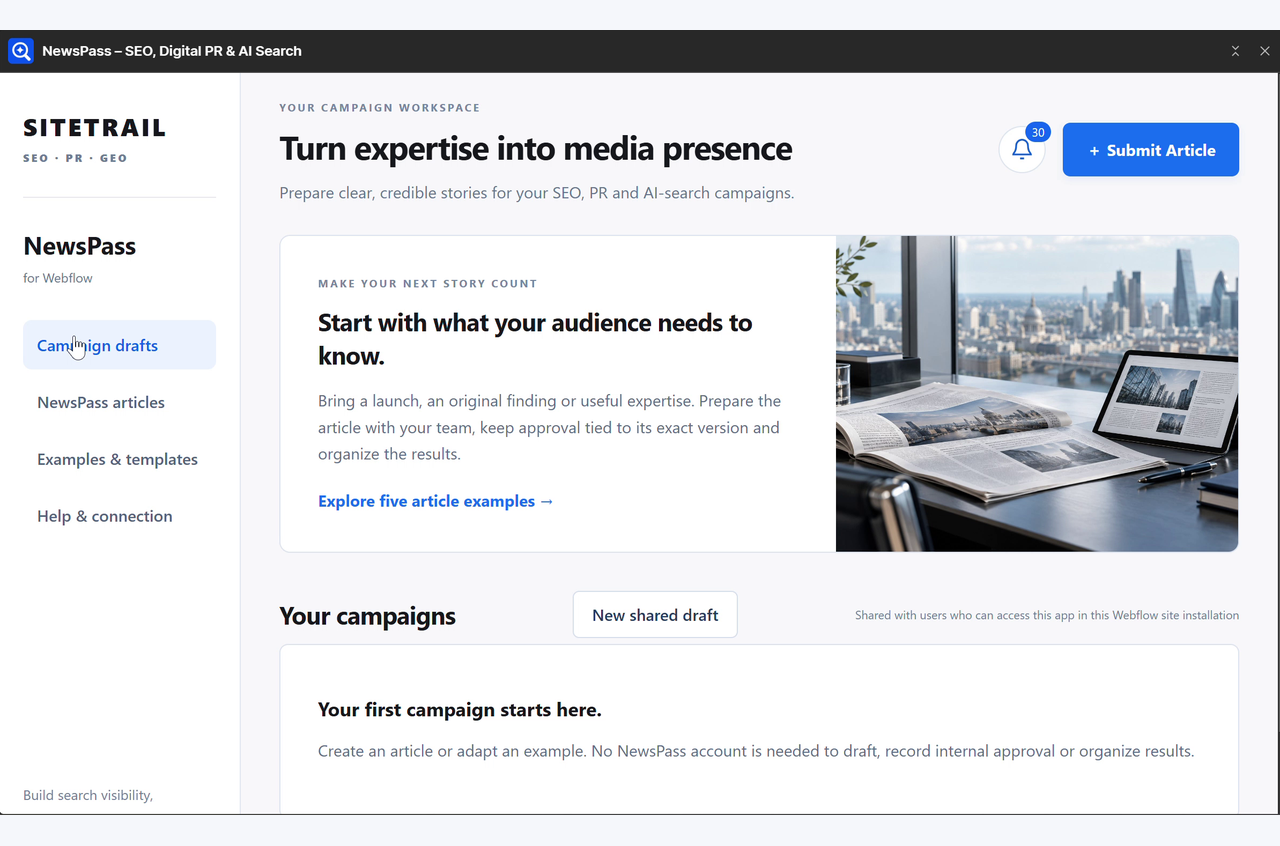
Examples & templates contains five practical starting points: a business announcement, expert perspective, practical guide, buyer’s question and customer success story. Replace sample businesses, quotations and claims with verified information before using an example.
For SEO, PR and AI-search discoverability, answer a specific audience question, add first-hand expertise and support useful claims with evidence. Brand mentions and relevant links give readers and search systems more context about your business. Rankings, indexing and AI citations are not guaranteed.
Campaign drafts is an optional shared preparation space. Your team can save drafts, approve a particular version, export the article and organize result links. Internal approval does not submit an article or use a credit. Use Choose publication & prepare submission when a shared draft is ready for the NewsPass workflow.
4. Follow feedback, article history and live results
Open NewsPass articles for your connected account’s history, including work submitted through Sitetrail. Each record shows its publication and current status. Where available, use Open & edit article, View live article or View Google Doc.
If changes are requested, open the article, read What needs changing, revise the editable version and preview it before resubmitting. Submitted articles that are processing or complete are read-only. Check history before retrying if a submission appears to time out.
The notification bell brings editorial feedback and placement updates together. Open an update to view the related article. Refresh history or notifications to check for newer results. Publication requirements and turnaround depend on the destination; some placements involve editorial handling.
Plans, billing and placement credits
The Webflow connector is free to install. Campaign preparation and examples are available without buying placements. Media placements and automatic NewsPass account synchronization require a separate paid Sitetrail NewsPass subscription. Installing or authorizing the app does not make a purchase or grant free articles.
Buy or manage that subscription on Sitetrail. Webflow uses the same standard NewsPass pricing, publication tiers and allowance as your Sitetrail account. Credits are shared between both interfaces; the Webflow app does not create a second balance. Businesses and agencies can prepare work for multiple brands.
For current prices, included allowances, publication access and billing terms, see NewsPass plans on Sitetrail and the terms shown at checkout.
Help and common questions
The app says to connect Webflow again
Open it from the authorized site’s Designer, complete the connection and return to the app. An expired authorization link should be replaced by starting the connection again.
I can see history but cannot submit
Check that you have connected a submission-enabled key, an eligible active NewsPass subscription and available allowance. Read-only keys cannot send articles. Contact support if the account details look wrong or submission remains unavailable.
Google Doc import or an image does not work
Check that the document is accessible, that the image meets the app’s displayed requirements and that preparation has finished. Keep a copy of your text before replacing a draft through import. If an error persists, send support the article reference and the error message.
Who can see my work?
Campaign drafts are shared with users who can access this app in the same Webflow site installation. The connected NewsPass account, allowance and personal article history are private to the verified Webflow user and site connection. Share client information only with people who should see it.
How do I disconnect?
Use Help & connection → Disconnect my account to remove the app’s stored NewsPass connection. This does not cancel your Sitetrail subscription. Revoke the key in your Sitetrail account to invalidate it, and manage the app’s Webflow access from your Webflow workspace integrations.
Need direct help?
Email [email protected] with your article reference, what you expected and the message you saw. Do not send passwords or connection keys.
NewsPass is a Sitetrail product and is not affiliated with or endorsed by Webflow or Google.